
Sometimes, after you update Windows on your PC, some Microsoft Store apps may stop working and display greyed-out icons in the Start Menu. This bug primarily targets common utility apps, and the effect is that their app tile and icon appear greyed out. When you click on them, they immediately shut down.
Microsoft Store apps greyed out in Start Menu
If Microsoft Store app icons are greyed out with an exclamation mark or underline in the Start Menu, here are some working fixes that are sure to help you:
- Run the Windows Store Apps troubleshooter
- Repair or Reset the Microsoft Store app
- Reinstall the problematic app
- Update your graphics card driver
- Re-register Microsoft Store on your PC.
1] Run the Windows Store Apps troubleshooter
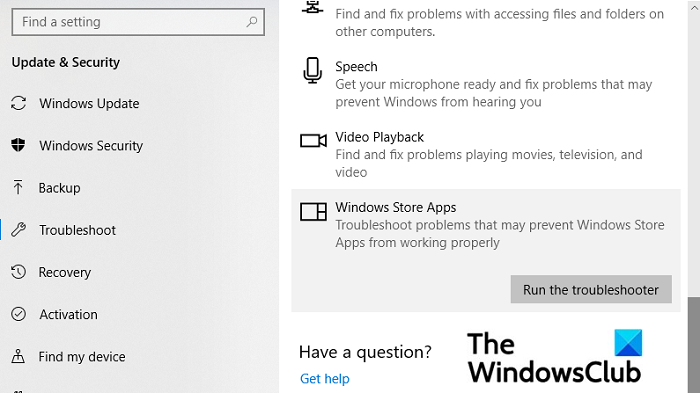
- Press the Windows+I keys combination to open Windows Settings and select System on the left side
- From the options pane to your right, click on Troubleshoot
- Scroll down and on the bottom, you’ll see an option to troubleshoot Windows Store Apps.
- Select that and click on Run the Troubleshooter. The process will take a while and report to you if there are any issues with your Store apps
2] Repair or Reset the Microsoft Store app
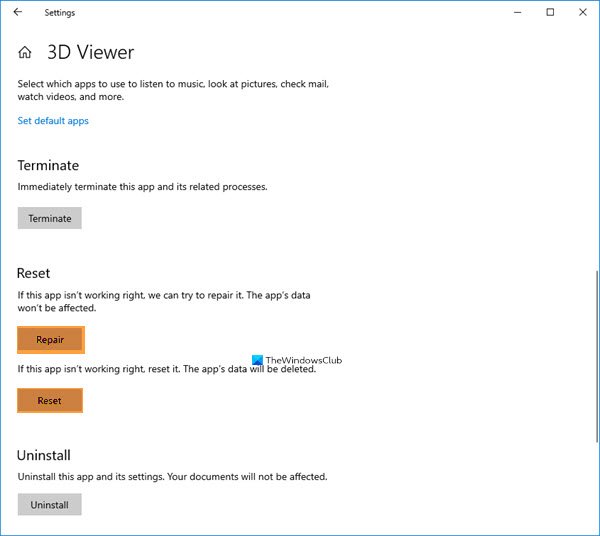
Repair or Reset the Microsoft Store app via Settings and see if that works for you.
3] Reinstall the problematic app
You can use PowerShell or Settings to uninstall the problematic app and then visit Microsoft Store’s web portal to reinstall it.
Related reads:
- Install button is greyed out for some Apps or Games in Microsoft Store
- Uninstall button for app greyed out in Settings; How to uninstall such apps?
4] Update your graphics card driver
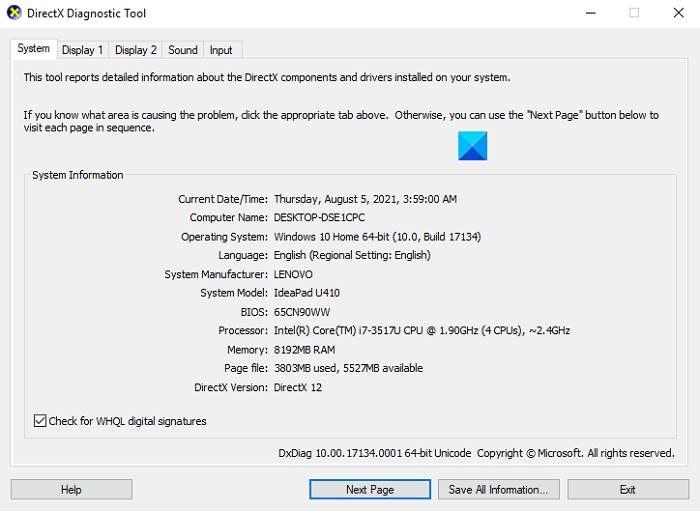
An outdated graphics card driver can also cause this error to occur.
- Open the Run dialog box and type ‘dxdiag’, this will open the DirectX Diagnostic Tool which we’ll use to make a note of your computer’s graphics card
- Have a look at your computer’s model and the graphics card it uses.
- Then, visit the official website of your graphic card’s manufacturer and download the latest one available
- Once downloaded, install the driver.
5] Re-register Microsoft Store on your PC
If the issue lies with the credentials of your Windows Store, you can give re-registering it a shot too. Here’s how you can do that.
- Search for PowerShell in the Taskbar search pane and open it to run as the administrator
- Type the following command and press enter:
Get-AppXPackage | Foreach {Add-AppxPackage -DisableDevelopmentMode -Register "$($_.InstallLocation)\AppXManifest.xml"}
- The process will take some time to complete so wait a while and once done, open the Run dialog box
- Here, type ‘wsreset.exe’ and hit Enter. The process will finish when your Windows Store will be reset and this will do that.
Background apps greyed out in Windows 11
If the Background apps are greyed out in Windows 11, try the following steps: reinstall the app, enable Background Apps via the Group Policy Editor, reset the Windows Store Cache, and run the Windows Store Apps Troubleshooter.
What do I do if my Microsoft Store won’t open?
A similar issue, related to the one discussed above, and one that causes even more trouble, is when the Microsoft Store itself doesn’t open. Here are some of the things you can do if you experience that too:
- Check for connectivity problems and make sure you’re signed up with the right Microsoft account
- Ensure that your PC is running on the latest Windows updates
- Reset Windows Store by following the process outlined in the fourth workaround above
We hope this post has cleared all your doubts and that you are no longer experiencing any issues with the Calendar app.
