
If MS Outlook Encryption does not change, and the app refuses to update its message-level encryption settings, even after users modify policies or toggle encryption options. This post will help you address the issue. In this article, we will see what to do if MS Outlook Encryption does not change and why this happens.
Fix Outlook Encryption not changing
This problem often occurs when your local Outlook client uses outdated cached policy data rather than obtaining the latest encryption or labeling settings from Microsoft 365. Outlook has multiple caches, such as the Rights Management/IRM, Sensitivity Label, and Autodiscover caches. If any of these caches are outdated or damaged, changes made in the admin center might not take effect.
Outdated S/MIME certificates, old registry values, or strict transport rules can also prevent new settings from taking effect. Additionally, if there are delays in synchronizing Azure Information Protection (AIP) policies, Outlook may still apply old encryption rules even after updates are made.
If Outlook Encryption is not changing, follow the solutions below.
- Clear Outlook’s Sensitivity Label/Encryption Policy Cache
- Re-sync encryption policy
- Reset S/MIME or remove Outdated Certificates
- Check and Remove Conflicting Mail Flow/Transport Rules
- Reset Autodiscover and Outlook Profile Encryption Metadata
Let us discuss them in detail.
1] Clear Outlook’s Sensitivity Label/Encryption Policy Cache
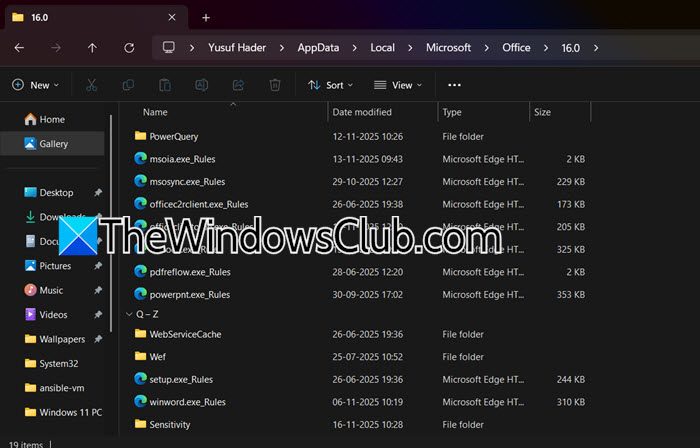
Outlook stores MIP (Microsoft Information Protection) and IRM policy data locally. Therefore, clearing the cache forces Outlook to fetch updated policies from Microsoft 365, which should technically resolve the issue. If you want to clear the mentioned cache, follow the steps below.
- Close Outlook completely (from the Task Manager, preferably).
- Now, go to %localappdata%\Microsoft\Office\16.0\Sensitivity.
- Delete all files under the folder.
- Then, clear the IRM folder from %localappdata%\Microsoft\MSIPC.
- Reopen Outlook and wait for 1-2 minutes for policies to reload.
Note: You might need to change the path slightly depending on your Office version.
Finally, check if the issue is resolved.
2] Re-sync encryption policy
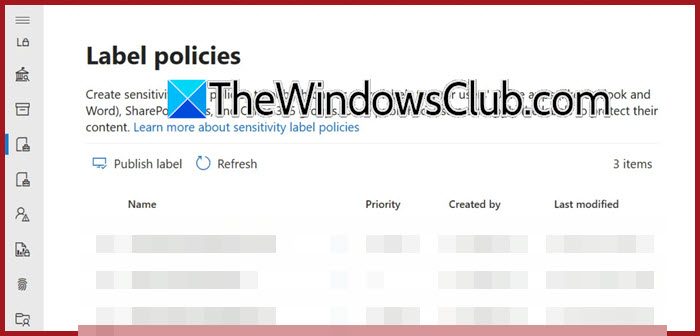
If recent encryption or labeling changes were made in M365, Outlook may not yet have synced them. Therefore, we need to force the re-sync encryption policy from the Microsoft 365 Compliance Center. To do the same, follow the steps mentioned below.
- Go to compliance.microsoft.com.
- Then, navigate to Information Protection.
- Open your Label Policies and re-publish them (no change required)
Now, wait 10-15 minutes.
Then, in Outlook, go to File > Office Account, and then click on Update Now.
Finally, restart Outlook to force policy download.
3] Reset S/MIME or remove Outdated Certificates
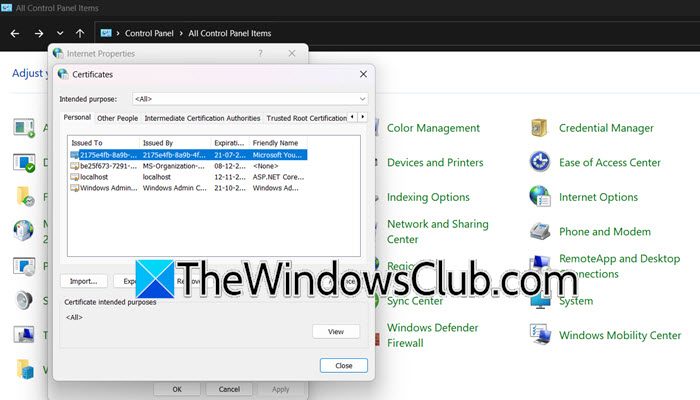
If Outlook still points to an expired or invalid certificate, encryption will fail or won’t change. Therefore, we need to reset S/MIME or remove the Outdated Certificates using the steps mentioned below.
- Open Control Panel.
- Change the View by to Large icons.
- Now, go to Internet Options > Content.
- Go to Certificates.
- Check the Personal tab for expired or duplicate S/MIME certificates.
- Remove outdated ones.
- In Outlook, go to File > Options > Trust Center > Email Security.
- Re-select the correct certificate and save.
Finally, check if the issue is resolved.
4] Check and Remove Conflicting Mail Flow/Transport Rules
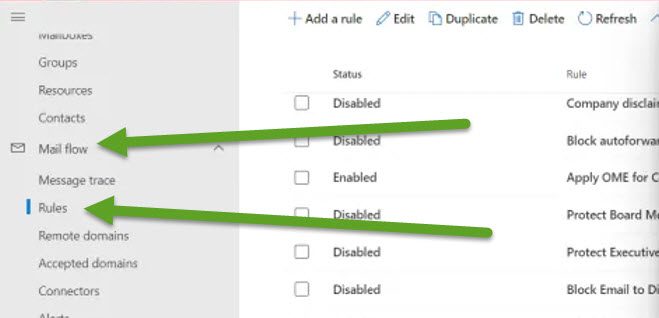
Tenant-level transport rules sometimes require encryption even when Outlook attempts to change the setting. Therefore, we need to check and remove conflicting Mail Flow/Transport Rules. Follow the steps below to do the same.
- Go to admin.exchange.microsoft.com.
- Then, navigate to Mail Flow > Rules.
- Look for rules that include actions such as “Apply Office 365 Message Encryption”.
- Disable or edit any rule overriding the user-level encryption setting.
Wait 5 minutes for propagation. Test sending the email again.
5] Reset Autodiscover and Outlook Profile Encryption Metadata
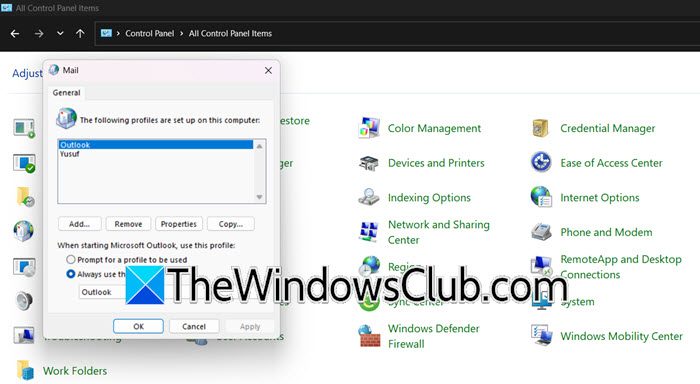
Autodiscover carries configuration for MIP labels, AIP policies, and encryption preferences. Corruption can prevent updates and cause this issue. In this solution, we will reset the Autodiscover and Outlook Profile encryption metadata. You can follow the steps mentioned below to do the same.
- Close Outlook completely.
- Open Command Prompt and run the following command.
ipconfig /flushdns
- Go to %localappdata%\Microsoft\Outlook.
- Inside this folder, you will NOT see a file literally named “autodiscover.xml”.
- Look for any file starting with ‘Stream_Autodiscover_’, ‘Stream_’, or files ending in ‘.dat’.
- Then, go to Control Panel > View by to Large icons > Mail > Show Profiles.
- Create a new profile and re-add the account
Finally, open Outlook and check if the issue is resolved.
Hopefully, with the help of these solutions, your issue will be resolved.
Also Read: How to encrypt Emails in Microsoft Outlook app and Outlook.com
How to fix encryption in Outlook?
To fix encryption issues in Outlook, start by clearing the local IRM/MIP cache, re-syncing sensitivity label policies, and verifying that your account uses an Exchange Online profile. You should also ensure that no mail flow rules override your encryption settings, and recreate your Outlook profile if the Autodiscover metadata is corrupted. These steps force Outlook to load fresh encryption configurations.
Read: What is Email encryption & how do you encrypt email messages
How to change Outlook encryption method?
To change the encryption method in Outlook, open a new email, go to Options > Encrypt, and choose the preferred method, such as “Encrypt Only,” “Do Not Forward,” or an S/MIME certificate if configured. Make sure Outlook Classic is enabled, the correct certificate is installed, and MIP policies have synced. Updating or recreating the Outlook profile ensures that the new encryption method is applied properly.
Also Read: Free Email Encryption Add-ins for Outlook.
