
In this article, we will see the possible solutions to fix the OneNote sync error 0xE0190193 (403: Forbidden). In computing, the 403 Forbidden error occurs due to permission issues. Therefore, if you are receiving the OneNote sync error 0xE0190193 (403: Forbidden), then you have permission issues with that particular notebook. OneNote displays this error when you are trying to access the shared notebook that is no longer available to you. This usually happens when the server administrator or the notebook owner has changed your permissions to access it.
OneNote sync error 0xE0190193 (403: Forbidden)
Some users have reported receiving the OneNote sync error 0xE0190193 (403: Forbidden) despite being the notebook owner. You can try the following solutions if OneNote is not syncing.
- Log out of OneNote and log in again
- Change the save location of your notebook
- Contact the server administrator or owner of the shared notebook
Let’s see these solutions in detail.
1] Log out of OneNote and log in again
If, despite being the owner of your notebook, you are not able to access it, log out of OneNote and then log in again. The steps to log out of OneNote are as follows:
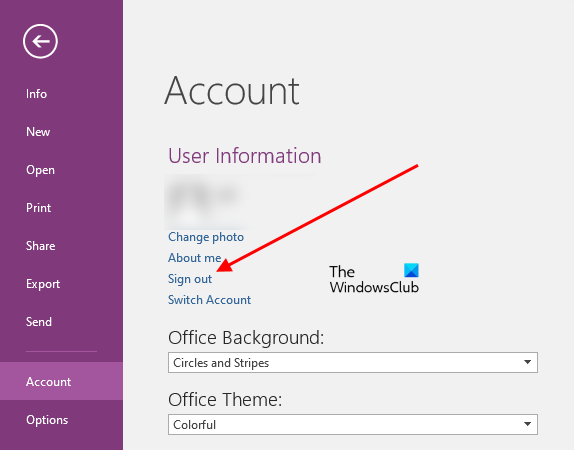
- Open OneNote.
- Go to “File > Account.”
- Click on the Sign out button. After that, you will receive a prompt message that signing out from OneNote will also sign you out from other Office apps. Click Yes.
- After signing out from OneNote, close it, wait for a few minutes, and launch it again.
- Now, go to “File > Account” and sign back in by entering your credentials.
Now, check whether you can access your notebook. If not, try the next solution.
2] Change the save location of your notebook
As explained above in the article, the 403: Forbidden error in OneNote occurs due to permission issues; changing the location of the notebook you are experiencing the error with can fix the problem. The steps to change the save location of your OneNote notebook are listed below:
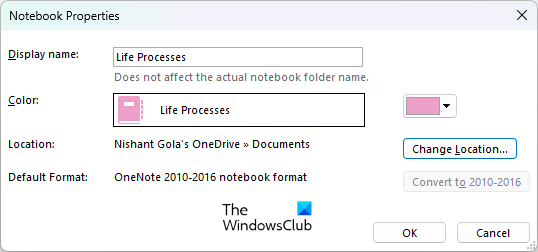
- Open OneNote.
- Open the notebook which is giving you the sync error 0xE0190193.
- Right-click on the notebook and select Properties.
- In the Notebook Properties window, click on the Change Location option.
- You have to enter your username and password.
- After that, choose a sync location for that notebook.
This should fix the sync error.
3] Contact the server administrator and owner of the notebook
If you are experiencing the OneNote sync error 0xE0190193 on a shared notebook, it might be possible that the owner of the notebook has intentionally or mistakenly changed your rights to access that notebook, and now, you are no longer eligible to access that notebook. In such a case, nothing can be done except to contact the owner of the notebook. Contact the owner of the notebook and ask him to check your permission to view or edit the notebook.
Hope this helps.
Read: Best free OneNote Templates for Students.
How do I fix the OneNote sync error?
If your internet connection is not working fine, OneNote experiences problems in syncing your notebooks and displays different sync errors. However, there are other scenarios too in which OneNote displays sync errors. There are some solutions that can fix almost all OneNote sync errors. You can try these fixes.
- Sign out from OneNote and sign back in.
- Force sync OneNote notebooks.
- Check the OneDrive Health Status. If OneDrive shows an outage, you will see sync errors for notebooks stored in OneDrive.
- Create a new notebook or section and move the content into it.
Read: Fix OneNote Not working, Not opening, Problems, Errors, Issues.
How do I get rid of the 403 Forbidden error?
If you are getting the 403 Forbidden error in Microsoft Office 365, first open the private mode of your web browser (Incognito mode in Chrome, Private mode in Firefox, and InPrivate mode in Edge). Now, check whether you can log in to Microsoft Office 365. If yes, there is some corrupted cache in your web browser. Hence, delete your web browser cache. If you are not able to log in to Microsoft Office 365, contact your administrator.
Read next: Fix OneNote sync error 0xE000002E.
