
InPrivate Browsing enables you to surf the web without leaving a trail. It is used to give the user the option of choosing what information to share while browsing. When InPrivate Browsing is enabled, new cookies are not stored, and temporary internet files are deleted after InPrivate Browsing is closed. Cookies are stored in memory, allowing pages to function correctly, but they are cleared when you close the browser. Temporary Internet Files are stored on disk, allowing pages to work correctly, but they are deleted when you close the browser. History, Auto-complete, Form data, Passwords, etc., are not stored.
InPrivate Browsing in Edge is referred to as Incognito Mode in Chrome, Private Browsing in Opera, and Private Browsing in Firefox.
How to start Private Browsing in Firefox
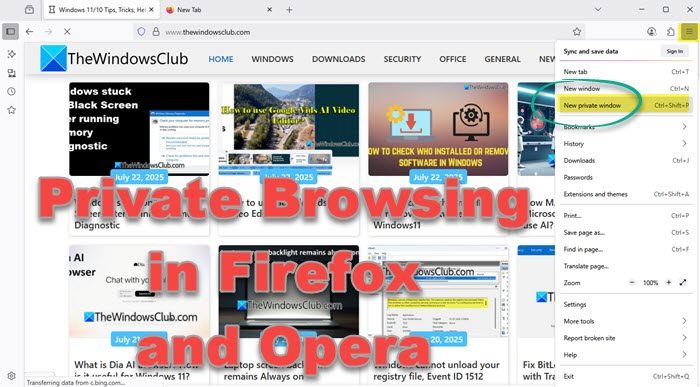
In a Private Browsing window, Firefox won’t keep any browser history, search history, download history, web form history, cookies, or temporary internet files. However, files you download and bookmarks you make will be kept.
To launch the Mozilla Firefox browser in private browsing mode, click on Settings > New Private Window. The keyboard shortcut Ctrl+Shift+P works here too.
You can also right-click on the Firefox taskbar icon and select New private window.
How to display Current Page in Private window of Firefox browser
The Private Browsing mode of web browsers is a very useful addition, as it prevents a browser from saving your browsing history and prompts websites you visit not to track you. The default method to use this feature in different browsers is known to us. However, the method does not let us open only a copy of the current page in a new Private window. A simple extension for Firefox browser – Open Page in Private Window can overcome this shortcoming.
“Open Page in Private Window” is a Firefox extension that enables you to easily open a copy of the current page in a new Private window. The feature is of immense use, especially when reading articles of websites that limit the number of articles you can read per month.
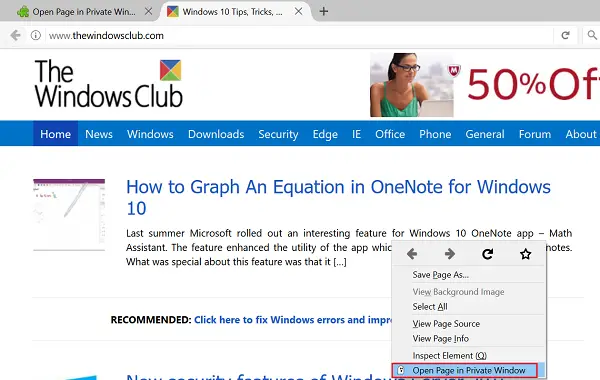
Open Page in Private window is a browser add-on. Once installed, the addon adds a Ghost icon to the toolbar of the browser and also offers context menu option.
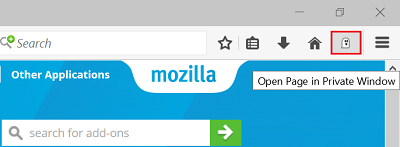
You can use either of the two options to open a copy of the current page in a private window.
Please note, this extension does not clear your browsing history or close the original tab. You can activate this extension from the “Open Page in Private Window” context menu item or an optional toolbar button.
Some users do not prefer using private browsing modes that web browsers like Firefox, Opera, Google Chrome offer. That’s because they may be the only person and thus the sole individual using the PC. In such cases, it may not be necessary to protect privacy using private browsing sessions.
That said, the situation may be different when using public PCs, work PCs, or other shared computer systems. In that case, it’s always advisable to protect one’s privacy from the prying eyes of others or avoid any untoward incident by leaking secret details or other confidential data. Get the Firefox extension here.
Read: Is Private browsing really safe? When should you use Incognito mode?
How to start Private Browsing in Opera
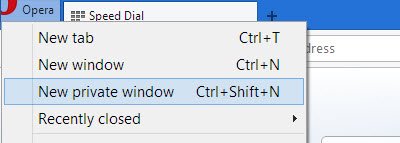
When you opt for private browsing using Opera, when you close the window, Opera will delete browsing history, items in the cache, and Cookies for this webpage.
To do so, click on the Opera settings button > New private window. For Opera, the keyboard shortcut is Ctrl+Shift+N.
Right-clicking on the Opera taskbar icon and selecting New private window will also start private browsing.
How do I see private windows in Firefox?
To open a private window in the Firefox browser, you can click on the hamburger menu and select the New private window option. However, if you want to see an opened private window, you can switch between normal and private windows from Taskbar. The private windows are tagged as Private Browsing.
How can I see what has been viewed in private browsing Firefox?
There is no option to see what has been viewed in private browsing windows in the Firefox browser. Whether it is Firefox, Google Chrome, or Microsoft Edge, you cannot check what has been opened in Incognito or private browsing mode once it is closed by the user. That is why it is called private browsing.
TIP: This post will help you if Firefox gives out an error message – File could not be saved because the source file could not be read.
Read: What does Private or Incognito mode do and not do?
BONUS TIPS:
Open InPrivate window in Edge browser
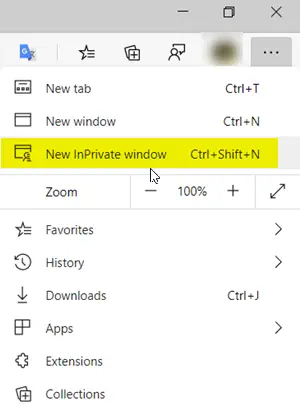
InPrivate Browsing helps prevent the Edge browser from storing data about your browsing session. This includes cookies, temporary Internet files, history, and other data. Toolbars and extensions are disabled by default.
In the Microsoft Edge browser, click on the 3-dotted link and select New InPrivate window.
Launch Incognito Mode in Chrome
The Incognito browsing mode in Chrome lets you browse in stealth mode. When you use this mode, webpages that you open and files downloaded while you are incognito aren’t recorded in your browsing and download histories. All new cookies are deleted after you close all incognito windows that you’ve opened. Moreover, changes made to your Google Chrome bookmarks and general settings while in incognito mode are always saved.
To start it, click on the Chrome menu and select > New incognito window. The keyboard shortcut for Chrome is Ctrl+Shift+N.
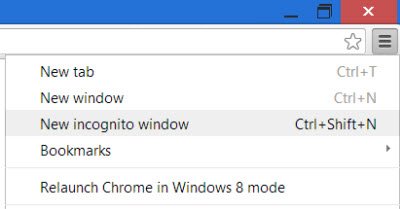
Like all the other browsers, you can right-click on the Chrome taskbar icon and select New incognito window.
Do note that when you start private browsing, the color of the private windows icon in its top-left corner will change color or sport a new icon.
Start InPrivate Browsing in Internet Explorer
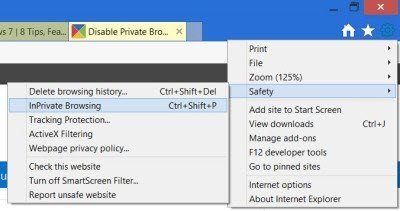
To launch InPrivate Browsing in Internet Explorer, click on Settings > Safety > InPrivate Browsing. You can also use the keyboard shortcut Ctrl+Shift+P to launch it.
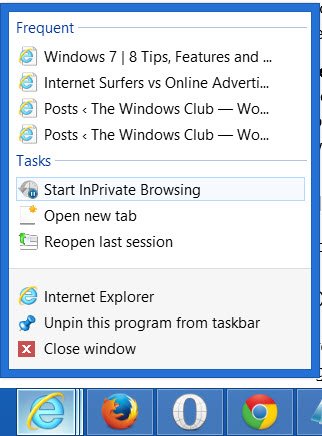
Alternatively, you can right-click on the IE taskbar icon and select Start InPrivate Browsing.
Next, we will see how to disable private browsing in Chrome or Firefox, should you wish to do so for whatever reason.
