
If OneNote sections or pages have disappeared or gone missing or you cannot find the same data on the web or desktop version, here is how to fix the problem. This issue mainly occurs due to a OneNote synchronization problem. This article explains the possible reasons and solutions for getting it fixed.

OneNote Sections or Pages disappeared or gone missing[Fix]
If OneNote sections or pages have gone missing, follow these solutions to resolve the issue:
- Check internet connection
- Verify OneDrive service health
- Sync manually
- Sign out and re-sign into OneNote
- Create new section and copy data
- Clear OneNote cache
- Use OneNote Diagnostic Tool
To learn more about these solutions, continue reading.
1] Check internet connection
It is the first thing you must check since synchronization requires a valid internet connection. To verify your internet connection, do the following:
- Press Win+R to open the Run prompt.
- Type ping ping 8.8.8.8 -t and click the OK button.
Your internet connection is fine if you see consistent ping times. However, you need to change the internet connection if you see any other message.
Bonus tips: If you have enabled VPN or proxy, you can disable them temporarily. At times, VPN or proxy servers could cause internet connection issues.
2] Verify OneDrive service health
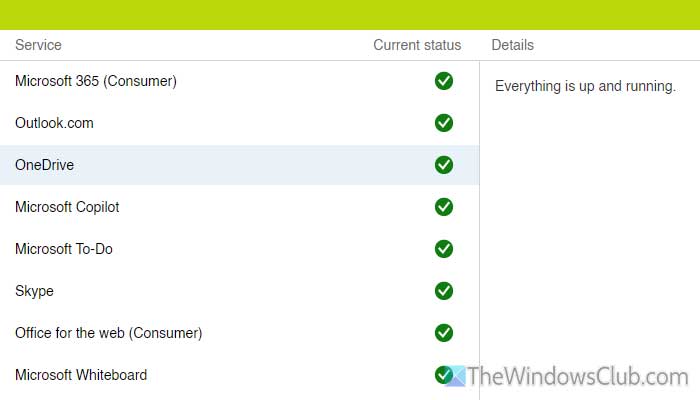
OneNote uses OneDrive to synchronize data. If OneDrive is down, your notebooks cannot be synchronized. That is why you can head to the portal.office.com and check if there is any issue with OneDrive or not. If yes, it is better to wait for some time.
3] Sync manually
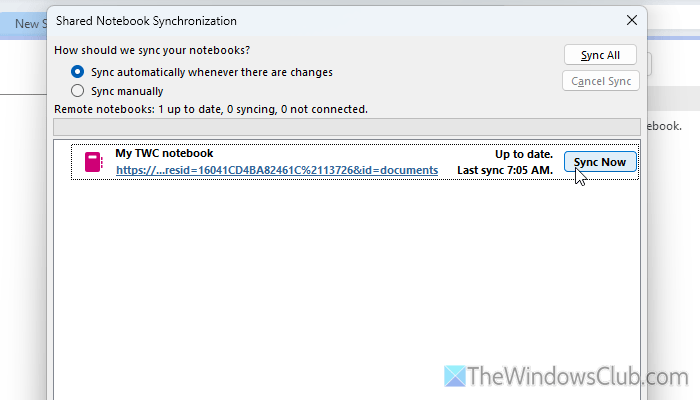
Sometimes, OneNote might not synchronize your notebooks automatically for various reasons. It could be due to a poor internet connection, a corrupted system file, etc. In such situations, you need to synchronize them manually. For that, do the following:
- Open the OneNote app on your computer.
- Click on File > Info.
- Click the View Sync Status button.
- Select the notebook you want to synchronize or are having problems with.
- Click the respective Sync Now button.
It is very important to choose Sync automatically whenever there are changes option before closing the window so that you do not need to go through all those steps every time you make a change.
4] Sign out and re-sign into OneNote
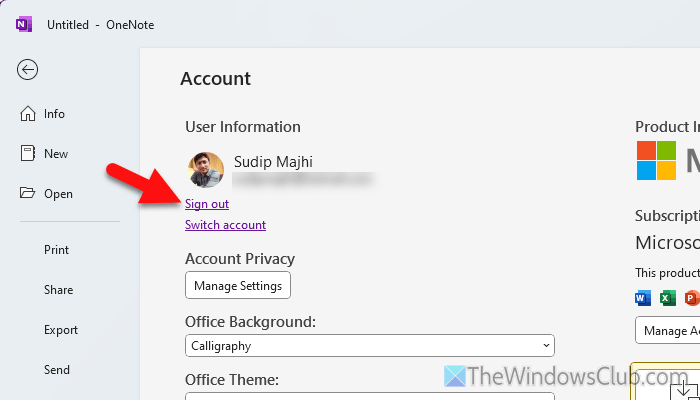
If your OneNote or Microsoft account has some internal issues, you could face the same problem. That is why it is suggested that you sign out of your account and re-sign into it. For that, do the following:
- Open the OneNote app first.
- Click on File > Account.
- Click the Sign out button.
- Click on the Yes button to confirm.
- Click the Sign in button and enter your login credentials.
Once done, open the same notebook and edit a few words or so.
5] Create new section and copy data
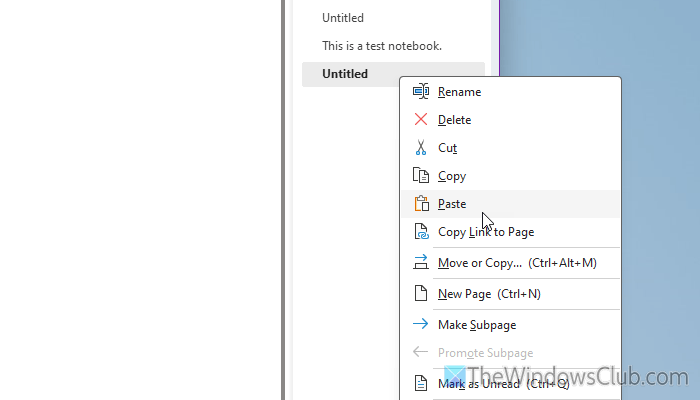
At times, the current section or pages may not be synchronized due to some add-ins. In that case, you can create a new section and copy the data. For that, follow the following steps:
- Open the OneNote app.
- Select the notebook first.
- Click the plus icon to create a new section.
- Enter a name with copy suffix to recognize it quickly.
- Open the original section and right-click on the desired page.
- Select the Copy option.
- Open the new section.
- Right-click on the pages section and select the Paste option.
After that, check whether the problem is resolved.
6] Clear OneNote cache
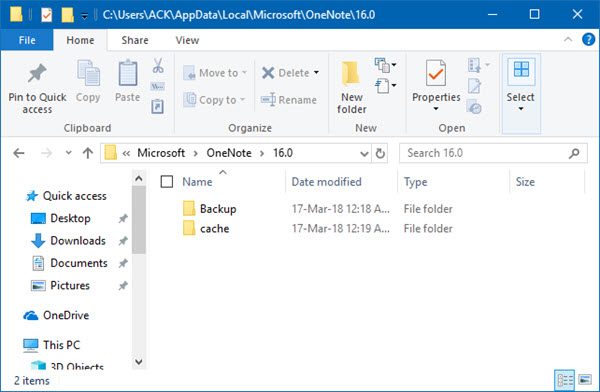
To delete the OneNote cache, follow these steps:
- Open the File Explorer on your computer.
- Navigate to this path: C:\Users\[username]\AppData\Local\Microsoft\OneNote\16.0
- Right-click on the Cache folder and select the Delete option.
- Confirm the removal.
Read: Cannot delete a section in OneNote
7] Use OneNote Diagnostic Tool
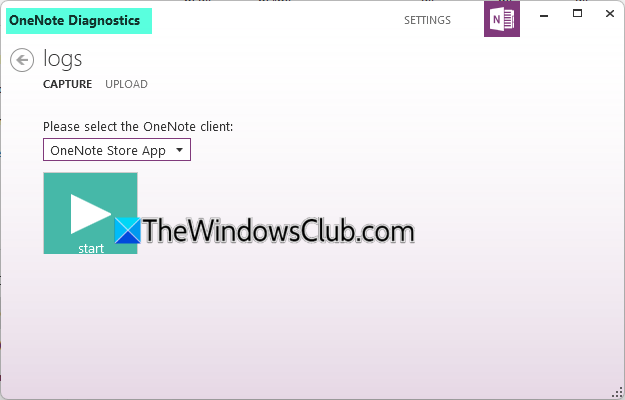
OneNote Diagnostic Tool is a one-stop solution for all common synchronization problems. It runs smoothly on Windows 11 and Windows 10. It enables users to collect and send Diagnostics Logs from within OneNote to help the Support team when working with customers on issues they are experiencing. Therefore, you can head to Microsoft.com and download the diagnostic tool first. Then, run the MSI package to install it. Then, open the app and follow the screen instructions.
I hope these solutions fix your problem.
Read: Guide to fix OneNote Sync problems and issues
My OneNote notes disappeared
If your OneNote notes have disappeared, first check if you’re signed in with the correct account. Then look in the Deleted Notes or Recycle Bin section, as they may still be recoverable. If you use OneDrive or SharePoint, verify that your notebooks are syncing properly and check the online version. You should also check the backup folder. Finally, try restarting your PC and then see if that helps.
OneNote notes disappeared after sync
If your OneNote notes disappeared after a sync, first check the Deleted Notes or Notebook Recycle Bin to see if they were moved there; then verify you’re signed in to the correct Microsoft account across devices; next, check OneNote Online to confirm the notes exist in the cloud. If missing, try restoring from a previous version of the notebook via OneDrive.
How do I recover a missing section in OneNote?
There are two methods to recover a missing section in OneNote. First, you can open OneNote and go to the History tab. Select Recent Edits and select a day that fits your requirements. Go through the edits. Second, open the History tab and go to Notebook Recycle Bin. Find the deleted items and restore them accordingly.
Where did my OneNote page go?
OneNote pages can disappear if they are not synchronized correctly. You can check the Recent Edits in the History tab to find all the recently edited data. On the other hand, you can open the OneNote Recycle Bin to find all deleted items.
Read: Fix OneNote Not working, Not opening Problems, Errors, Issues.
