
In this article, we explain in detail on how to share OneNote notebook with another user during a meeting. It’s worth noting that if you have already created a notebook on your local computer, you need to share it explicitly to OneDrive to share it during a meeting.
OneNote is a popular program for presenting one’s ideas, and lists and saving useful information all in a single place in order to make notes and also share it over the internet.
OneNote for Windows automatically syncs your notes on your OneDrive account, and if the notes are stored locally, you have to upload them to OneDrive to share it over the internet. Some of the major benefits of uploading notebooks to OneDrive are that it allows users to edit and read the notes across any device, and it also lets users share the notes with friends.
One can also get their colleagues to collaborate with the help of OneNote during the meeting irrespective of the location. For example, suppose you are in a formal meeting to follow up on a predetermined agenda or discuss important information; we generally jot down the essential data in a notebook during the meeting. But most of the time, we miss out on some key points as it’s not possible to catch everything that is discussed in the meeting. What if you could assemble all the notes taken by your colleagues along with you? Well, with the help of OneNote, you can let other colleagues take notes along with you. To do this, all one has to do is keep the OneNote notebook in a shared location like OneDrive and choose your colleague as a participant to add the meeting notes. This is one of the most useful ways of getting your colleagues, friends and other people to collaborate during the meeting.
How to share OneNote notebook during a meeting
- Go to Start and type OneNote.
- Open OneNote and choose the Shared notebook.
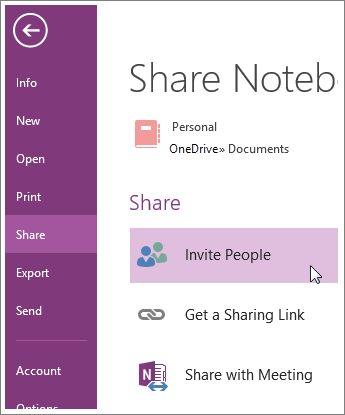
- Now click the Share button and click on Invite People. The invited participants will receive a message with a link to the shared notebook.
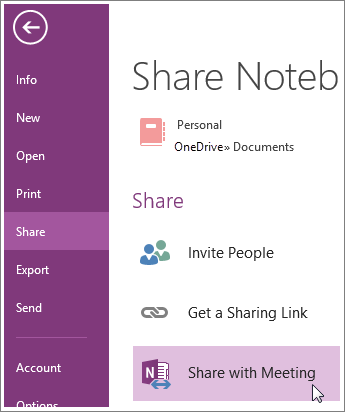
- Now click on the Share button and choose the Share with Meeting option.
Once all participants in the notebook have sufficient permission to edit the notes, they can add data to the meeting notes at the same time, regardless of location.
OneNote syncs all the notes automatically, displaying every participant’s notes.
That’s all!
Now read: How to share your OneNote Notebooks online.
