
Are you frustrated when encountering AppVIsvSubsystems64.dll error in MS Office? This can be frustrating as it prevents apps like Word, Excel, or Outlook from functioning properly. The error is typically associated with corrupted DLL files, outdated updates, or file corruption. Whatever the cause may be, in this article, we will investigate thoroughly and find solutions for them.
C:\Program Files\MicrosoftOffice\root\Office16\AppVIsvSubsystems64.dll is either not designed to run on Windows or it contains an error. Try installing the program again using the original installation media or contact your system administrator or the software vendor for support. Error status 0xc000012f.
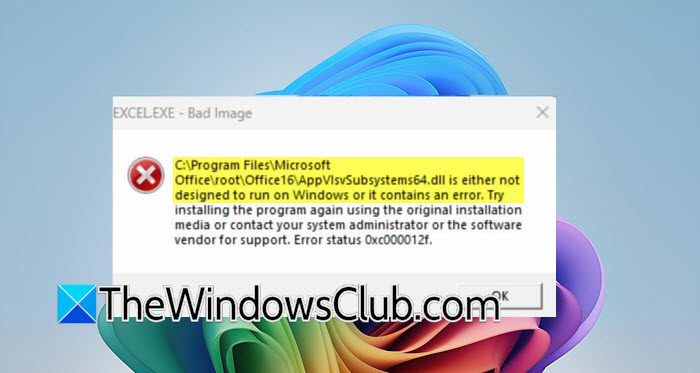
Fix Office AppVIsvSubsystems64.dll Error
If you are encountering Office AppVIsvSubsystems64.dll error, execute the solution mentioned below.
- Run the Office Repair tool
- Update MS Office and Windows
- Run System File Checker and DISM
- Boot into a clean boot and reinstall MS Office
Let’s get started with this troubleshooting guide.
1] Run the Office Repair tool
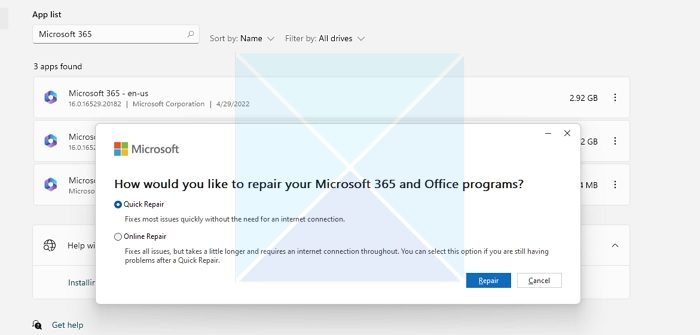
Before attempting more complex manual fixes, we will run the built-in Microsoft Office Repair tool to diagnose and resolve common installation errors and automatically repair corrupted files. To do this, follow the steps mentioned below.
- Click Win + I to open Settings, and click on Apps.
- In the Installed apps window, scroll down through the list to find the Microsoft Office product.
- Click on the app, select the Modify option, and then select from the available options: Quick Repair or Online Repair. The first one takes less time, whereas the latter one should only be used when the former one does not fix the error.
Follow the on-screen instructions, and then restart your device once the repair is complete. Once it reboots, see if the error is resolved. If it doesn’t, move to the next solution.
2] Update MS Office and Windows
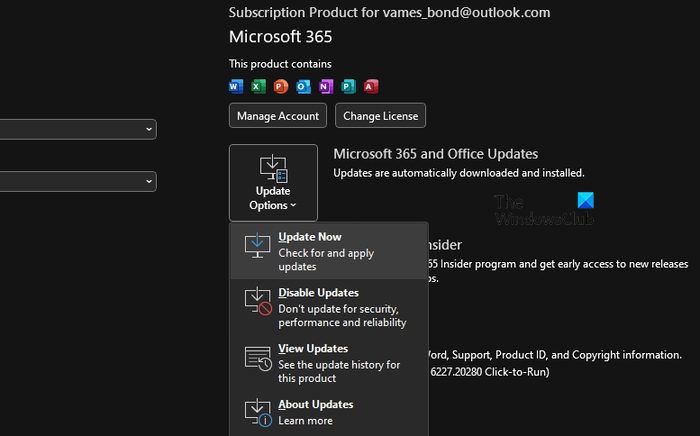
Outdated software can cause conflicts and errors like the one we are facing. MS Office and Windows must be fully updated to avoid any compatibility issues, and doing so also replaces potentially corrupted system files that Office depends on. To update MS Office, follow the steps mentioned below.
- Open any Office app, go to File, and click on Account.
- Under Product Information, click on Update Options, and then select the Update Now button. Let the process complete, and then reboot the PC.
- To update Windows, open Settings by clicking Win + I, navigate to Windows Update, and click Check for Updates.
- Install all recommended and important updates that are found. Additionally, click on Advanced options or View optional Updates to check and install any driver or other optional updates that may be relevant.
After all the updates are installed, restart the device and check if the error message is still displayed. Go ahead and apply the next fix if the issue remains.
3] Run System File Checker and DISM
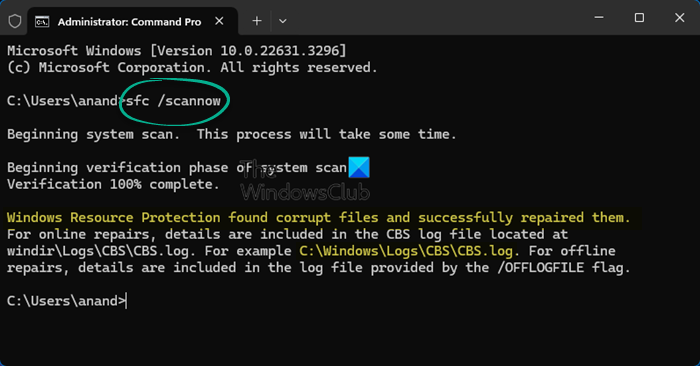
Corruption in the component store or protected files can surface as image errors when Office loads dependencies. Microsoft advises running DISM before SFC to restore the source, then repairing protected system files.
Open Command Prompt as an administrator and then run the following commands.
DISM.exe /Online /Cleanup-image /Restorehealth
sfc /scannow
Allow it to finish, reboot afterward and test Office.
If DISM or SFC cannot repair, follow Microsoft’s escalation: use an alternate source for DISM, or restore the component store before retrying SFC. This addresses deeper image corruption that can indirectly break Office loading dependencies. Run DISM with a known‑good source with the help of the following command.
DISM.exe /Online /Cleanup-Image /RestoreHealth /Source:C:\RepairSource\Windows /LimitAccess
Replace the path with a valid install media or network source, then rerun sfc /scannow and reboot.
If DISM errors persist, consider System Restore to a prior point where Office worked, then repeat SFC; Microsoft Q&A threads point to component hive repair when necessary.
4] Boot into a clean boot and reinstall MS Office
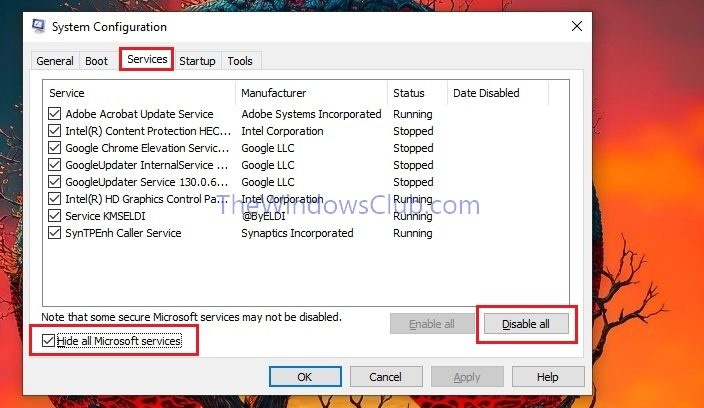
Last but not least, perform a Clean Boot to isolate software conflicts by starting Windows with a minimal set of drivers and startup programs. If the error disappears, a background service or third-party app is the culprit. However, if the error persists, the problem is isolated to the Office Installation itself. In this case, the most effective solution is to uninstall Office and then perform a complete reinstall. Hopefully, you won’t face any errors after a fresh install.
That’s it!
Read: Program can’t start because AppVIsvSubsystems32.dll is missing
How do I fix a missing DLL problem?
To fix a missing DLL problem, start by reinstalling the app that’s generating the error, as this often restores any missing file it requires. If the issue persists, download the specific DLL file from a trusted source and place it in the program’s folder. Alternatively, users can also run SFC to repair Windows System Files. Check our guide to know what to do when DLL files are missing.
Read: DLL is either not designed to run on Windows or it contains an error
What is a DLL fixer?
A DLL fixer is a type of software, often standalone or included in system repair suites. They are designed to automatically scan for missing, corrupt, or invalid DLL files and replace them by downloading copies from an online database or restoring them from backups. However, while this sounds convenient, many experts have cautioned against using them as they can sometimes install malicious, incorrect, or outdated files. This could further exacerbate the issue that the users were facing in the first place.
Also Read: The program can’t start because ApiClient.dll is missing.
