
Here is a full guide on how you can fix the error code BLZBNTAGT00000BB8 on Battle.net Launcher. Battle.net is a desktop game launcher that lets you install, update, and play games from Battle.net games on your PC. It is a handy game launcher. However, some users have reported of being encountering the error code BLZBNTAGT00000BB8 on Battle.net Launcher. This error code generally occurs when downloading or updating a game on this game launcher.
Now, if you are one of those users experiencing the same error code on Battle.net, you can follow this guide. In this post, we are going to mention multiple fixes which will help you resolve the error.
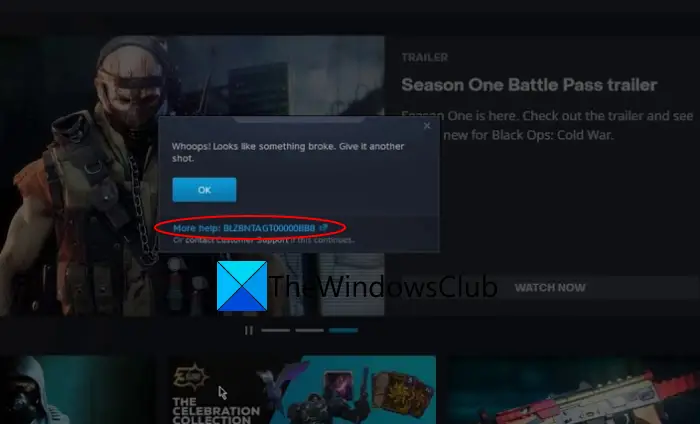
Whoops! Looks like something broke. Give it another shot. More help BLZBNTAGT00000BB8.
What causes the error code BLZBNTAGT00000BB8 on Battle.net Launcher?
Here are the possible causes of the error code BLZBNTAGT00000BB8 on Battle.net:
- If you are dealing with this error specifically with a Call of Duty title, you may be dealing with corrupted game files. In that case, you can try deleting some game files to verify the integrity of the game files and fix the error.
- It can also be caused due to interference with your overprotective security suite. If the scenario applies, you can disable your antivirus or add the Battle.net launcher to the list of exclusions or exceptions in your antivirus.
- If you are dealing with some internet problems, it can trigger this error. Hence, make sure you are using an optimal internet connection.
- Bad DNS range/ cache can also be a potential cause of this error. So, flush the DNS cache and see if the error is resolved or not.
- It can also be caused due to interference by a proxy server or VPN. If the scenario is applicable, you can fix the error by disabling proxy or VPN.
- You might be dealing with the corrupted installation of the game or the game launcher itself. In that case, you can try reinstalling the problematic game or Battle.net.
Based on the scenario best suited to you, try a suitable fix from the list below.
Fix Error Code BLZBNTAGT00000BB8 on Battle.net Launcher
Here are the methods that you can try to fix the error code BLZBNTAGT00000BB8 on Battle.net Launcher:
- Delete all files apart from the data folder (for COD only).
- Disable your antivirus.
- Make sure your internet connection is stable.
- Flush the DNS cache.
- Disable Proxy/ VPN.
- Reinstall the problematic game.
- Uninstall and then Reinstall Battle.net.
Let us discuss the above methods in detail now!
1] Delete all files apart from the data folder (for COD only)
In case you are dealing with this error only with the Call of Duty Modern Warfare game, you can try deleting the respective game files to fix the error. This will enforce Battle.net to verify game integrity and re-download the missing game files. Here is how to do that:
- Firstly, launch Battle.net and choose the Call of Duty game.
- Now, click on the gear icon (settings) and then tap on the Show in Explorer option to open its installation directory in File Explorer.
- Next, exit Battle.net and close all the background processes related to it from Task Manager.
- After that, go back to the previously opened location in File Explorer and delete folders except for the data folder.
- Then, open the data folder and delete all the files with the extension .idx.
- Now, delete all files of approximately 2 MB in size.
- Once done, reopen the Battle.net launcher and then go to the COD game and select the Update / Install button to download deleted/ missing files.
See if you still receive the same BLZBNTAGT00000BB8 error on COD on Battle.net. In case you are facing this error with several games on Battle.net, try the next potential fix to resolve the error.
2] Disable your antivirus
The error might be caused due a false positive triggered by your overprotective antivirus. Hence, if the scenario is applicable, you can try disabling your antivirus and then see if the error is resolved or not. If yes, you can be sure that the main culprit was your antivirus. To permanently resolve the problem, you can add the Battle.net application to the exception or exclusion list of your antivirus.
If you are still encountering the same error, you can follow the next solution to resolve it.
Read: How to increase Battle.net download speed in Windows PC?
3] Make sure your internet connection is stable
Many affected users have reported experiencing the error due to a problem with their internet connection. If the scenario applies, check your internet connection to ensure you are connected to a reliable and stable one. Here are some tips that you can follow to optimize your internet connection:
- You can perform a power cycle on your router to clear the router cache. Simply try unplugging your router and then wait for at least 30 seconds. Then, plug in the device back and try reconnecting to the internet.
- You can also try switching to a wired connection as it is more reliable.
- Try disconnecting all the other devices that are connected on the same network and eating up the bandwidth.
- If you are dealing with some WiFi issues, you can try fixing the WiFi problems to resolve the problem.
If you are using an optimal internet connection and still getting the same error, try the next potential fix to resolve it.
4] Flush the DNS cache
The error might be facilitated due to the bad DNS cache which is preventing the connection between the Battle.Net client and the servers. As a result, you might encounter the error in hand. If the scenario is applicable, you can try flushing the DNS cache to see if the error is resolved.
Here are the steps to flush DNS cache on Windows 11/10:
- Firstly, open the Command Prompt as an administrator.
- Now, type the below command in CMD:
ipconfig/flushdns
- Next, press the Enter button to execute the command and wait for the command to finish.
- After the command is completed, restart the Battle.net client and check whether the BLZBNTAGT00000BB8 error is fixed or not.
If the error still persists, try the next potential fix to resolve the error.
See: Fix World of Warcraft error BLZBNTAGT00000BB8 quickly.
5] Disable Proxy/ VPN
Another reason that might trigger this error is the use of a proxy or VPN software. If the scenario is applicable, you can try disabling proxy or VPN on your system and then see if the error is fixed.
To disable proxy, you can use the following steps:
- Firstly, open the Run dialog box using Windows + R hotkey and then enter ms-settings:network-proxy in it to open the Proxy settings.
- Now, inside the Proxy settings, turn off the Automatic proxy setup or the Manual Proxy Setup option.
- After that, reopen Battle.net and see if the error is fixed or not.
Now, if you are using a VPN, you can simply right-click on its icon from the system tray. And then, click on the Exit or DIsable button to turn it off.
If the scenario doesn’t apply to you, move on to the next potential solution to resolve the error.
6] Reinstall the problematic game
If you are facing this error with a specific game, you can try uninstalling and then reinstalling the game. You may be experiencing issues with corrupted installation files associated with the game. Reinstalling the game should help resolve the error.
To do that, open Battle.net and select your game from the library. Then, tap on the gear (settings) icon, and from the context menu, click on Uninstall button. When the uninstallation is complete, reinstall the game and then see if the problem is fixed or not.
7] Uninstall and then Reinstall Battle.net
If none of the above solutions worked for you, the last resort is to start with a fresh installation of Battle.net. A corrupted installation of the Battle.net game launcher itself may be the cause of the error. So, you can try reinstalling the Battle.net client on your PC.
For that, you will have to completely uninstall Battle.net from your PC. Ensure that you remove all remaining files from your PC. After that, reboot your PC and download the Battle.net installer. Finally, run the installer and follow the onscreen guide to complete the installation of the Battle.net game launcher. Hopefully, you won’t get the BLZBNTAGT00000BB8 error on Battle.net Launcher again.
That’s it!
How do I fix Battle.net on Windows 11?
If the Battle.net launcher is not opening or working on your Windows 11/10 computer, then you should run the Battle.net launcher as administrator. You should also clear the cache data of the launcher. If these fixes don’t work, then temporarily disable or turn off your antivirus program and try again. The last option you can use it reset or reinstall the Battle.net launcher or desktop app.
Now read: Battle.net cannot download data or update game files.
