
Recovery Error code 0xc000000e, Your PC needs to be repaired, indicates a hardware failure or an incorrect drive configuration, and may be accompanied by different error messages like:
- A required device isn’t connected or cannot be accessed
- Required device is inaccessible
- The selected entry could not be loaded
- The selected entry could not be loaded because the application is missing or corrupt
- The boot selection failed because a required device is inaccessible.
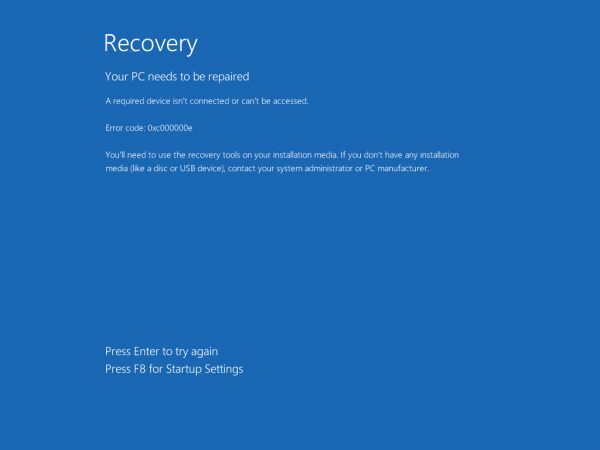
0xC000000E, or STATUS_NO_SUCH_DEVICE, indicates a hardware failure or an incorrect drive configuration. Check your cables and check the drive with the diagnostic utility available from your drive manufacturer. If you are using older PATA (IDE) drives, this status code can indicate an incorrect master/subordinate drive configuration.
The different causes for these errors are that either the winload.exe file is not accessible or is corrupt, or the boot location for the operating system cannot be located. To boot into and access our operating system, we need to make the following fixes.
Fix error 0xc000000e on Windows 11/10
Let us first list the general fixes for all the scenarios. See which one may apply in your case:
- Rebuild BCD.
- Use Automatic Repair Utility.
- Check Physical Device connections.
- Check Windows 8.1/10 WHQL Support setting in BIOS
- Reset BIOS/UEFI Configuration.
- Mark your Disk as Online.
1] Rebuild Boot Configuration Data file
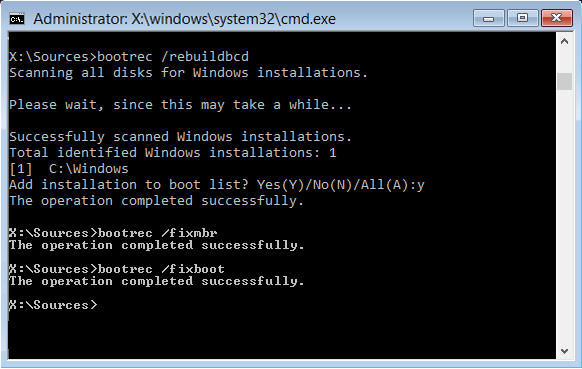
To rebuild BCD, start by creating a Bootable Windows Media.
After booting from it, click on Repair your computer on the first Windows 11/10 installation setup window. Select the operating system partition from the options you get and then click on Next.
Choose Command Prompt within the System Recovery Options box. Execute the following command:
bootrec /rebuildbcd
Once the command line is successful in finding out a Windows Installation, you need to hit Y to let it boot from the list. This will rebuild BCD.
2] Run Automatic Repair Utility
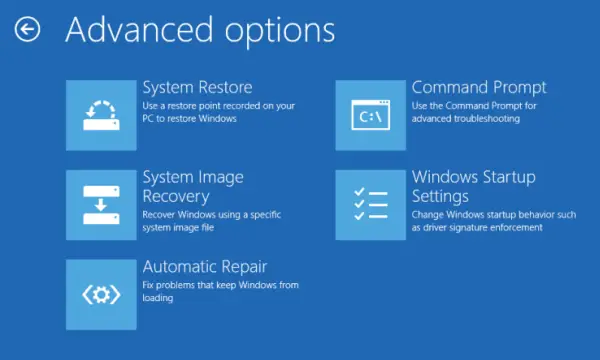
You can also try to run Automatic Repair. Check if this fixes any conflicts resulting in that error.
3] Check Physical Device Connections
Check if any other devices are connected to your computer. This is because the BIOS or UEFI configuration may be set to give any external device a higher boot priority than the hard disk. If this is the case, the externally attached disk may be the drive your computer is attempting to boot from.
Usually, Pen Drivers, other USB Storage Devices, CDs, DVDs, etc. are included in this category of devices.
4] Check Windows WHQL Support setting in BIOS
Open BIOS and check the Windows WHQL Support setting. If it is disabled, change it to Enabled.
5] Reset BIOS/UEFI Configuration
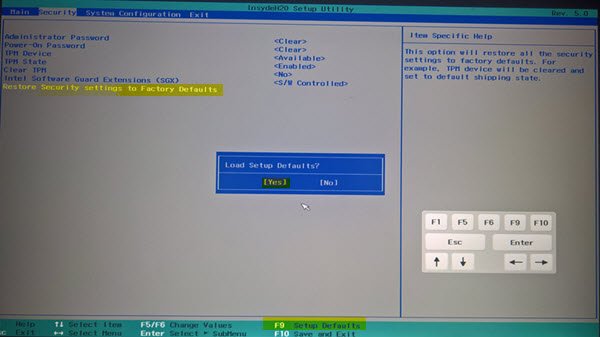
You can also try to reset the BIOS configuration. This will enable the arrangement of the boot configuration as intended by the manufacturer. This will remove any blockage in the boot process.
6] Mark your Disk as Online
Create a Bootable Windows Media. After booting from it, click on Repair your computer on the first Windows installation setup window.
Select the operating system partition from the options you get and then click on Next.
Choose Command Prompt within the System Recovery Options box.
Now, type in-
diskpart
This will initiate the Diskpart utility inside of the Command Prompt.
Then type in either-
list disk
or
list volume
These commands will help you list all the Disks connected or all the partitions on those disks.
From here, you will have to choose one command depending on the list command you entered.
Type in,
select disk #
or
select volume #
Hit Enter. This will select the Disk or Partition you want to select.
Finally, type in,
online disk #
or
online volume #
Then hit Enter. This will mark the selected disk as Online.
Something here is sure to help you!
What can be the associated errors along with such errors?
You could see one of the following codes:
- 0xc000000f – Boot configuration data cannot be read.
- 0xc000000d – Boot data file is missing information.
- 0xc000014C – The Boot configuration data contains errors within it.
- 0xc0000605 – There is an expired operating system component.
- 0xc0000225 – Unable to select/access a boot device for booting.
- 0x0000098, 0xc0000034 – Invalid Boot Configuration Data file or information missing.
How do I fix error code 0xc000000e in Windows 11?
To resolve error code 0xc000000e in Windows 11, you need to rebuild the BCD (Boot Configuration Data) file. Following that, you can utilize the best Automatic Repair Utility, verify the physical device connections, and so on. Finally, you can reset the BIOS or UEFI to resolve this issue.
How do I fix 0xc00000e recovery error?
To resolve the 0xc00000e Recovery error code in Windows 11 or Windows 10, follow the solutions mentioned above. As this problem mainly arises because of a corrupt BCD, it is recommended to rebuild the Boot Configuration Data file first. If it doesn’t resolve the issue, you can follow the other tips and tricks.
Related reads:
- 0xc0000454, Boot configuration data for your PC is missing
- Boot Configuration Data file is missing some required information, 0xc0000034
- Error 0xc0000185, Boot Configuration Data is missing
- The Boot Configuration Data for your PC is missing or contains errors, Error code 0xc00000f
- Error Code 0xc000000d, Your PC needs to be repaired
- 0xc000014C error attempting to read the Boot Configuration Data.
- Your PC needs to be repaired, Error 0x0000098.
