
To retrieve the BitLocker recovery key, one has to go to My Account > Devices > Info and Support > Manage Recovery Keys. However, when we do that, you may encounter a Trace ID Error. This error occurs when Microsoft’s recovery key portal fails to load your BitLocker keys with the following message.
TraceID: juXz6GXoC0GXUe1i.25.68 Something happened. Wait a bit, then try again.
In this post, we will discuss the BitLocker Recovery Error with Trace ID error and explore solutions for when you encounter it.
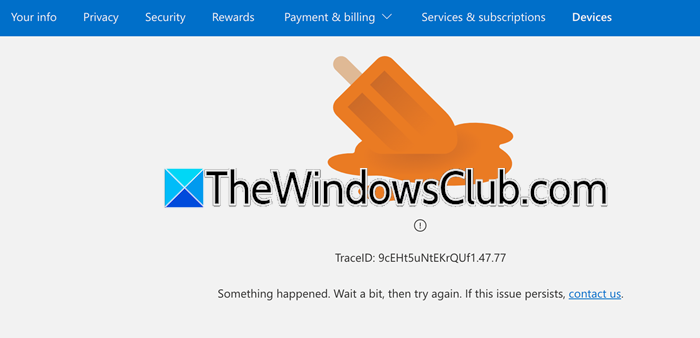
Fix BitLocker Recovery Error with Trace ID
If you encounter a BitLocker Recovery Error with a Trace ID, it could be due to one of the following reasons.
- OneDrive storage exhaustion is disrupting key sync/access.
- Server-side Microsoft issues (reported since 2023, ongoing).
- Browser cache/session conflicts or network restrictions.
- Stale recovery keys exceeding Azure Active Directory limits (200 keys/device).
To resolve this issue, you need to follow the solutions mentioned below.
- Free OneDrive Storage
- Check if the issue persists in Incognito or InPrivate mode
- Clean Browser Cache
- Remove Extension
- Reset Authentication Token
- Switch network
- Contact Microsoft Support
Let us talk about them in detail.
1] Free OneDrive Storage
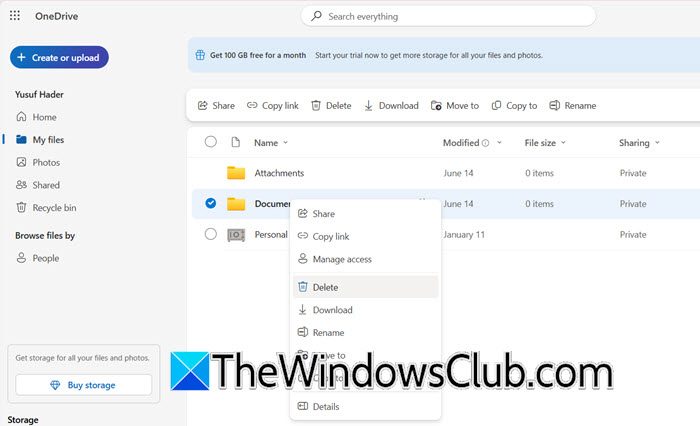
BitLocker automatically backs up recovery keys to your Microsoft account via OneDrive. If OneDrive storage is full, key synchronization fails silently, and the recovery portal requires successful key validation from OneDrive’s backend to display keys. You can go to onedrive.com, look for large files, and delete them. Once done, you need to wait for a few hours (1 or 2) and then check if the issue is resolved.
2] Check if the issue persists in Incognito or InPrivate Mode
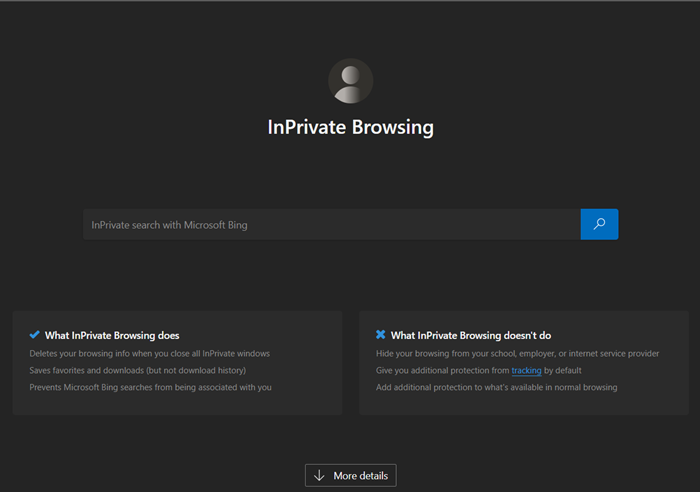
If the issue is not server-side but caused by local browser cache or extension interfering with Microsoft’s key retrieval process, Incognito or InPrivate Mode will disable all of them, giving you a clean slate to browse. Open an InPrivate or Incognito window by pressing Windows + Shift + N when your browser is open, then navigate to the Manage Recovery Keys window and attempt to retrieve your key. Hopefully, it will work this time.
3] Clean Browser Cache
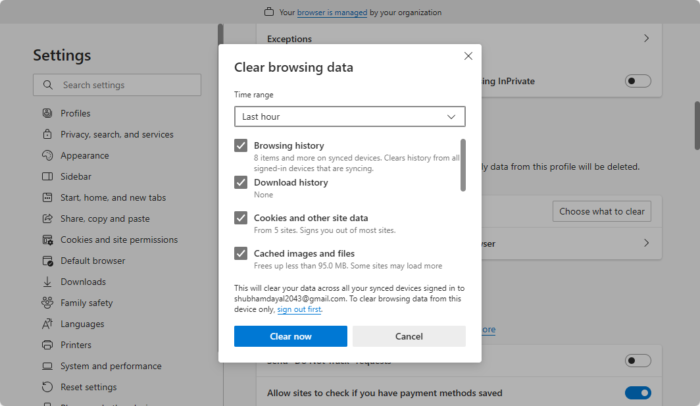
If you were able to resolve the issue in the InCognito or InPrivate mode, then there is a possibility that your browser’s cache is corrupted. To rectify this, we can clear the cache, and hopefully, it will do the job. You can follow the steps mentioned below to do the same.
- Open Chrome.
- Now, click on the three dots and select Settings.
- Go to Privacy and security > Delete browsing data.
- Set Time range to All time.
- Check all the boxes and click on Delete data.
- In Edge, click on the three dots.
- Go to Settings.
- Click on Privacy, search, and services > Clear browsing data.
- Set Time range to All time, check all the boxes, and click on Clear now.
Once done, check if the issue is resolved.
4] Remove Extensions
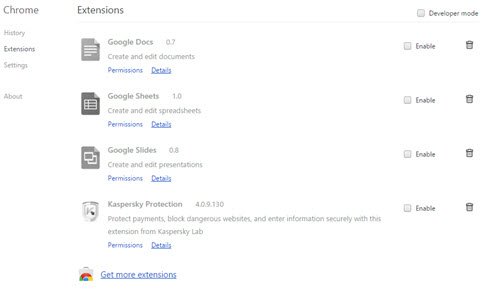
If clearing the cache didn’t work for you, we can conclude that the issue is due to problematic extensions. You can go ahead and start removing extensions sequentially to figure out what the actual cause is. But I have a better idea. We can disable all the extensions at once, then enable them manually to figure out the culprit.
5] Reset Authentication Token
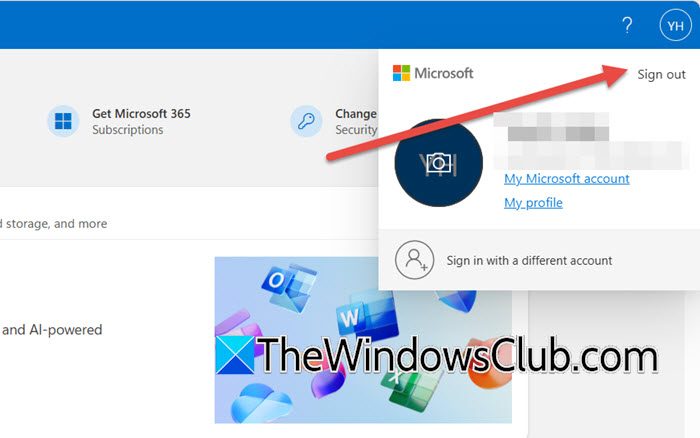
Next up, we are going to reset authentication tokens by signing out of our original Microsoft account, signing into a different account temporarily, and then connecting to the original account. You can go to the Microsoft account page and click on Sign out. Then, sign back in to your new account, and finally, sign back into your accounts.
Switching accounts forces Microsoft’s authentication system to issue fresh security tokens and clear corrupted session data tied to your primary account. This breaks the authentication loop, blocking key retrieval, as Azure AD treats the return to your main account as a new, valid login.
6] Switch network
The Trace ID error occurs when your device cannot establish a secure connection to Microsoft’s key retrieval servers (account.microsoft.com or aadrecoverykey.microsoftonline.com). This is typically caused by network restrictions or antivirus blocking. You can switch to a mobile hotspot and disable antivirus temporarily.
If this works, you can add these to firewall/VPN allowlists.
account.microsoft.com
login.microsoftonline.com
protection.office.com
aadrecoverykey.microsoftonline.com
Add these domains to your AV’s exclusion list.
*.microsoft.com
*.microsoftonline.com
Finally, check if the issue is resolved.
7] Contact Microsoft Support
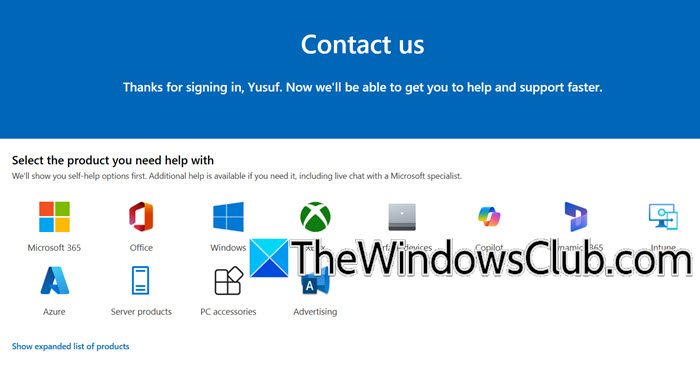
If nothing works, our last resort is to contact Microsoft Support and then create a request.
That’s it!
Read: There are no more BitLocker recovery options on your PC
How to unlock BitLocker with recovery ID?
To unlock BitLocker using your Recovery Key ID (48-digit numeric key), enter the full key without dashes or spaces at the BitLocker recovery screen after rebooting your locked device; if valid, BitLocker will instantly decrypt the drive. You must first retrieve this key via your Microsoft account at account.microsoft.com or through your organization’s IT portal (https://aka.ms/aadrecoverykey for work/school accounts).
Read: BitLocker Repair Tool: Recover data from inaccessible encrypted drive
How to solve BitLocker keeps asking for recovery key?
If BitLocker keeps asking for the recovery key, you need to retrieve it from the Microsoft Portal. We have mentioned how to do the same above; just follow the instructions, and you will be able to retrieve your recovery ID.
Also Read: This volume is locked by Bitlocker drive encryption, Code 10.
