
In this guide, we will show you how to manually prepare a drive for BitLocker in Windows 11/10. BitLocker is a built-in Windows security feature that encrypts your drive to protect data from unauthorized access, theft, or tampering. To encrypt the system drive, BitLocker requires a separate unencrypted partition that stores boot files and startup components. Without this partition, the system cannot start properly after encryption is enabled.
In a normal setup, Windows automatically creates the required system partitions during installation and initial setup (OOBE), allowing users to enable BitLocker without additional configuration. However, if Windows was installed manually, the disk was cloned, partitions were modified, or the entire disk was configured as a contiguous C: partition, BitLocker may fail to enable and display errors such as “BitLocker setup could not find a target system drive“. In such cases, you may need to prepare the drive for BitLocker manually.
How to manually prepare drive for BitLocker in Windows 11
To manually prepare a drive for BitLocker on a Windows 11/10 PC, follow these steps:
- Check your Windows edition
- Verify TPM availability
- Ensure enough free disk space
- Scan the drive for errors
- Backup data
- Create the system partition
- Enable BitLocker
Let us now see these steps in detail.
1] Check your Windows edition
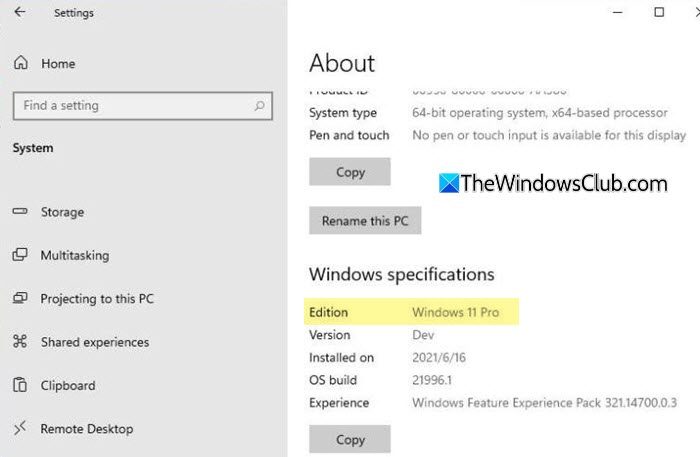
Before preparing the drive for BitLocker, first verify whether your Windows edition supports it. The full BitLocker feature is only available in the Pro, Enterprise, and Education editions of Windows 11.
Press Win+I to open Settings. Go to System > About. Scroll down to the Windows info section and check the information next to Edition.
Note: If you are using Windows 11 Home, you may enable Device Encryption (a simplified version of BitLocker) to encrypt your drive and protect your data, provided your device supports the required hardware features.
2] Verify TPM availability
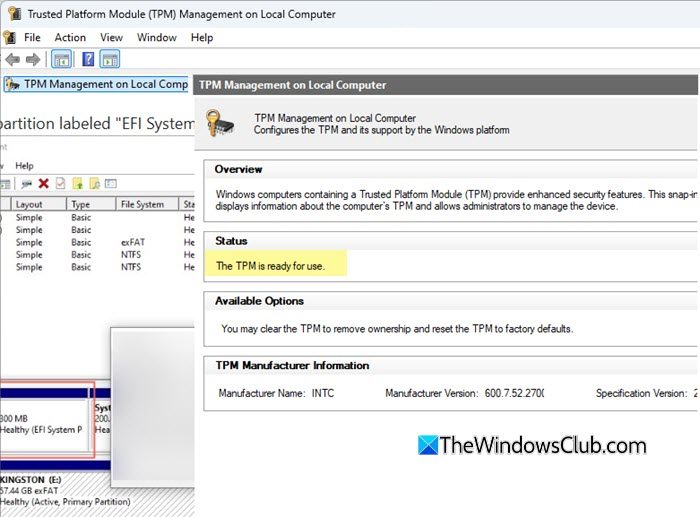
A Trusted Platform Module (TPM) is a small security chip that works with BitLocker to protect your system drive. It helps verify system integrity during startup and prevents unauthorized access if the device is tampered with while offline.
Although BitLocker can work without TPM by using a startup password or USB startup key, TPM-based protection is more secure and recommended by Microsoft.
Most modern laptops and desktops include TPM 2.0 or firmware TPM (fTPM/PTT), since Windows 11 officially requires TPM 2.0. However, TPM may sometimes be disabled in BIOS/UEFI settings or improperly configured, which can prevent BitLocker from being enabled successfully.
To verify TPM availability, press Win + R, type tpm.msc, and press Enter. If TPM is enabled, you will see its status and version information in the TPM Management window.
If TPM is disabled, follow these steps:
- Boot into BIOS/UEFI settings (if unable, see Windows computer won’t boot to BIOS).
- Select the Security tab.
- Locate the TPM option (if unavailable, see TPM missing or not showing in BIOS).
- Set TPM to Enabled.
- Press F10 to save the changes and exit.
- Restart your PC.
Note: The exact BIOS/UEFI steps may vary depending on your device manufacturer (OEM).
3] Ensure enough free disk space
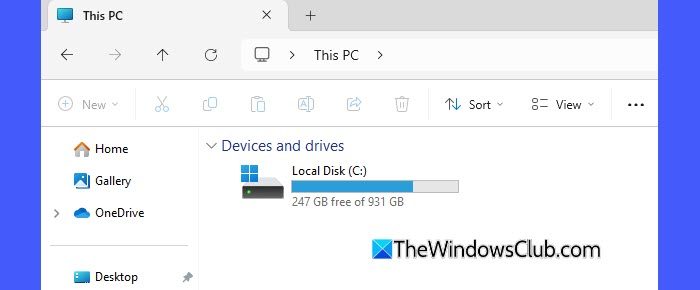
Since Windows may need to shrink the existing C: partition and create a new system partition for BitLocker, ensure that sufficient free space is available on the system drive before proceeding.
- Open File Explorer.
- Select This PC from the left pane.
- Check the available space for the C: drive under Devices and drives.
Although there is no fixed minimum requirement, keeping at least 10% free space on the C: drive is generally recommended before manually preparing the drive for BitLocker.
4] Scan the drive for errors
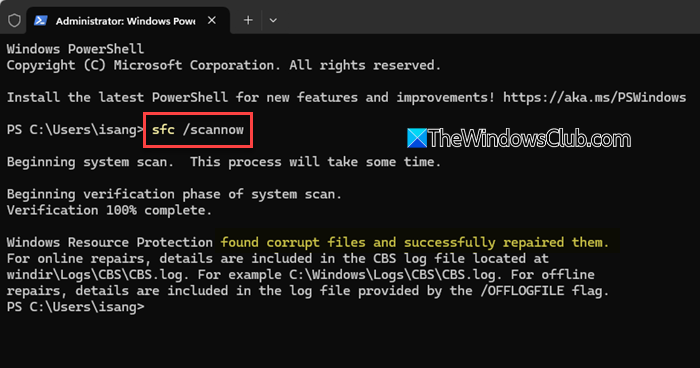
Since the process involves modifying partitions and system files, it is important to check the integrity and stability of the system drive. You can run a CHKDSK and SFC scan to check for possible drive errors and system file issues.
Open Command Prompt as Administrator. Run the following command:
chkdsk c: /f /r
You may be prompted to schedule the scan during the next restart. Type Y and restart your PC if required.
Once the scan completes, open Command Prompt as Administrator again and run the following command:
sfc /scannow
After the scan finishes, restart your PC before proceeding to the next step.
5] Backup data
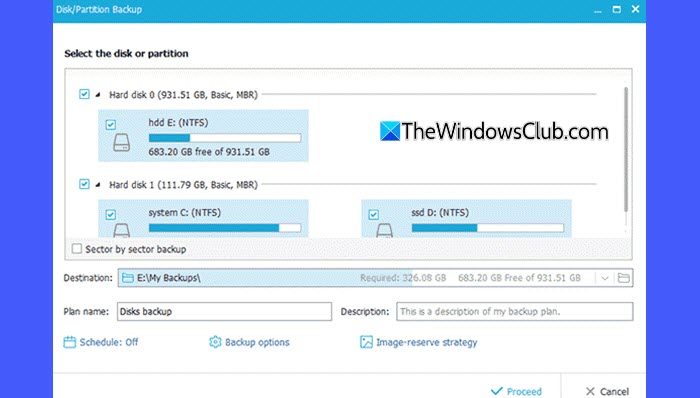
Before modifying partitions or manually preparing the drive for BitLocker, you must back up your important files and data. This helps prevent data loss or boot issues caused by unexpected interruptions or partition errors.
You can back up your files to an external drive, cloud storage service, or use one of these free backup software to create a full system backup before proceeding.
6] Create the system partition
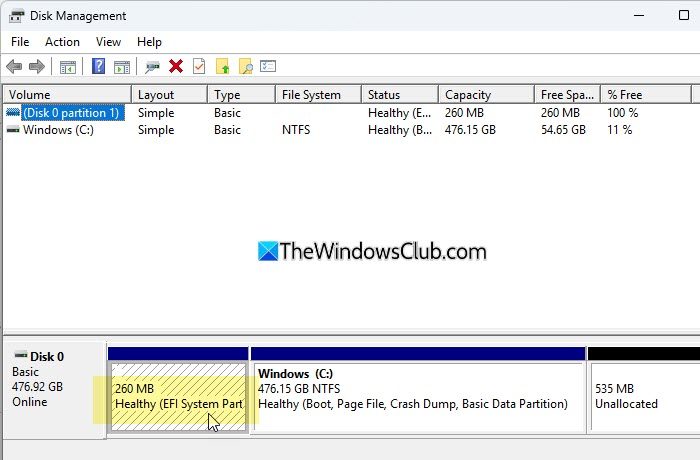
BitLocker requires a separate unencrypted system partition that stores boot files and startup components, while the main Windows partition (C:) is encrypted. This is known as the EFI System Partition (or the System Reserved partition on older BIOS-based systems). Without this partition, Windows cannot boot properly after BitLocker encryption is enabled.
To check whether the required partition already exists, follow these steps:
- Press Win + X and select Disk Management.
- Verify that the EFI System Partition (typically around 100 MB to 500 MB) exists and is separate from the main C: drive.
If the partition is missing or the entire disk is configured as one large C: partition, use the BitLocker Drive Preparation Tool to create the partition.
Open Command Prompt as Administrator and run the following command:
bdehdcfg -target default -size 500
This command shrinks the existing partition and creates a new 500 MB system partition required for BitLocker.
Once the process completes, restart your PC.
7] Enable BitLocker
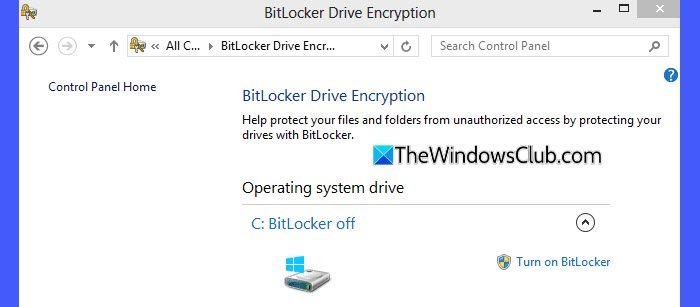
Once the drive has been prepared successfully, you can enable BitLocker on the system drive.
- Open Control Panel.
- Go to System and Security > BitLocker Drive Encryption.
- Click Turn on BitLocker next to the C: drive.
- Follow the on-screen instructions.
Your PC may restart during the setup process. Once enabled, BitLocker will begin encrypting the drive in the background.
That’s all! I hope you find this useful.
Read: BitLocker asking for Recovery Key after Windows Update.
Is it possible to recover BitLocker without a key?
BitLocker cannot be unlocked without a valid password or recovery key. Professional data recovery services may help recover data from damaged drives if recovery information is still available, but fully encrypted data cannot be accessed without a valid BitLocker key.
Read: Turn On or Off the use of BitLocker on Removable Data Drives
How to manually lock BitLocker drive?
To manually lock a BitLocker-encrypted drive, open Command Prompt as Administrator and run the following command: manage-bde -lock D: -ForceDismount. Replace D: with the drive letter you want to lock. This command immediately locks the drive and dismounts it if it is currently in use.
Read Next: How to use BitLocker Drive Preparation Tool using Command Prompt.
