
The BitLocker Recovery tab in Active Directory Users and Computers (ADUC) is a crucial feature for retrieving recovery passwords to unlock encrypted drives. So, when that tab goes missing, it can bring administrative workflows to a screeching halt. In this post, we will see what to do if Active Directory is not showing the BitLocker recovery key tab.
Active Directory not showing BitLocker recovery key tab
There are several reasons why the BitLocker Recovery tab might disappear from Active Directory Users and Computers (ADUC), leaving administrators confused. The most common reason is that the RSAT component needed for BitLocker management is not installed on the management machine. Another possibility is that the Active Directory schema has not been updated to include BitLocker recovery attributes (ms-FVE-RecoveryPassword), or that the device was encrypted before the relevant Group Policy was set up. Additionally, if there aren’t sufficient permissions in the directory or if there isn’t a numeric password protector on the client side, the recovery key may not have been saved to Active Directory at all, causing the tab to be blank or missing.
If Active Directory does not show the BitLocker recovery key, follow the solutions below.
- Install RSAT BitLocker Recovery Tools via PowerShell
- Install BitLocker Feature via Server Manager
- Backup up the existing Recovery Key to AD using Command Line
- Re-register the BitLocker ADUC Extension DLL
- Enable Advanced Features & Assign Required AD Permissions
Let us talk about them in detail.
1] Install RSAT BitLocker Recovery Tools via PowerShell

On modern Windows 11/10 and Windows Server, the BitLocker Recovery tab is no longer a default part of ADUC; it is a separate RSAT (Remote Server Administration Tools) component that must be installed. This command adds the necessary module to your system.
Open PowerShell as an administrator and then run the following command.
Add-WindowsCapability -Online -Name Rsat.BitLocker.Recovery.Tools~~~~0.0.1.0
Wait for the installation to complete and then restart your system.
Once done, open ADUC, right-click a computer object, and check for the “BitLocker Recovery” tab.
2] Install BitLocker Feature via Server Manager
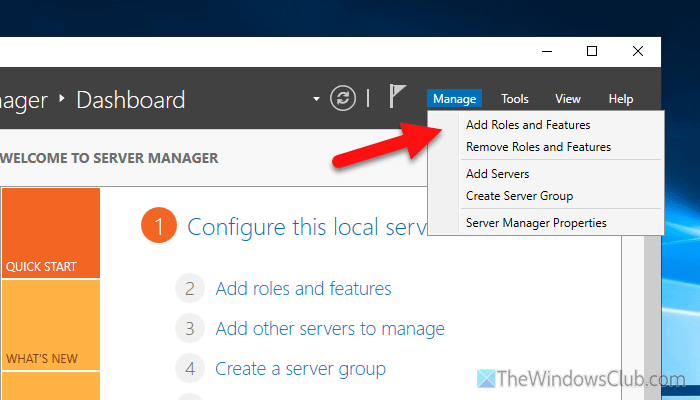
This is the traditional method for adding administrative tools on Windows Server. It directly installs the BitLocker Drive Encryption Administration Utilities from the RSAT suite, which provides the required snap-in for ADUC. To install BitLocker feature, follow the steps mentioned below.
- Launch Server Manager.
- Click Manage > Add Roles and Features.
- Proceed through the wizard until you reach the Features section.
- Expand Remote Server Administration Tools > Feature Administration Tools.
- Check the box for BitLocker Drive Encryption Administration Utilities.
- Click Next and then Install.
Finally, check if the issue is resolved.
3] Back up Existing Recovery Key to AD using Command Line
If the GPO was configured after BitLocker was enabled, the recovery key might not have been escrowed automatically. This command forces a manual backup of the existing recovery password directly to Active Directory, which makes the tab populate with data.
On the BitLocker-encrypted client machine, open Command Prompt as Administrator. Then, run the following command to retrieve the Key Protector ID.
manage-bde -protectors -get C:
From the output, copy the ID under the “Numerical Password” field (a long string of characters).
Now, manually back up the key to AD with the following command.
manage-bde -protectors -adbackup C: -id {PASTE_YOUR_ID_HERE}
Note: Replace {PASTE_YOUR_ID_HERE} with the actual ID you copied.
4] Re-register the BitLocker ADUC Extension DLL
Sometimes, even after installing the correct tools, the ADUC console fails to load the BdeAducExt.dll extension due to a faulty installation or system update. Re-registering this DLL forces Windows to re-establish the link between ADUC and BitLocker, effectively restoring the tab.
On the management machine (where you run ADUC), open Command Prompt as Administrator.
Navigate to the system32 directory.
cd C:\Windows\System32
Run the following command to register the DLL.
regsvr32 BdeAducExt.dll
You should see a confirmation message that the registration succeeded.
Close and reopen ADUC for the change to take effect.
5] Enable Advanced Features & Assign Required AD Permissions
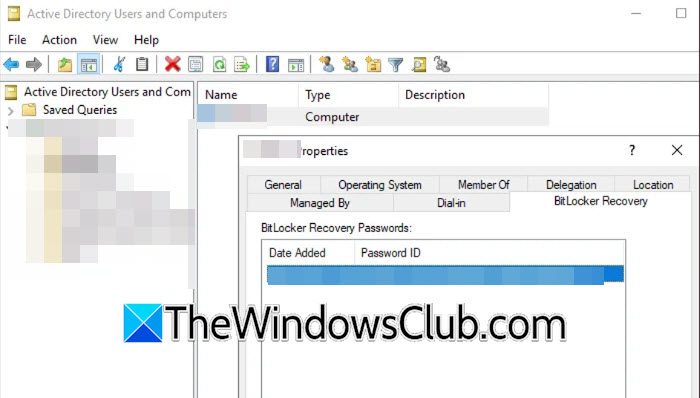
The BitLocker recovery information is stored as a hidden child object within a computer’s account. Enabling Advanced Features in ADUC reveals the structure of these objects. Furthermore, the user account you are logged in with must have specific delegated permissions to view the ms-FVE-RecoveryPassword attribute.
- Open Active Directory Users and Computers.
- From the top menu, click View and make sure Advanced Features is checked.
- Navigate to a computer that you know is BitLocker-encrypted, right-click it, and go to Properties.
- Check if the BitLocker Recovery tab is now visible.
If not, check your user account’s delegation: Right-click the Domain or relevant OU, select Delegate Control, and ensure your account is allowed to read the ms-FVE-RecoveryPassword property.
That’s it!
Read: How to store BitLocker Recovery Keys in Active Directory
How do I get the BitLocker recovery tab in Active Directory?
Install the missing RSAT BitLocker Recovery Tools using PowerShell with this command Add-WindowsCapability -Online -Name Rsat.BitLocker.Recovery.Tools~~~~0.0.1.0. You can also open Server Manager and add the BitLocker Drive Encryption Administration Utilities feature. Re-register the extension DLL by running regsvr32 BdeAducExt.dll from an elevated command prompt. Finally, enable Advanced Features in ADUC under the View menu to reveal hidden recovery objects. These steps restore the tab immediately.
Read: Booting system doesn’t have or doesn’t detect a TPM BitLocker
Why is my BitLocker recovery key not showing up?
Your recovery key fails to appear because you enabled BitLocker before configuring the Store BitLocker recovery information in Active Directory Group Policy. The AD schema may also lack the necessary ms-FVE-RecoveryPassword attribute. The client machine did not automatically escrow the key. Insufficient directory permissions also prevent you from viewing existing keys. Manually back up the key using the manage-bde -protectors -adbackup command on the encrypted C drive to resolve the issue.
Also Read: Find BitLocker Recovery Key with Key ID in Windows 11.
