
We noticed a peculiar scenario where our system starts normally most of the time, but sometimes it boots into BitLocker and asks for the key. If we press Alt or any other button to try to troubleshoot this issue, we encounter E_FVE_TPM_NOT_DETECTED, which means that the booting system doesn’t have or doesn’t detect a TPM, and is a BitLocker error.
How to fix TPM is not detected?
The ‘TP is not detected’ error usually occurs when the TPM is disabled in the BIOS, or due to outdated firmware. In the next section, we will see how to enable it in BIOS/UEFI and some possible causes behind the error.
The booting system doesn’t have or doesn’t detect a TPM Bitlocker error (Fix)
Execute the solutions mentioned below if you are experiencing a ‘Boot System Doesn’t Have or Doesn’t Detect a TPM’ error in BitLocker.
- Enable TPM in BIOS
- Use BitLocker without TPM
- Clear TPM
- Reset BIOS/ UEFI to Factory Defaults
- Disable Bitlocker
- Use a USB Flash drive as a Startup key
Let’s get started with the troubleshooting guide.
E_FVE_TPM_NOT DETECTED Bootlocker error
1] Enable TPM in BIOS
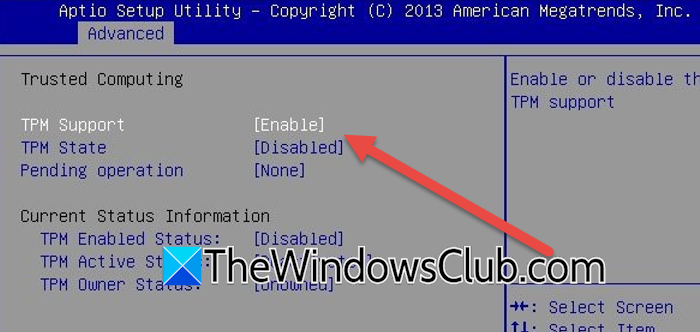
TPM may be disabled; therefore, the system displays an error message to users. TPM must be enabled at the firmware level for BitLocker to function properly.
- Click Win + I to open Settings, and select Security & Updates.
- Click on Recovery, select Restart Now, and then click on Troubleshoot option.
- Select Advanced options, and then go to UEFI Firmware settings, and reboot the PC.
- Once you boot into BIOS, check for Security, Advanced, or Settings tab.
- You will see the option to enable or disable (albeit it differs depending on the OEM).
Once done, see if the issue persists. Move on to the next solution for the next troubleshooting solution.
2] Use BitLocker without TPM
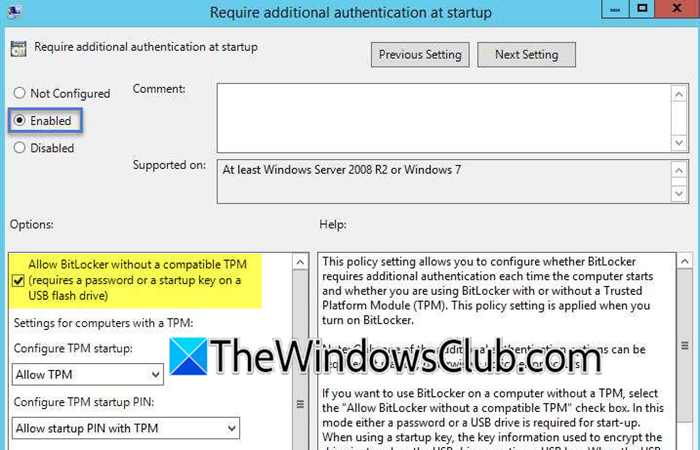
In this solution, we are going to use BitLocker without TPM. This method enables BitLocker to function without a TPM by utilizing a password or USB key.
- Click Win + R to open the Run dialog Box, type gpedit.msc, and hit OK to open Local Group Policy editor.
- Navigate to the location mentioned below:Computer Configuration > Administrative Templates > Windows Components > BitLocker Drive Encryption > Operating System Drives.
- Once there, double-click on Require additional authentication at startup, and select the Enabled option.
- Tick Allow BitLocker without a compatible TPM box, and select the Apply and OK buttons to save the changes.
After the process is completed, reboot the device, and then set up BitLocker encryption. If BitLocker still won’t enable, proceed to the next solution.
3] Clear TPM
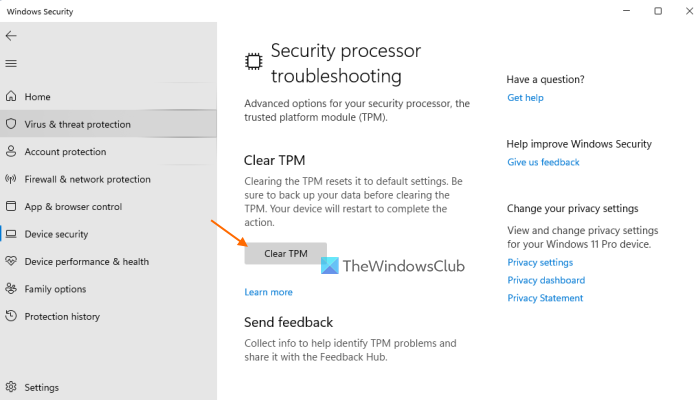
Clearing the Trusted Platform Module (TPM) is a crucial troubleshooting solution when facing issues such as BitLocker not recognizing the TPM or encountering errors during reboots. Follow the steps mentioned below to clear TPM.
- Open the Run dialog box by clicking Win + R, type tpm.msc, and hit Enter to open TPM Management Console.
- In the TPM Management Console, go to the Action tab, and select the Clear TPM option from the right panel.
- Alternatively, if the option is greyed out or you can’t start your PC, reboot the PC and enter BIOS/ UEFI settings.
- Once there, navigate to Security/ Advanced or Trusted Computing section, and locate TPM settings.
- Select Clear TPM, Reset to Factory Defaults, or similar options, and then select Save Changes and Quit BIOS.
After clearing the TPM, verify that the TPM is now properly detected by the system. For that, click Win + R, type tpm.msc, and press Enter. If the status shows the TPM is ready for use, it means the process was successful.
Read: Deny Write Access to Fixed Drives not Protected by BitLocker in Windows 11
4] Reset BIOS/ UEFI to factory defaults
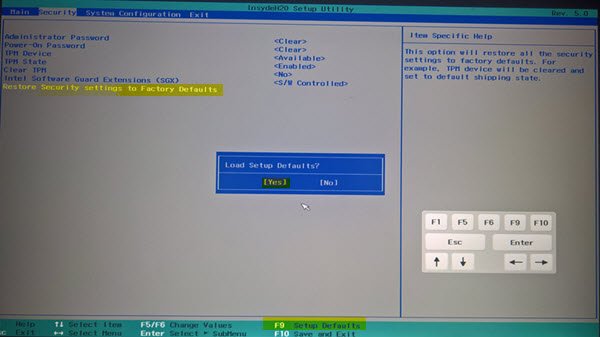
One possible cause of this error can be misconfigured BIOS/ UEFI settings. Resetting the BIOS/ UEFI settings to factory default can help restore TPM detection by re-enabling essential firmware options like TPM and Secure Boot.
- Restart the PC, and click the BIOS/ UEFI key to enter the BIOS system.
- Once inside the BIOS/ UEFI setup screen, locate tabs such as Settings or Security, and open them.
- Now look for Load Setup Default, Restore defaults, or Optimized defaults, select and confirm it when prompted.
- Save the changes, and quit BIOS.
Execute the next solution if this was not successful.
Read: This device can’t use a Trusted Platform Module BitLocker error
5] Disable BitLocker
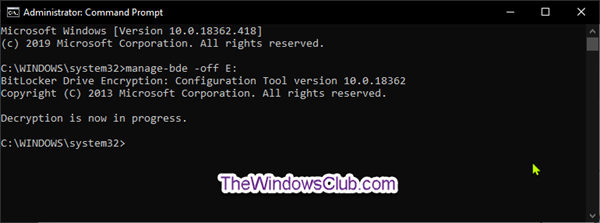
When a persistent TPM error occurs, and there’s an urgent need to access the system, users can temporarily disable BitLocker. However, before doing the process, it’s highly recommended to maintain a current backup of important files on separate storage and suspend BitLocker protection to maintain access to the data. To disable BitLocker, see the steps mentioned below.
- Boot into Windows Recovery Environment.
- Click on Troubleshoot, select Advanced options, and select Command Prompt.
- Run the following command and hit Enter to open the drive:
manage-bde -unlock E: -rp <recovery password>
Note: Replace <your-recovery-password> with a 48-digit BitLocker recovery key.
Now, run the following command to disable BitLocker:
manage-bde -off E:
Restart the PC once done. Hopefully, the issue will be resolved; however, if the problem persists, please see the next solution.
Read: How to store BitLocker Recovery Keys in Active Directory
6] Use a USB Flash drive as a Startup key
If the system still fails to enable BitLocker due to TPM detection issues, using a USB flash drive as a startup key is another effective workaround. This method bypasses the TPM requirement entirely by storing the decryption key on a removable drive instead of relying on a TPM chip.
- Open Command Prompt as Admin, and run the following command to enable BitLocker encryption.
manage-bde -on C: -used
- Follow the prompts to save the recovery key to a USB drive, and then select the encryption mode.
- Confirm and start the process. After completing the process, restart the device, and insert the USB drive when the BitLocker startup screen appears.
Fingers crossed, you will have fixed the E_FVE_TPM_NOT DETECTED Bootlocker error and Windows will boot normally.
Read: How to Enable or Disable BitLocker in Windows
Is it safe to reset TPM?
Resetting TPM is generally safe; however, it should be done with caution. It deletes all TPM stored keys, which may affect access to encrypted data. Therefore, always suspend BitLocker and back up important data before resetting to avoid any data loss.
Also Read: BitLocker missing or not showing in Windows.
