
In this post, we will see how to fix the error message, ‘This volume is locked by BitLocker Drive Encryption, Code 10‘ on a Windows 11/10 PC.
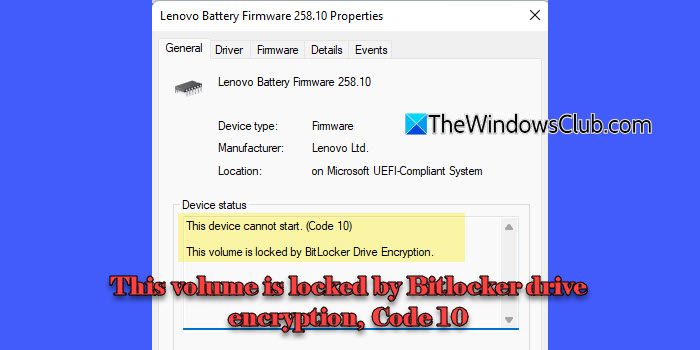
Some users have reported encountering the error in Device Manager, listed under the System Firmware or Battery Firmware category. While the system continues to function properly in most cases, the error causes confusion and concern among users. The complete error message reads:
This device cannot start. (Code 10)
This volume is locked by BitLocker Drive Encryption.
In this post, we’ll explain what this error means, why it occurs, and how to fix it in Windows 11/10.
What is Error Code 10, This volume is locked by BitLocker Drive Encryption.
Code 10 is a generic error. However, this specific Code 10 error is triggered when BitLocker encryption interferes with a hardware or firmware component’s attempt to access the system drive during startup or update processes.
BitLocker is a security feature that encrypts your system drive to prevent unauthorized access. During the pre-boot process, certain firmware components may attempt to access data stored on the encrypted partition. Since the drive is still locked at that stage, the access attempt fails, and Windows flags the device with a Code 10 error.
This volume is locked by BitLocker drive encryption, Code 10
To fix the error message, ‘This volume is locked by BitLocker drive encryption, Code 10‘, in Windows 11/10 use these solutions:
- Ignore the error (if no issues)
- Restart the PC multiple times
- Temporarily suspend BitLocker encryption
- Manually install Firmware/BIOS update
Let us see this in detail.
1] Ignore the error (if no issues)
If your system is working properly and you’re not experiencing any issues with updates, booting, or device functionality, you can safely ignore this message.
2] Restart the PC multiple times
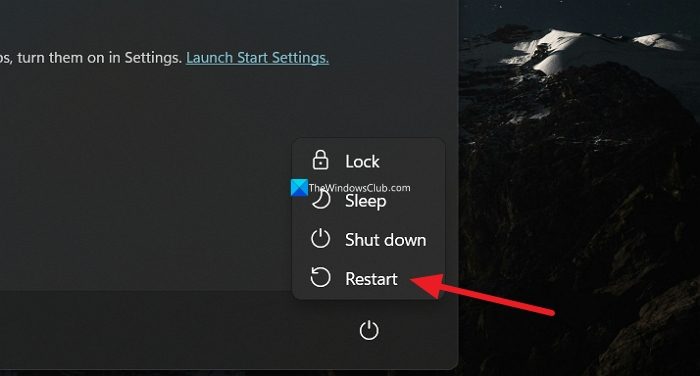
If you’re in the middle of applying a firmware update and see this error, try restarting your PC a couple of times.
Some users have reported seeing a pending firmware update message in the Firmware tab of the device’s properties window. The message reads:
Firmware is pending update on next system reboot. Pending Firmware Version: 11E00. Firmware failed to update during the last attempt.
The user later confirmed that the update had successfully installed, but the Code 10 error remained. This suggests that the error might be a leftover status from when BitLocker temporarily blocked access during the update process. Restarting the system gives Windows a chance to complete any remaining steps in the update process or remove the pending update request if it’s no longer valid.
3] Temporarily suspend BitLocker encryption
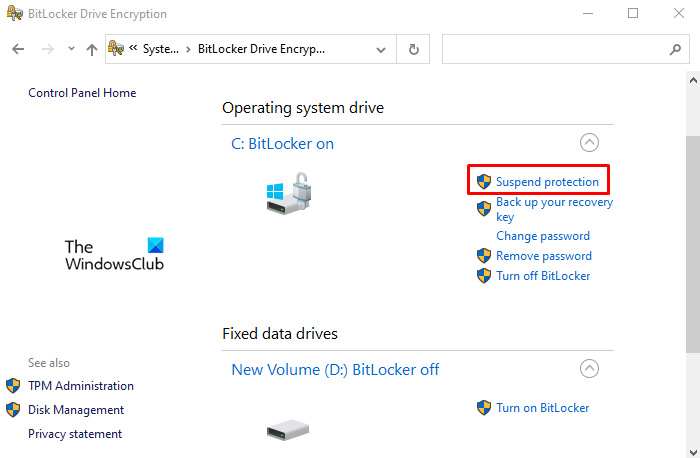
If the error is linked to a pending or failed firmware/BIOS update, you may temporarily suspend BitLocker and try again. By suspending BitLocker encryption, you can temporarily unlock the drive at startup, so the firmware update can be applied successfully.
To suspend BitLocker, follow these steps:
Open Control Panel. Click on the System and Security section. Scroll down and select BitLocker Drive Encryption. Select the Suspend protection option. Confirm the action when prompted.
You can also suspend BitLocker protection for drives via Command Prompt or PowerShell.
Allow Windows to complete the firmware update. Then re-enable BitLocker via Control Panel > System and Security > BitLocker Drive Encryption > Resume protection.
Note: Suspending BitLocker, even temporarily, should be done with caution. When BitLocker is suspended, your drive remains encrypted, and any new data written is still protected. However, BitLocker’s boot-time protections are disabled, making it easier for someone with physical access to the device to bypass security.
4] Manually install Firmware/BIOS update
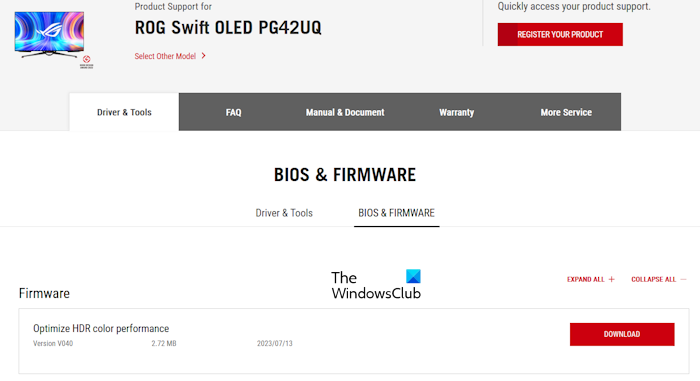
If the above solution didn’t work, try manually installing the BIOS or firmware update.
Press Win + R, type msinfo32, and press Enter. In the System Information window, locate System Model and BIOS Version, and note down their values. Then, visit your PC manufacturer’s official support website, find the latest BIOS or firmware update for your model, and download the installer.
Next, suspend BitLocker protection as explained in the previous solution. Once suspended, run the installer and follow the prompts to complete the update. After your system reboots, resume BitLocker protection. This should remove the pending update and clear the Code 10 warning from Device Manager.
I hope this helps.
Read: BitLocker Drive Encryption cannot be used, Error 0x8031004A.
How to unlock BitLocker volume?
To unlock a drive encrypted by BitLocker in Windows 11/10, open File Explorer, right-click the locked drive, and select Unlock Drive. If the drive was protected with a BitLocker password, enter it in the field provided. If not, click More options > Enter recovery key, then type the 48-digit BitLocker recovery key to unlock the drive.
How do I disable BitLocker on a volume?
You can disable BitLocker on a volume using Control Panel. Open the Control Panel window and navigate to BitLocker Drive Encryption. Click Turn off BitLocker next to the encrypted drive. Windows will start decrypting the drive. Once the process is complete, BitLocker will be disabled for that volume.
Read Next: This device cannot start (Code 10) on Windows 11.
