
In this post, we will talk about different workarounds you can try to fix Amazon Prime Video Black Screen issue. Amazon Prime Video is a popular OTT platform available for both TV, smartphones and PC. It is the place to watch some of the best movies and web series ever released. Along with this, the platform is also famous for its original content. However, like any other platform, Amazon Prime Video has also not been able to avoid problems. Users have reported facing a black screen issue with Amazon Prime Video on Windows PC. So, if you are also struggling with the same problem, continue with this troubleshooting guide to get rid of the issue.
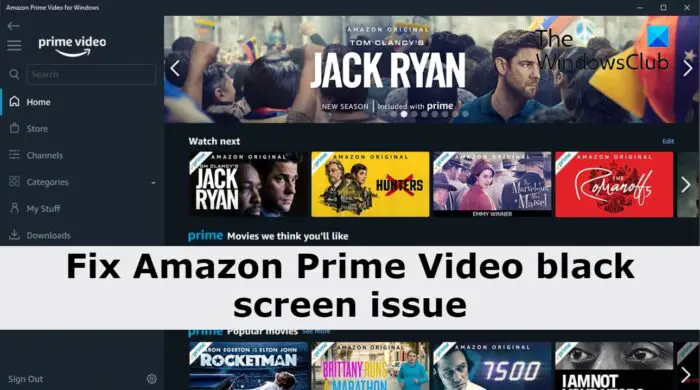
Fix Amazon Prime Video Black Screen issue on PC
Below is a list of effective solutions you can try to fix the Amazon Prime Video black screen issue.
- Restart the device
- Check Amazon Prime server status
- Check the internet connection
- Re-Log in to Amazon Prime Video account
- Disable VPN
- Clear the browser cache data and cookies
- Update the Graphics Driver
- Try a different browser
- Contact Amazon Prime Video support
Now, let’s take a look at all the solutions in detail.
1] Restart the device
The black screen issue in Amazon Prime Video can result from a temporary glitch. And the best way to eliminate such glitches or bugs is to restart the system. So, restart your PC, open your browser, navigate to Amazon Prime Video, and check whether the black screen issue is fixed.
2] Check Amazon Prime server status
The next thing you should verify is whether the problem is with Amazon Prime Video for your end. As it turns out, if the platform is under maintenance, its servers will be taken down, resulting in different problems, including the black screen issue. So, visit any server-checking website and verify whether there are any ongoing server issues with Amazon Prime Video.
See: How to get Subtitles on Amazon Prime Videoon PC
3] Check the internet connection
If you are connected to a weak internet connection, it’s no surprise you are facing a black screen issue in Amazon Prime Video. As per the platform’s requirements, you need a minimum 1.5 Mbps connection to stream videos without issues. If this isn’t the case, you will face different problems, including the black screen issue. So, check your internet connection, and make sure you’re using a strong connection.
4] Re-Log in to Amazon Prime Video account
You will encounter the black screen issue if the user data is corrupted. This mainly happens after server maintenance ends. In this case, you will have to re-login to your Amazon Prime Video account. Here’s how it’s done.
- Open Amazon Prime video on your Windows PC, and navigate to the settings menu.
- Click on Signed in as username, and from the context menu, choose the Sign Out option.
- Now, enter your credentials to log in again.
Play any video and check whether the problem is fixed. If the issue continues, try the next solution.
5] Disable VPN
A virtual Private Network, or VPN, helps to browse online from two different parts of the world. You can use it to watch all that Amazon Prime Video content that is blocked in your region. But on the negative side, the black screen issue can also result from a VPN service that you are using. So, disable any VPN to fix the Amazon Prime Video black screen problem.
6] Clear the browser cache data and cookies
The next thing you can try is to clear the browser cache data and cookies. As it turns out, if the cache data is corrupted for some reason, it can trigger various issues, including the black screen problem. You have to clear the browser cache and cookies to resolve the issue. Here are the steps you need to follow.
Note: Below is the steps to clear cache data in Google Chrome.
- Open Google Chrome on your system.
- Click on the three-dots present at the top right corner, and choose More tools from the context menu.
- Click on ‘Clear images and files, and Cookies and other site data.
- Click Clear data.
- Restart the Chrome browser.
If you use any other browser, say, Microsoft Edge or Mozilla Firefox, you can check our dedicated guide on it.
7] Update the Graphics Driver
An outdated graphics driver can be another significant reason behind the black screen problem. If you haven’t downloaded the latest graphic driver update while performing any high GPU-consuming tasks. So, download the latest graphics driver update to fix the problem. Here are the steps you need to follow.
- Download the latest graphics drivers via Optional Updates from the Settings > Windows Update section.
- Navigate to the device manufacturer’s official website and get the latest drivers from there.
- Access Device Manager to update your graphics drivers.
After installing the update, restart your system and open any browser. Visit Amazon Prime Video and check if the black screen issue is fixed.
8] Try a different browser
If you are still experiencing the problem, it’s likely there’s an issue with your browser. Although Amazon Prime Video is compatible with all browsers, if you are using a relatively new name, you may encounter a black screen issue. Thus, use a popular browser like Google Chrome, Mozilla Firefox or Microsoft Edge to access Amazon Prime Video content on your Windows PC.
9] Contact Amazon Prime Video support
If nothing helped you solve the problem, the last thing you can try is to contact the Amazon Prime Video support team. Contact them, explain your problem and ask them to fix the problem.
Why is Amazon Prime a black screen?
If you are experiencing a blank screen on Amazon Prime Video, it may be due to a weak internet connection. In addition, the problem can occur due to outdated graphics drivers, corrupted cache data, or incompatible browsers.
Why is Amazon Prime glitching?
The main reason for this issue may be a poor internet connection. According to Amazon, you need a connection of at least 1.5 Mbps to enjoy Prime Video without issues. If this isn’t the case, you’ll face the glitching issue.
Read Next: How to host Amazon Prime Video Watch Party on Windows PC.
