
Closed captions on your TV or laptop screen let you read the words spoken in the audio portion of a video or television show. It’s an accessibility feature not necessary for all users. So, depending on your preferences, you can enable or disable Closed Captioning on Amazon Prime Video. We’ll focus on how to turn it off or On for a Windows device.
How to get Subtitles on Amazon Prime Video on PC
When enabled, subtitles or closed captions appear at the bottom of the screen. This is useful for people who prefer to read rather than listen to the audio portion of a video or for people suffering from hearing disabilities.
- Open a new tab in the browser.
- Go to the Amazon Prime Video service.
- Find the video you’d like to watch.
- Click the Subtitles and Audio option.
- Check the Subtitles CC option.
- This will allow you to turn Subtitles on or off.
- Select the desired language from the list.
There’s an Audio menu on the right where you can choose a different audio language, if available.
On your Windows computer, launch the browser and open a new tab.
Go to PrimeVideo.com and log in with your personal details.
Then, search for the video you’d like to watch.
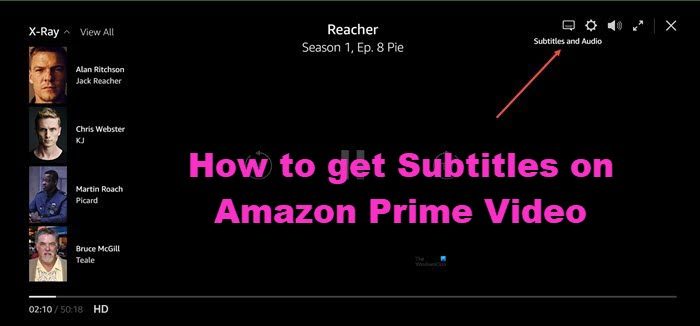
When the screen appears, click the Subtitles and Audio icon visible in the upper-right corner of the screen.
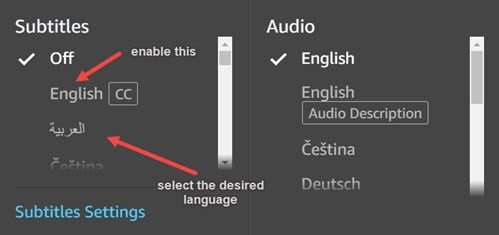
Check the Subtitles CC option. This will turn Subtitles on or off.
If enabled, select the language in which you would like to read the words that are spoken in the audio part.
Once done, close the window and enjoy watching your favorite movie or TV show.
Read: Amazon account locked? Unlock it using these tips
How do I change the color of subtitles in Amazon Prime?
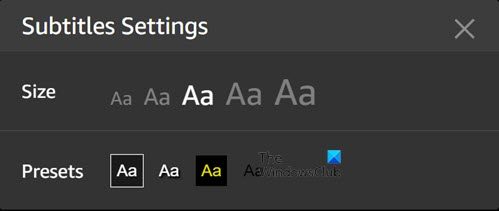
You can also adjust the size and color of the text used for Subtitles via the Subtitles Settings menu. If your device supports it, presets can also be created and selected. To go there, click Subtitles and Audio > Subtitles Settings > Presets. Choose the desired color for the text.
That’s all there is to it. Hope it helps!
Read: Amazon Prime Video not working with VPN
How do I make subtitles bigger on Amazon Prime?
If you are having trouble reading the text on Prime Video, you can increase the font size. For this, Go to Audio > Subtitles Settings > Size. Then, select the desired font size. The subtitles will now start appearing larger.
Related: Essential Amazon Prime Video Tips and Tricks to elevate your Streaming experience.
