
Some PC users are reporting an issue in which, after installing a new Windows Update on their Windows 11 or Windows 10 computer, they receive the 0x80028CA0 Type Mismatch error when copying Libraries to an external drive attached to their system. This post provides the most suitable solutions to this issue.
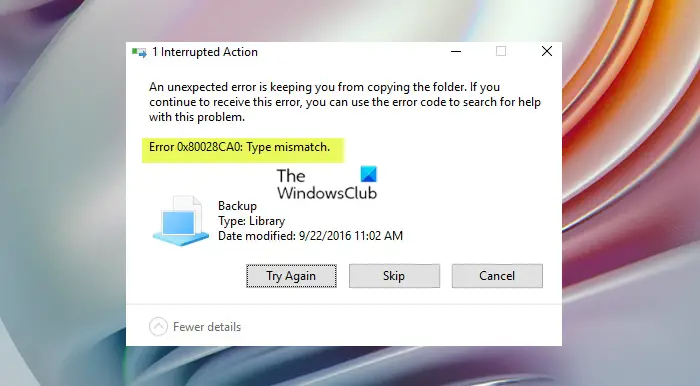
When you encounter this issue, you’ll receive the following full error message;
1 Interrupted Action
An unexpected error is keeping you from copying the folder. If you continue to receive this error, you can use the error code to search for help with this problem.
Error 0x80028CA0: Type mismatch.
When you see 0x80028CA0 Type Mismatch while copying data, it usually means the data type you’re trying to transfer doesn’t match what the destination expects. This happens a lot in Excel VBA, VB6, or COM automation when moving values between ranges, arrays, or external objects.
Fix 0x80028CA0 Type Mismatch error when copying Files and Folders
If you have encountered the 0x80028CA0 Type Mismatch error when copying Libraries to an external drive on your Windows 11/10 PC, try the solutions below in any order to resolve the issue.
- Copy in Small Batches
- Perform manual Copy & Paste
- Run Check Disk
- Create new folder
- Run File and Folder Troubleshooter
- Uninstall ‘buggy’ Windows update
- Perform System Restore
Let’s take a look at the description of the process involved concerning each of the listed solutions.
1] Copy in Small Batches
If moving large amounts of data, try transferring files in smaller batches to avoid the error.
2] Perform manual Copy & Paste
Instead of using File History or Libraries, open the source folder (e.g., Documents) and manually copy the contents directly to the external drive.
3] Run Check Disk
Repair errors on your external drive:
Open Command Prompt as administrator.
Type chkdsk E: /f /r
Here, replace E: with your drive letter.
4] Create new folder
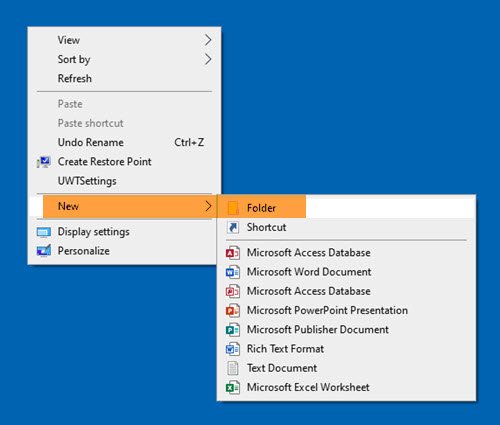
Some affected PC users reported that even though they can’t copy/paste a Library, they can copy the contents of the Library without any problems. In this case, to workaround the issue, you can manually create a new folder on the external drive, then copy (do not use the Ctrl+C keyboard shortcut) the contents of the Library folder on your PC to the folder on the external drive.
Alternatively, since copying an entire Library folder to an external drive is essentially a ‘backup’, you can use any third-party backup software to create backup copies of folders/files for storing them on external drives.
5] Run File and Folder Troubleshooter
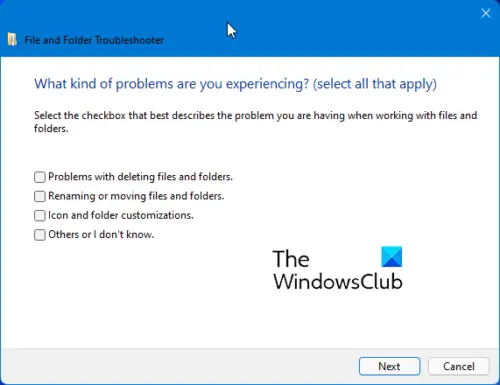
We recommend whenever you encounter issues on your Windows 11/10 PC, and you’re aware of any in-built troubleshooters or non-native troubleshooters, you should run the automated wizard to fix all the identified problems for you automatically or opt to select the problems you’d like to have fixed automatically.
This solution requires you to run File and Folder Troubleshooter and see if the 0x80028CA0 Type Mismatch error when copying Libraries on your Windows 11/10 PC is resolved. If not, try the next solution.
6] Uninstall ‘buggy’ Windows update
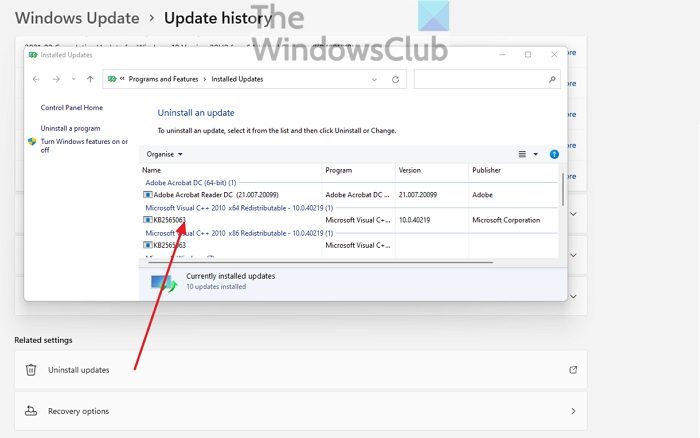
The issue reportedly began affecting most users after a recent Windows update. In this case, to resolve the issue, you can simply uninstall the update. However, if this isn’t the case, we suggest you check for updates and install any available updates on your Windows 11/10 device, then see if the error reappears when you try to copy the Library folder to your external drive.
7] Perform System Restore
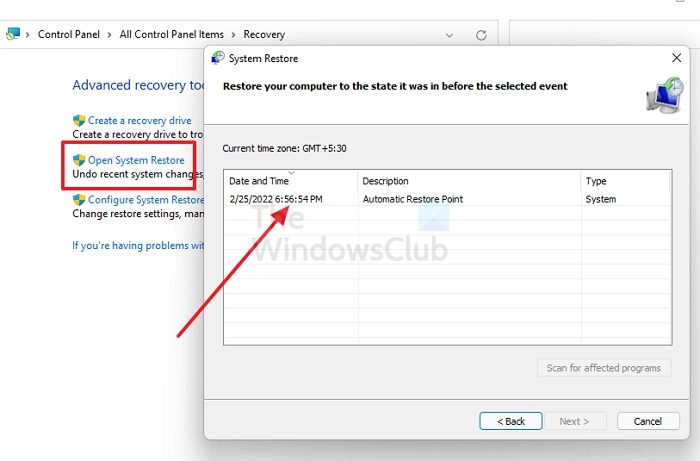
This solution is an alternative to uninstalling the problematic update that triggered the error in highlight; or if the update isn’t the culprit but you are certain you can copy Libraries just fine without issues previously – in this case, since you have no idea what changed that might have ended up triggering the issue, you can use System Restore (any changes like application installs, user preferences and anything else made after the restore point will be lost) to revert to a date your system was working properly.
To perform System Restore, do the following:
- Press Windows key + R. to invoke the Run dialog.
- In the Run dialog box, type rstrui and hit Enter to launch the System Restore Wizard.
- At the initial screen of System Restore, click Next.
- At the next screen, check the box associated with Show more restore points.
- Now, select a restore point prior to when you noticed the issue on your device.
- Click Next to advance to the next menu.
- Click Finish and confirm at the final prompt.
At the next system startup, your older computer state will be enforced. The issue in hand should be resolved now.
Hope this helps!
Related post: Error 0x80070032, The request is not supported when copying files
How do I fix Unspecified error when copying?
If you encounter the Unspecified error while copying file/folder from PC to Android phone, it is possible that the Android SD card is corrupted. In this situation, you can check whether the SD card can work normally on the phone. If not, you will need to make data recovery now.
Why is there an error copying file or folder?
Among other reasons, a possible cause of an unspecified error in Windows 11/10 when copying a file or folder is that the target disk has insufficient free space. If there isn’t enough free space and the files you want to copy are very large, the copy won’t complete. Also, if the destination disk is corrupted, the file is encrypted, system limitations change, or file/folder ownership changes, the copy operation is likely to fail.
What does the parameter is incorrect mean when copying files?
If you get the parameter is incorrect when copying files, it could be due to insufficient disk space. In such a case, you can choose the unnecessary files on the partition you are going to copy to and delete them to free up more unused space. Or you can turn to a bigger SD card or USB flash drive.
