
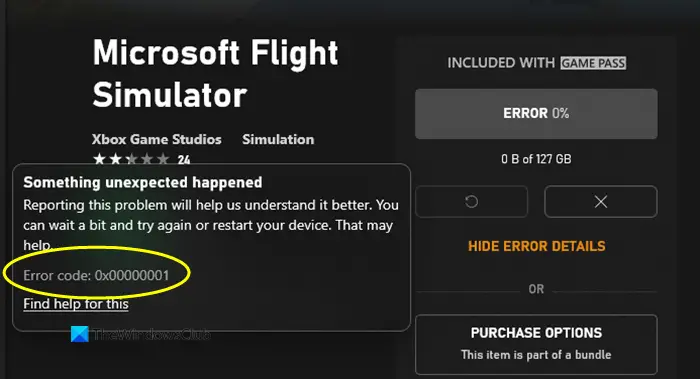
Are you experiencing the 0x00000001 error code when installing games from the GamePass via the Xbox app? This guide will help you fix the error. Many users have reported encountering this error. If you are one of those, we’ve got you covered. You can follow the fixes mentioned here to resolve the error.
What is error code 0x00000001?
The error code 0x00000001 is triggered when you try to install, update, or launch a game on an Xbox or Windows 11/10 device. If you are receiving this error, follow the fixes we have listed in this article.
What causes 0x00000001 Game Pass error on Xbox?
There can be different reasons for individuals to encounter this error. Here are some of the common causes:
- It can occur if you are dealing with corrupted Microsoft Gaming Services or App Installer app. You can try resetting these apps if the scenario is applicable.
- Corrupted app cache and data associated with the Xbox app can be another reason for the same error. If the scenario is applicable, reset or repair the app.
- Bad DNS cache or range can also trigger this error. In that case, can flush the DNS to fix the issue.
- This error can also be a result of system file corruption, particularly the component used by the Xbox app.
- Other reasons for this error include missing Windows updates and third-party antivirus interference.
Now that you are aware of the scenarios that may trigger this error, you can apply a suitable fix to resolve it. However, before attempting to fix the error, try canceling the game installation and then restart the download. If the error is caused due to a temporary glitch, this workaround should fix it up. In addition, you can also try restarting Windows and then try downloading your game on Xbox. This might enable you to bypass a temporary glitch that is causing the error and help you fix it up. If not, proceed with the solutions mentioned in this guide.
Fix 0x00000001 Game Pass error on Xbox
Here are the methods that you can try to fix the 0x00000001 Game Pass error on Xbox:
- Reset the Gaming Services & App Installer apps.
- Reinstall the Microsoft Gaming Services.
- Install the Windows Update.
- Check for updates for the Xbox app.
- Repair the Xbox app.
- Reset the Microsoft Store & Xbox app.
- Install the game from Microsoft Store (if applicable).
- Flush the DNS.
- Run the DISM and SFC scans.
- Perform a Clean Install.
1] Reset the Gaming Services & App Installer apps
The primary reason behind this error can be the damaged or corrupted cache or temp files generated by the Gaming Services or the App Installer apps. You can try resetting both of these apps to resolve the error. If App Installer is deprecated on your version of Windows 11, you can proceed with resetting only the Gaming Service app. Here is how to do that:
- Firstly, start the Settings app using Win+I hotkey and go to Apps > Apps & features.
- Now, from the installed apps, locate Gaming Service and tap on the three-dot menu button present next to it.
- Next, click on Advanced options and then scroll down to the Reset section on the next page.
- After that, click on the Reset button and confirm the process.
- Similarly, you can reset the App installer app.
- Finally, reboot your PC and see if the error is fixed now.
2] Reinstall the Microsoft Gaming Services
If resetting the Gaming Services doesn’t help, you should try reinstalling the Microsoft Gaming Services app to fix the error. This should fix any underlying corruption that is causing the error. You can follow the steps below to uninstall and reinstall Microsoft Gaming Services:
- First, press Win+X hotkey and select Windows Terminal (Admin).
- Now, enter the below command to remove the whole Microsoft Gaming Services infrastructure:
get-appxpackage Microsoft.GamingServices | remove-AppxPackage -allusers
- Next, let the command complete and once the uninstallation is complete, reinstall the package back using the command below:
start ms-windows-store://pdp/?productid=9MWPM2CQNLHN
- When the package is installed back, restart your system and see if the error is resolved.
3] Install Windows updates
If you are using an outdated system, it can cause errors and compatibility issues between Windows and apps. Always ensure that you have installed all available Windows updates. The new updates fix bugs and improve system stability. You can download and install updates for Windows by opening the Settings using Win+I hotkey. Then, go to the Windows Update tab and click on the Check for updates button to download and install available Windows updates. Windows will restart on updating it. For the next startup, try downloading and installing your game on Xbox to see if the error is resolved.
4] Check for updates for the Xbox app
Along with updating Windows, ensure you are using the latest version of the Xbox app. If you haven’t updated Xbox, consider updating the app using Microsoft Store. See if the error is resolved after updating the app.
Read: Fix Xbox error 0x87de2713 when opening games.
5] Repair the Xbox app
The primary cause behind this error might be associated with corruption in the Xbox app. If the scenario is applicable, you should be able to fix the error by repairing the Xbox app. Here are the steps you can follow to repair the Xbox app:
- Firstly, open the Settings app using Windows + I key combination.
- Now, go to the Apps tab and then click on the Apps & features option.
- Next, scroll down and locate the Xbox app.
- Then, click on the three-dot menu button present next to the app and then press on Advanced options.
- After that, scroll down the next page and you will see a Repair option below the Reset section. Simply tap on the Repair button to let Windows repair the Xbox app.
- Once done, relaunch the app and check if the error is resolved.
6] Reset the Microsoft Store & Xbox app
If the repair option doesn’t;t work, you can try resetting the Xbox app. This error can be triggered if there are some corrupted settings and customizations associated with the Xbox app. You can reset the app to its default settings. However, please note that resetting will delete the Xbox app’s data. Hence, be sure of taking a backup of your data.
To reset the Xbox app, you can follow the below steps:
- Firstly, press the Windows + I hotkey to launch the Settings app.
- Next, navigate to the Apps tab and then tap on the Apps & features option.
- Now, look for the Xbox app from your list of apps.
- After that, tap the three-dot menu button next to the app.
- From available options, click on Advanced options.
- On the next page, locate the Reset section and then click on the Reset button.
- Then, confirm the resetting process by clicking on the Reset option on the next prompt.
See if this fixes the error for you.
Read: Error 0x80073D26 or 0x8007139F gaming service error.
7] Install the game from Microsoft Store (if applicable)
If you still get the same error on Xbox, you can try to download and install the game from Microsoft Store (if available) as an alternative. The game will appear on the Xbox app too.
8] Flush the DNS
If you are encountering the error intermittently, it may be triggered by network inconsistency. In that case, you can try flushing the DNS and then see if the problem is fixed. To flush the DNS, open the Command Prompt with administrator privilege by searching in the taskbar search. Next, enter the below command in it and let it execute completely.
ipconfig/flushdns
When the DNS cache is cleared, reboot your system and check if the error is resolved.
9] Run the DISM and SFC scans
If you still encounter the same error even after trying the above methods, you may be dealing with system file corruption that is affecting dependencies used by the Xbox App or the Microsoft Store app. Hence, you can try running DISM and SFC scans to fix the system files corruption and restore the healthy state of your PC.
10] Perform a Clean Install
When none of the solutions work, the last resort is to perform a clean install of Windows to deal with extreme system file corruption. Hopefully, this will fix the error for you if nothing else did.
That’s it!
Read: Fix Xbox Live error 121010 while playing Microsoft Solitaire Collection.
How do you fix Xbox game pass error?
Before heading to the solutions, you must identify the cause of the error. However, if you cannot do that, you can go through the above-mentioned tips and tricks. That said, you can reset the Gaming Services & App Installer app, reinstall Microsoft Gaming Services, repair the Xbox app, reset the Xbox app, etc.
Now read: Error 0x87e00013 when updating or launching Xbox games.
