
Windows 11 Apps Settings offer several additional features compared to their predecessor. However, the main change was with the accessibility of the settings. Through the Windows 11 Apps Settings, you can manage Apps & features, Default apps, Offline maps, Optional features, Apps for websites, Video playback, Startups, etc.
Windows 11 App Settings

How to access Windows 11 Apps Settings?
The procedure to access App Settings in Windows 11 has changed slightly with the introduction of the new operating system. Now, Windows 11 Settings can be opened through the WinX Menu only. The procedure to access Windows 11 Apps Settings is as follows:
- Right-click on the Start button and select Settings.
- In the Settings menu, go to the Apps tab in the list on the left-hand side.
In the right pane, you will be able to view the App Settings which are as follows:
- Apps & features
- Default apps
- Offline maps
- Optional features
- Apps for websites
- Video playback
- Startup
Windows 11 Apps Settings will help you manage Default Apps, Installed Apps, Offline Maps, Optional features, Video playback, Startup, Apps for websites, etc. We will discuss these settings in the article that follows.
1] Apps & features
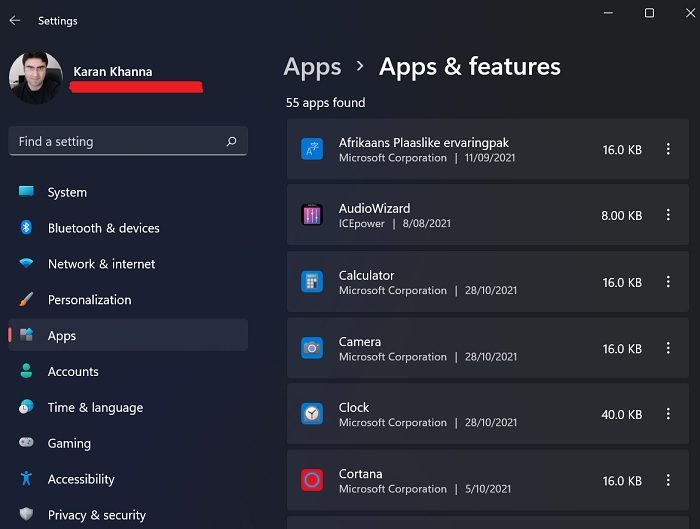
When you sign in to your Windows 11 system for the first time, besides a few basic default applications, the operating system doesn’t have much for your use. Mostly, you would prefer to install external applications to the system either through website downloads or through the Microsoft Store. Whenever you download these applications, not all of them will appear in the Programs and Features menu. You can check the Apps & features section to view the installed applications. From here, you can uninstall, modify, and update the installed applications.
Using this option, you can also share the apps across multiple devices.
2] Default apps
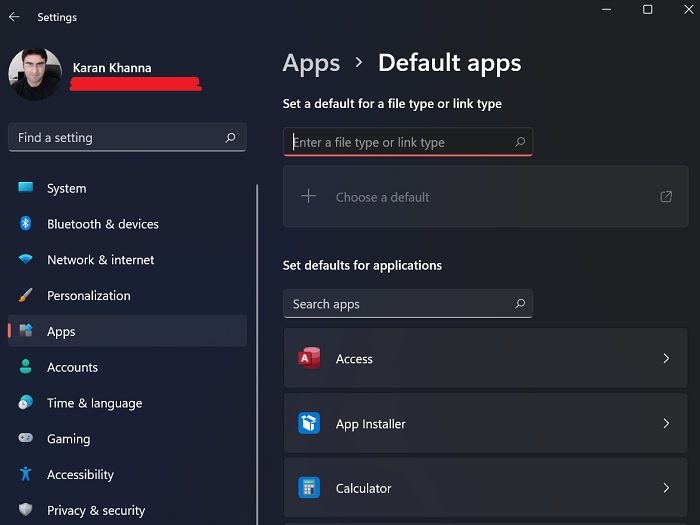
The Default apps are the apps that are either pre-installed on your computer or those which are present in your system by default, even if not already installed. You cannot uninstall the Default apps from the main page of the Programs & Features window. From the Default options window in the Settings menu, you can both install and uninstall Default apps like Notepad.
3] Offline maps
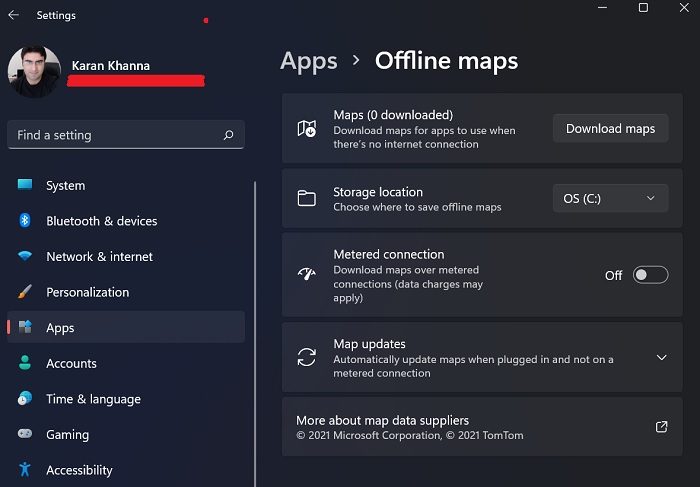
Microsoft Maps are less known in comparison to Google Maps but are less commercialized and easier to understand. However, the real advantage of Microsoft maps is that the maps can be downloaded and stored offline. They can be accessed through the Offline Maps option in the Settings window.
4] Optional features
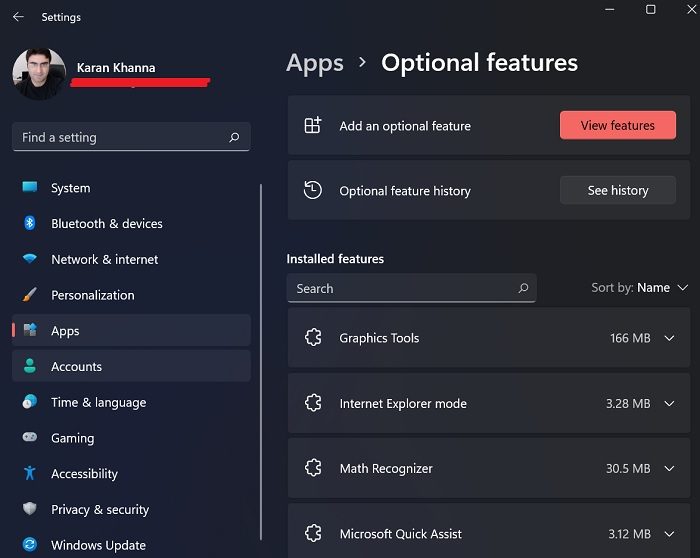
Many applications and features in Windows were removed after they either became redundant for most users or Microsoft deemed them not important enough. However, they were shifted to a different section called Optional features. From this section in the Apps menu, you can activate the optional applications and features.
5] Apps for websites
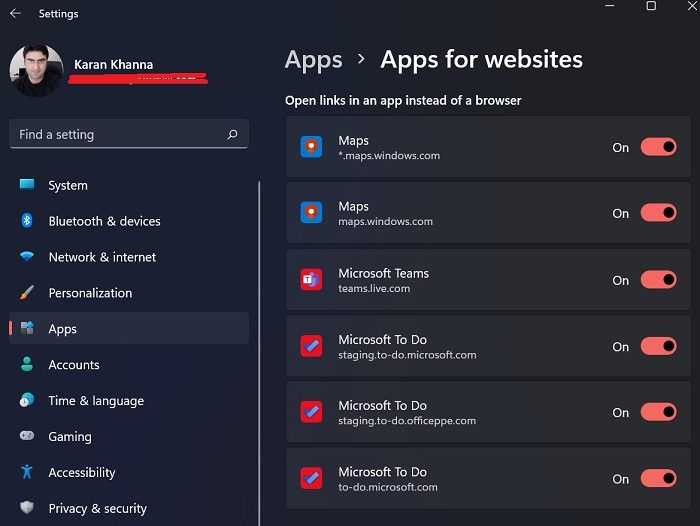
A few links on web pages are allowed to trigger apps on the system directly. Eg. Microsoft Maps and Microsoft To-Do list can be opened directly by clicking on links directing to their related websites. The settings for this can be managed through the Apps for Websites panel.
6] Video playback
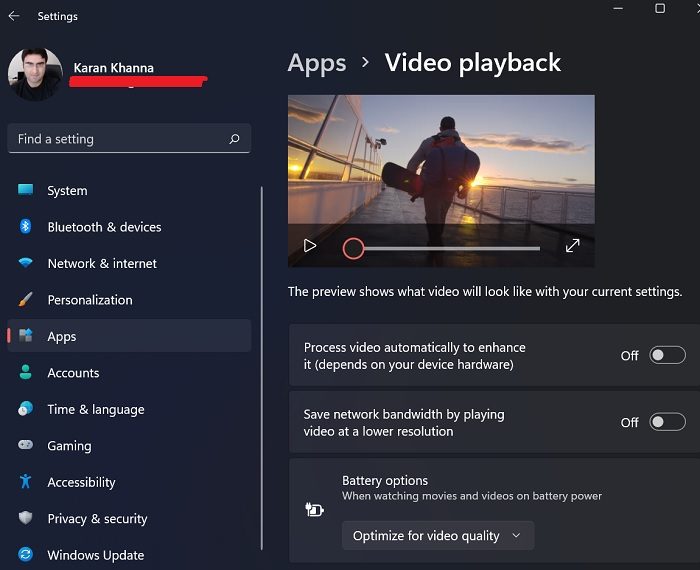
Windows 11 has this smart feature that can recognize the quality of videos and process them accordingly to save power, despite presenting the best quality. You can also choose a custom option to save bandwidth while playing online videos at a lower resolution. Other than this, a preview is available for the settings.
7] Startup
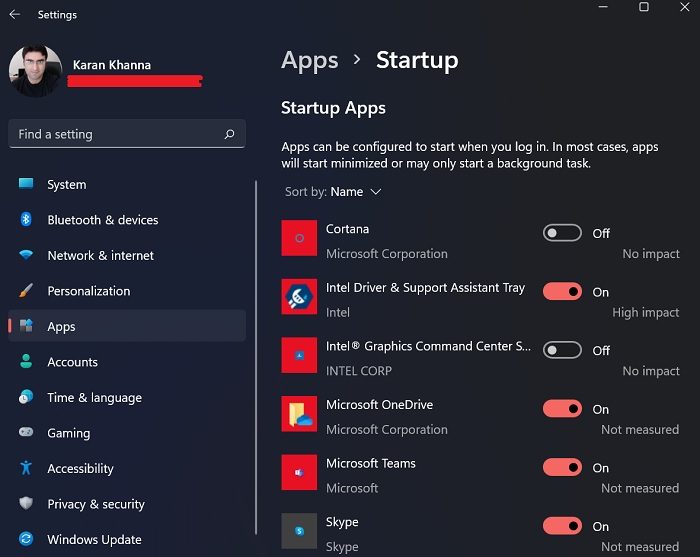
Many applications begin as soon as you start the system. These applications could be Microsoft’s internal applications or third-party ones. While most of these run in the background, some will launch the interface. These applications may occasionally cause high system usage or trigger unwanted processes or services. Thus, a lot of users might want to disable startup programs which could be done from the Startup menu.
How do I get to App Settings in Windows 11?
To access the App settings in Windows 11, you must first open the Windows Settings panel. Although there are so many methods, you can press the Win+I keyboard shortcut to get the job done. Next, you can switch to the Apps folder to open the App settings instantly on your computer.
Why would Windows 11 set an app to run on startup even though I never changed the app settings?
Whenever you install a third-party application on your system, it will push to launch at startup so it can prevent the use of its rivals. Therefore, we periodically review the Startup section and recommend that you do the same.
