
In this article, we will talk about what steps you can take if the File Explorer crashes when opening the SD Card on your Windows 11/10 computer. According to reports, users cannot access files stored on their SD cards when connecting them to their PCs. There can be many causes of this issue, such as a corrupted SD card, a faulty SD card reader, or a corrupted SD card reader driver. If you encounter this issue, use the fixes provided in this article.
File Explorer crashes when opening an SD Card
Use the following fixes if the File Explorer crashes when opening an SD Card on your Windows 11 computer:
- Try some preliminary fixes
- Scan your SD card for malware
- Scan your SD card with the Chkdsk utility
- Clear the thumbnail cache files
- Roll back or reinstall the SD card reader driver
- Reinstall the USB Controller driver
- Format the SD card (if applicable)
All these fixes are explained in detail below.
1] Try some preliminary fixes
Before proceeding, we suggest you try some preliminary fixes to save time in advanced troubleshooting.
- Connect the SD card to your phone. This will let you know whether the issue is with your SD card.
- Use another SD card reader (if available) to determine whether the SD card reader is faulty.
2] Scan your SD card for malware
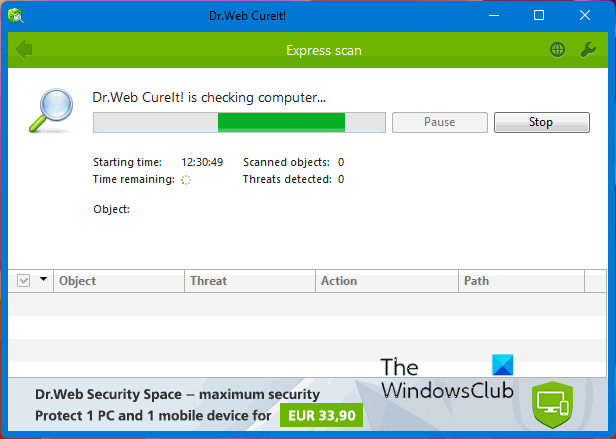
Your SD card might be infected with malware, causing File Explorer to freeze or crash when trying to open it. Scan your SD card for malware. Many free standalone portable antivirus programs are available. You can download and use any of them, as it’s good to take a second opinion.
3] Scan your SD card with the Chkdsk utility
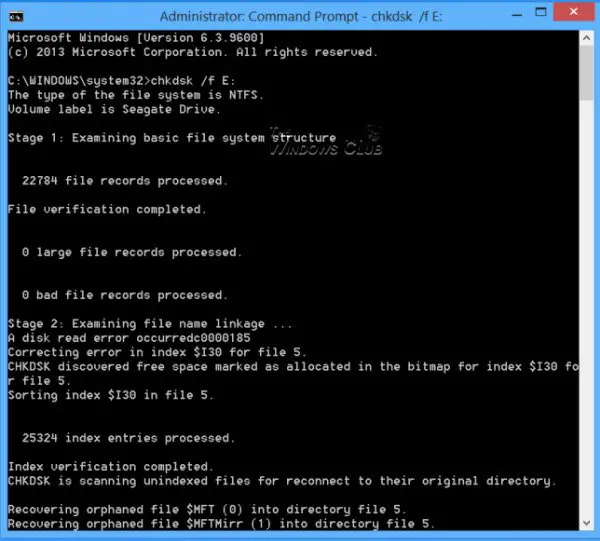
Your SD card might have some bad sectors or corrupted logical files, causing File Explorer to crash every time you try to open it. The Chkdsk utility is a built-in tool in Windows 11 that allows users to scan external storage devices for file system corruption. Run a chkdsk scan on your SD card and see if this fixes the issue.
4] Clear the thumbnail cache files
The corrupt thumbnail cache files also cause issues with File Explorer. Try clearing the thumbnail cache files and see if it works. The following instructions will guide you on this:
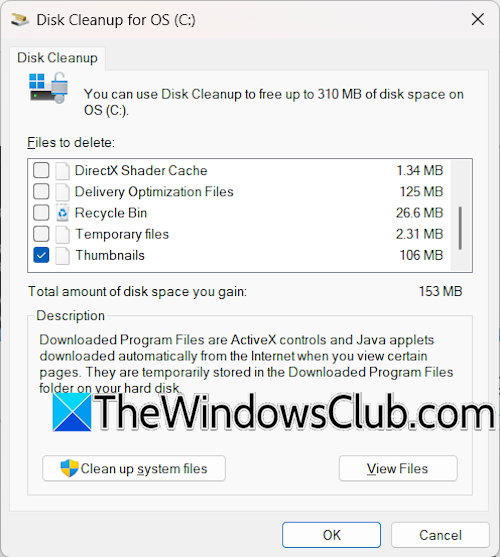
- Launch Disk Cleanup.
- Select the C drive in the drop-down and click OK.
- Scroll down and select Thumbnails.
- Click OK.
- Select Delete Files in the confirmation box.
5] Roll back or reinstall the SD card reader driver
One possible cause of this issue is the corrupt SD card reader driver. You can try rolling back the SD card driver and see if it works. Follow the instructions provided below:
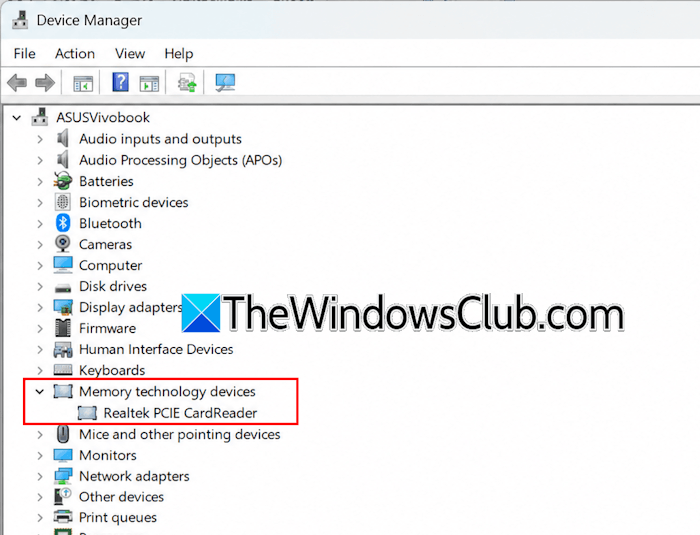
- Open the Device Manager.
- Expand the Memory technology devices branch.
- Right-click on your SD card reader driver and select Properties.
- Go to the Driver tab and click Roll Back Driver.
- Follow the on-screen instructions.
If the Roll Back Driver option is greyed out, you can try other ways to roll back the driver. If this does not work, uninstall and reinstall the driver. For this, follow the steps provided below:
- In the Device Manager, right-click the SD card driver and select Uninstall device.
- A pop-up window will appear, select Uninstall.
- Now, scan for hardware changes. This will reinstall the missing driver. If this does not work, restart your system. Windows will reinstall the missing driver automatically on restart.
6] Reinstall the USB Controller driver
The problem may be with the USB controller driver. If so, reinstalling the USB controller driver can help. Before proceeding, it is recommended to create a system restore point. Go through the following instructions:
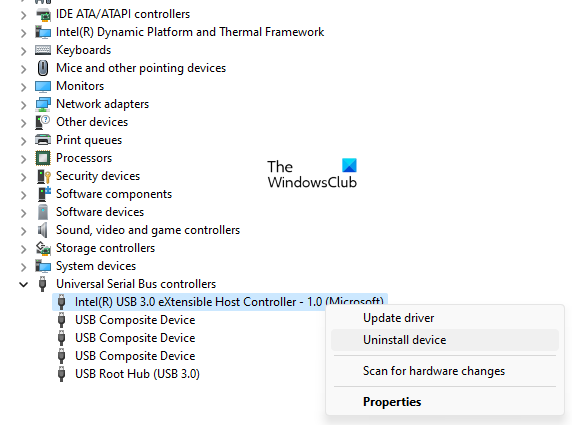
- Open the Device Manager.
- Expo and the Universal Serial Bus controllers branch.
- Right-click on the USB Host Controller driver and select Uninstall device.
- Repeat the steps above until all USB Host Controller drivers are uninstalled.
When you are done, restart your system to reinstall the uninstalled drivers automatically.
7] Format the SD card (if applicable)
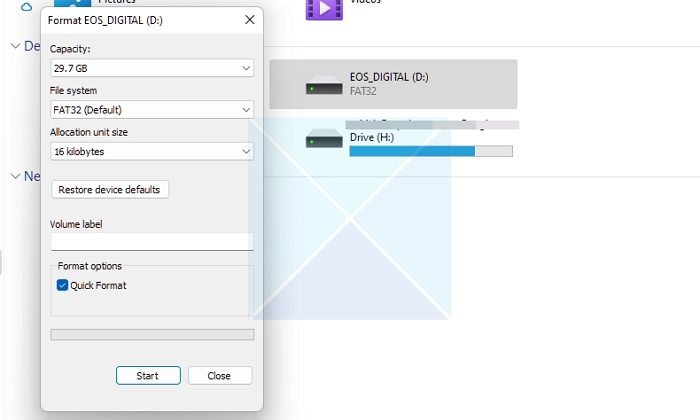
If none of the above fixes work, the last resort is to format your SD card. If your SD card does not contain important files or you have already backed up your data, you can take this risk. Right-click on your SD card and select Format. Make sure that the Quick Format checkbox is selected. Select the File System and click Start. This should fix the issue.
That’s it. I hope this helps.
How to fix File Explorer keeps crashing?
If File Explorer keeps crashing or freezing, you can try some fixes, like scanning your system image files for corruption, disabling thumbnails, troubleshooting in a Clean Boot state, or checking the installed add-ins.
Why does my computer crash when I insert an SD card?
There can be multiple reasons why your computer crashes when you insert an SD card, such as a malware infection, an overheated SD card, a faulty or incompatible SD card reader, a corrupted memory card file system, or a faulty SD card driver.
Read next: SD Card won’t format on Windows.
