
If Windows 11 shows blurry or pixelated wallpaper, this article will be handy. No matter which monitor or laptop you use, you can try these solutions to fix this problem in moments.
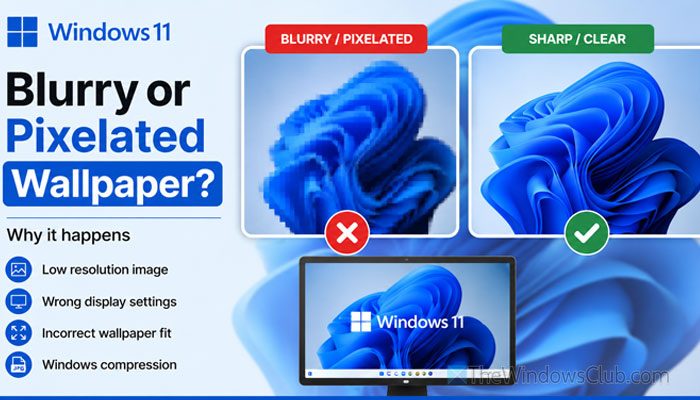
Why is Windows 11 showing blurry or pixelated wallpaper?
If Windows 11 shows blurry or pixelated wallpaper, one of these could be the reason:
- The original wallpaper doesn’t match the monitor’s resolution, or it is of low quality.
- The monitor uses a different resolution when connected to a dual or multi-monitor setup.
- You are using an incorrect fit for your desktop background.
- Wallpaper compression may be responsible for this issue.
- You haven’t installed the graphics driver yet.
Blurry or pixelated wallpaper on Windows 11
To fix blurry or pixelated wallpaper on Windows 11, follow these solutions:
- Ensure wallpaper resolution and aspect ratio
- Choose the correct fit for desktop background
- Set the original resolution and scaling
- Turn off wallpaper compression using Registry
- Install, update, reinstall graphics driver
- Switch to HDMI
To learn more about these solutions, keep reading.
1] Ensure wallpaper resolution and aspect ratio
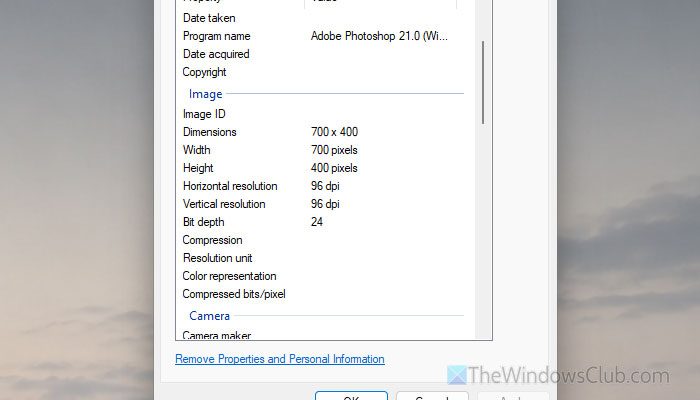
This is the first thing you need to check since incorrect resolution and aspect ratio will certainly bring the problem to your monitor. Let’s say that your monitor has a resolution of 4K and you are using a 1080p image, which carries 1920*1080 pixels. On the other hand, if your monitor has a 16:9 ratio and you use an image of something else, you will certainly find this problem.
To check the image resolution, right-click on the image and go to Properties. Then, switch to the Details tab and find the Height and Width or Dimensions.
On the other hand, if you want to check the aspect ratio of your monitor, you must find the resolution. For that, open the Windows Settings panel and go to System > Display > Scale & layout > Display Resolution.
Then, check the following chart to find the aspect ratio:
| 2560×1080 pixels | 21:9 |
| 2560 x 1600 pixels | 16:10 |
| 1920 x 1200 pixels | 16:10 |
| 2560 x 1440 pixels | 16:9 |
| 1920 x 1080 pixels | 16:9 |
You need to download the image accordingly.
Read: Monitor not displaying full screen in Windows 11
2] Choose correct fit for desktop background
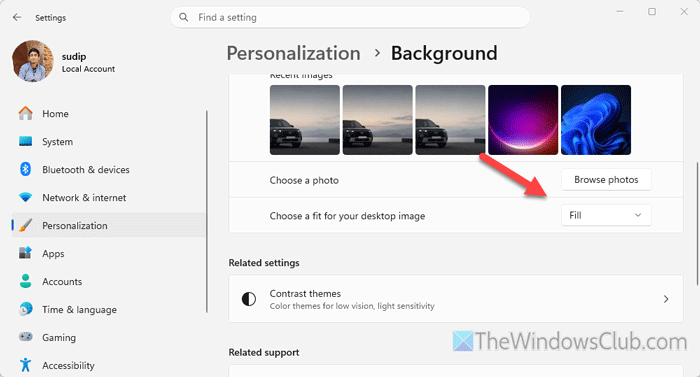
Some images may get blurry if you choose an incorrect fit for the desktop background. Also, if one image is working fine with FILL, it doesn’t mean all the others will work the same way. You must tweak this setting to find the optimum one.
For that, open the Windows Settings and go to Personalization > Background > Choose a fit for your desktop image. Expand the drop-down menu and choose the correct fit.
Read: Center, Fill, Fit, Stretch, Tile, Span wallpapers in Windows 11
3] Set the original resolution and scaling
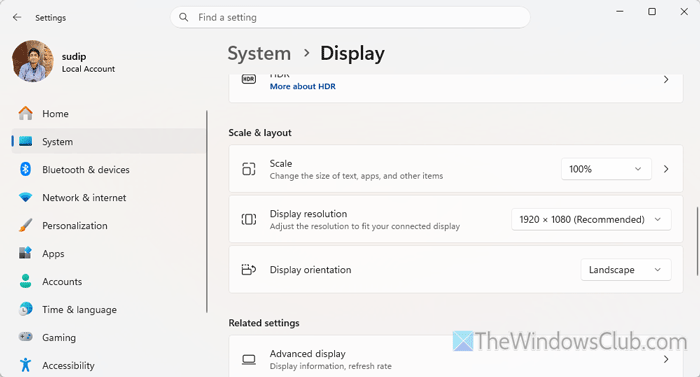
If you are using anything but the original resolution or scaling, there is a chance of getting this problem – no matter which image you use as your desktop background. To set the correct monitor resolution and scaling, press Win+I to open the Windows Settings first. Then, go to System > Display.
Head to the Scale & layout section and find the Scale menu. Expand the drop-down list and choose 100%.
Then, expand Display Resolution, and choose the original resolution of your monitor.
In case you don’t know, you can choose the “Recommended” resolution, which is generally the original monitor resolution.
4] Turn off wallpaper compression using Registry
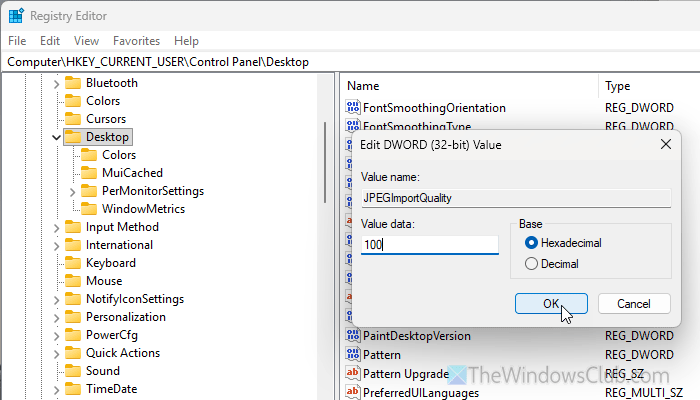
If you are using a JPG image as your wallpaper, you must know that Windows 11 will compress it, and this is called Wallpaper Compression. Whether you use an image from the given themes or an external image, it will do so.
That is why you should follow these steps to disable wallpaper compression in Windows 11. First, open the Registry Editor and navigate to this path:
HKEY_CURRENT_USER\Control Panel\Desktop
Double-click on the JPEGImportQuality REG_DWORD value and set the value data to 100. Click the OK button and restart your computer.
Note: The default value is 85. If you want to set the original value, open the same settings and set it as mentioned.
5] Install, update, reinstall graphics driver
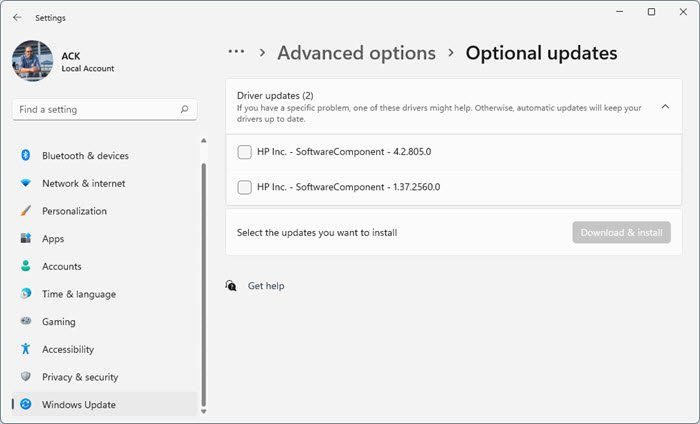
There are more than one scenario that might arise at times.
First, let’s assume that your graphics card has stopped working and you removed it. If so, your wallpaper will certainly look pixelated. This problem can be solved by reinstalling a working graphics card.
Second, let’s assume that you don’t have a graphics card, but you are using a 4K or wide-angle monitor. If so, there is a chance of getting this problem.
Third, if you do not have a graphics driver even though you have installed a graphics card, you may find the aforementioned issue. In such cases, you must install the driver.
Fourth, if you haven’t updated the graphics driver for a very long time, you will get this issue. You must update your graphics driver to get it fixed.
Read: How to update NVIDIA Drivers on Windows 11 properly
6] Switch to HDMI
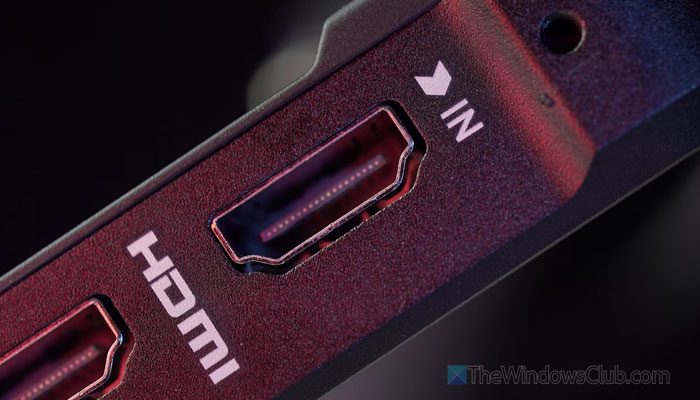
There are so many types of monitor cables, such as VGA, DVI-D, HDMI, etc. If your monitor has an HDMI port, it’s best to use it instead of VGA, DVI-D, or Type-C.
Because VGA uses analog signals, you’re likely to get pixelated or blurry images, even with a high-resolution wallpaper. That is why we always suggest HDMI over anything else.
Read: DisplayPort vs HDMI: Which is better for gaming on PCs?
Why is my background blurry on Windows 11?
The main reason your background is blurry on Windows 11 is using a low-resolution image as the wallpaper. Therefore, download the wallpaper in high resolution and use the correct aspect ratio.
Why does my PC wallpaper look pixelated?
If you have a high-resolution monitor and you are using a lower-resolution image as the wallpaper, the background will look pixelated. To fix this problem, use the same-resolution image as the monitor, and reinstall the graphics driver.
Read: Desktop Background Slideshow not working in Windows 11.
