
Windows automatically compresses your wallpaper images and reduces them to 85% of the original image quality before setting it as your desktop background. This helps in saving valuable disk space and improves performance to a certain extent – but compromises the image quality. While the process is immensely useful for PCs with moderate specifications, if your system has plenty of RAM, you can disable the JPG wallpaper compression in Windows 11/10. Here’s how to go about it.
Disable Wallpaper compression in Windows 11
Windows never actually applies the full-quality image to the Desktop. It reduces the quality to improve system performance. Windows doesn’t offer a way to disable JPG wallpaper quality reduction in Windows 11/10, but a registry fix can disable this automatic compression.
If you are unaware, Windows 11/10 computer stores the converted image as a TranscodedWallpaper file inside this directory:
C:\Users\%username%\AppData\Roaming\Microsoft\Windows\Themes\
If you can change its extension from .jpg, you can view the image used as the wallpaper.
Anyway, using this registry fix, you can disable the automatic JPEG wallpaper quality reduction feature and improve the quality of your desktop background wallpaper.
To do so, press Win+R key in combination to bring up the ‘Run’ dialog box. Type regedit and hit Enter to open the Registry Editor.
Now navigate to the following key:
HKEY_CURRENT_USER\Control Panel\Desktop
In the right pane, right-click and create a new 32-bit DWORD parameter and name it JPEGImportQuality.
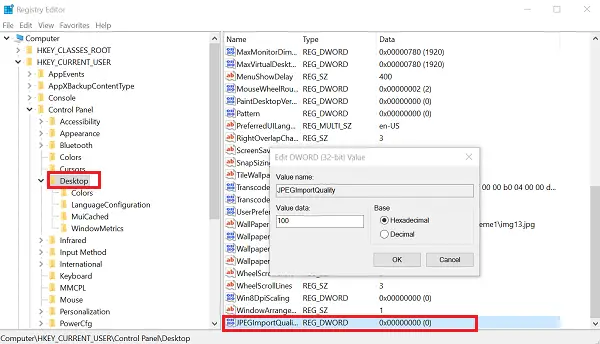
The value ranges from 60 to 100. The default value is 85 which means that the compression is 85%. A value of 100 indicates a very high-quality wallpaper with no compression. Set the value to 100. Click OK and exit.
Restart your computer.
Now set the image you want to keep as your wallpaper. It will be displayed without compression. It works in Windows 11/10 only.
How to fix Wallpaper being blurry in Windows 11?
To fix a blurry or pixelated wallpaper on Windows 11, adjust your display settings. Right-click the desktop, select “Display Settings,” then navigate to “Scale & Layout” and choose “Display Resolution.” Ensure it’s set to the recommended native resolution. Additionally, double-check that the wallpaper image matches or exceeds your screen’s resolution.
Why are my wallpapers low quality in Windows 11?
Low-quality wallpapers in Windows 11 can result from incorrect scaling settings or display resolutions that don’t match the wallpaper’s native resolution. Make sure your display scaling is set to 100% and the wallpaper resolution matches your screen’s resolution for optimal clarity. Also, we recommend using high-resolution images.
