
If Excel freezes when deleting rows or columns, or takes too much time to delete data from rows or columns, this article will help you. According to the reports, Excel stops responding when users try to delete rows or columns. In this article, we will discuss possible causes of this issue and ways to fix it.
Excel freezes when deleting rows or columns
Use the following suggestions if Excel freezes when deleting rows or columns:
- Update office
- Turn off Auto Save
- Disable COM Add-ins
- Sort your data
- Repair or reinstall Office.
All these fixes are explained in detail below.
1] Update office
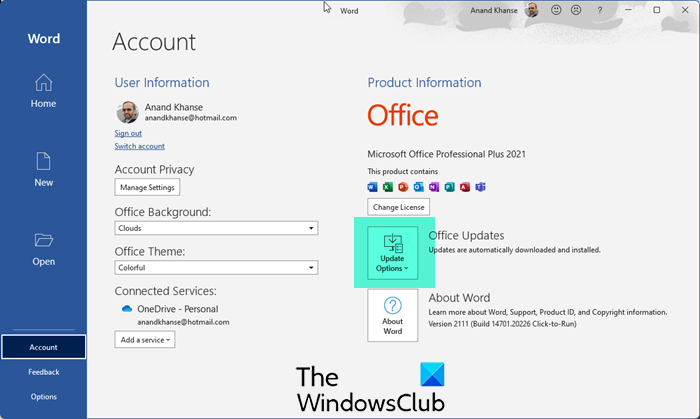
Your Office version may be missing the latest updates. The outdated version may have some bugs that can be fixed by installing the updates. Check for Office updates manually.
2] Turn off Auto Save
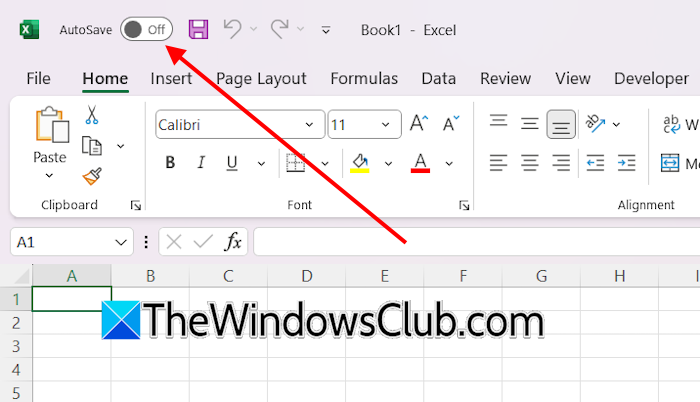
The Auto Save feature in Microsoft Office applications saves data automatically to OneDrive. This is a useful feature. However, sometimes it can cause issues. If the Auto Save option is turned on in Excel, turn it off and then delete the rows or columns. If this works, you can enable the Auto Save again after deleting the required data.
3] Disable COM Add-ins
Sometimes, installed add-ins can cause issues with Office applications. This can be the case with you. To confirm, disable all COM Add-ins in Excel and check whether the issue persists. To disable the COM add-ins, follow these steps:
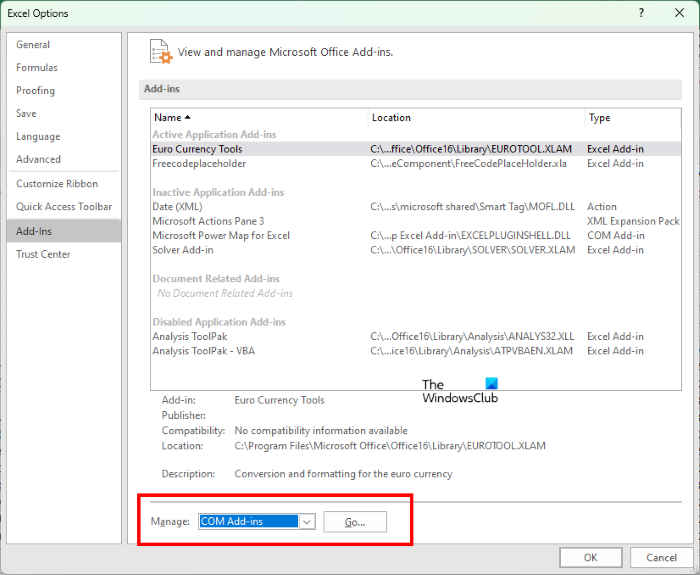
- In Excel, go to File > Options.
- Click Add-ins on the left, then select COM Add-ins in the drop-down on the right. Click GO.
- Uncheck all the checkboxes and click OK. This will disable all the COM add-ins.
Now, try to delete rows or columns. If the issue does not occur, one of the add-ins is causing this problem. To check this, enable the add-ins one by one and check the issue after enabling each add-in. When the problem occurs again, the add-in you have just enabled is the culprit.
4] Sort your data
This issue usually occurs when your Excel worksheet contains a huge amount of unsorted data. When you delete a certain number of rows or columns from an unsorted massive dataset in Excel, especially if the dataset contains numerous formulas and formatting rules, Excel has to recalculate the formulas and update the cell values. This recalculation process can be resource-intensive. As a result, Excel may freeze temporarily.
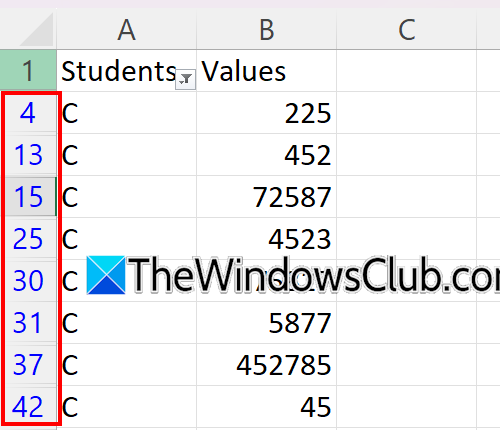
The above screenshot shows the unsorted data. Notice the row numbers. If the data is massive, deleting rows in such a case freezes the Excel. To fix this problem, you can try a workaround. Sort your data in Excel. After sorting the data, apply the filter, select the rows or columns you want to delete. Now, you can easily delete the rows.
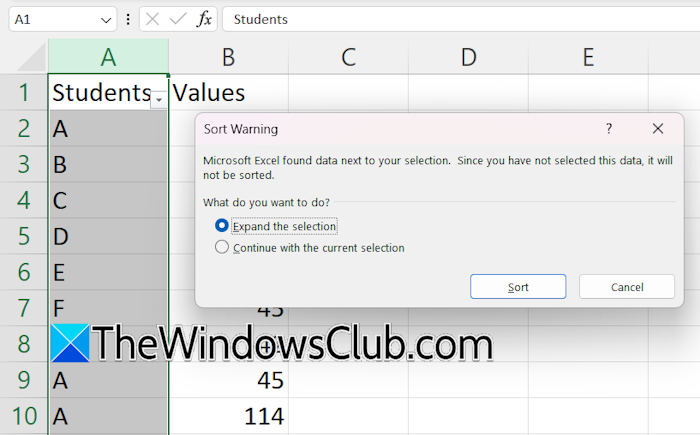
To sort data, select the column containing the data to be arranged and click Sort & Filter > Sort A to Z under the Editing group. The Sort warning window will appear. Select Expand the selection and click Sort.
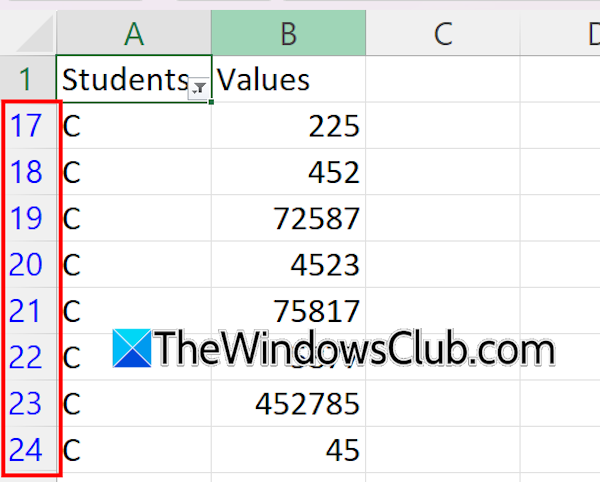
After sorting the data, apply a filter and select only those rows you want to delete. The filtered data you get will be sorted. Press Ctrl + A to select all the filtered rows and delete them. After deleting data, you can clear the filter.
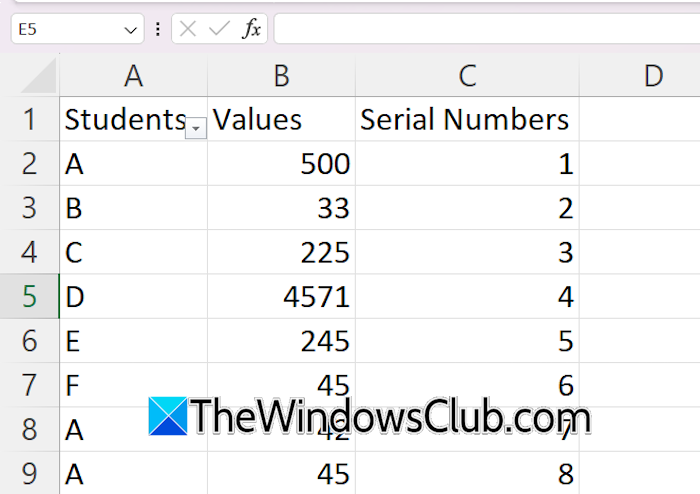
If you want to restore the previous sorting after deleting the required data, you need to take one additional step. Create a separate column showing the serial numbers. These serial numbers will help you get the original sorting back after deleting the required data.
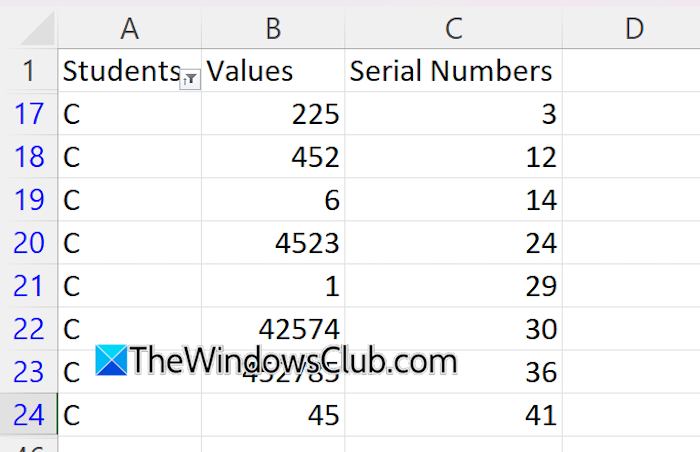
After creating a separate column containing serial numbers, sort your data, and then delete the required number of rows. The steps to delete the data are the same as explained above.
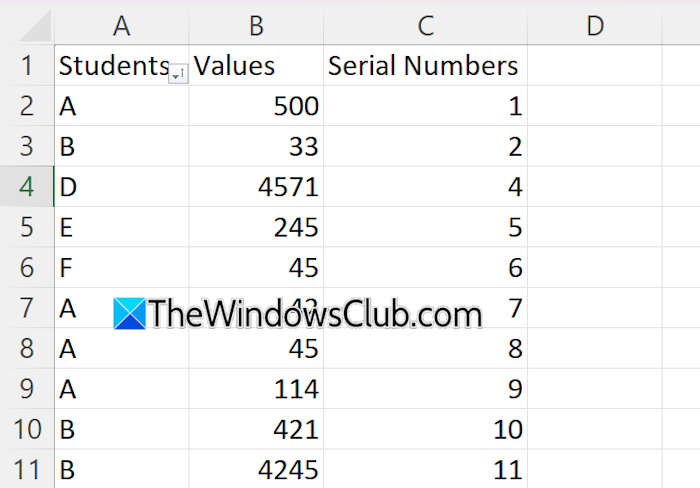
After deleting the required data, clear the filter. Now, select the Serial numbers column and sort it in increasing order. This will bring back the original sorting. When you are done, you can delete the Serial numbers column.
5] Repair or reinstall Office

The last resort is to repair Office. Run an online repair. This will take time, but fix your Office suite.
If repairing the Office suite does not work, uninstall and reinstall it.
How to fix an Excel file that keeps freezing?
If Microsoft Excel keeps freezing, launch it in Safe Mode. If the issue stops occurring in Safe Mode, this means one of the add-ins is the culprit. Additionally, you can try updating or repairing Office.
Why is Excel not letting me delete rows?
There can be multiple reasons why Excel is not letting you delete rows. If the Excel worksheet is protected, you cannot modify or delete data from it. Additionally, if the cells are merged, you cannot delete the respective rows until you unmerge them.
Read next: Excel showing formulas, not results.
