
Recently, we received several complaints from Microsoft Excel users about issues with the software. Apparently, the program crashes whenever they attempt to open a new file. The question is, then, is it possible to get rid of this issue? Our answer is yes, and that’s what we will discuss today.
Excel may freeze or fail to respond if another process is using it. So, when you perform some actions while Excel is in use, it may not respond or freeze. Some COM add-ins or Excel add-ins can also cause this problem. In addition, if an Excel file is generated incorrectly by some third-party tool and you try to open that file in Excel, then Excel may also become unresponsive or crash. We will discuss several fixes that will likely set things straight before the end of the article. We suggest trying every option until one works for you, so let’s get down to it.
Excel freezing, crashing or not responding
You could see any of the following error messages:
- Excel is not responding.
- Excel has stopped working.
- A problem caused the program to stop working correctly.
If Microsoft Excel crashes or freezes when running a macro, without saving, when opening file from the network, copy-pasting, deleting rows, then the following suggestions may help you:
- Start Excel in Safe Mode
- Disable Add-ins
- Install latest updates
- Check if the file is being generated by third-party
- Perform Selective startup
- Sign out and see
- Run Microsoft Excel Check Troubleshooter
- Use Microsoft Guided Support.
1] Start Excel in Safe Mode
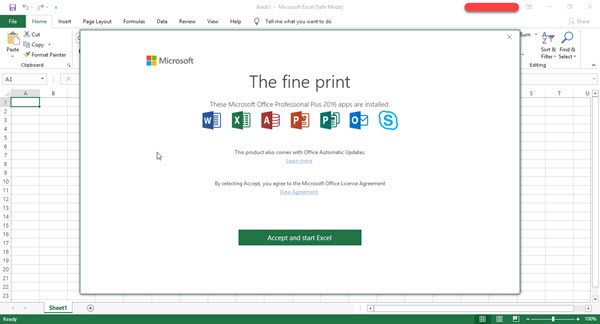
To figure out if something external is causing Excel to act crazy, the best option is to start it in Safe Mode. To start Excel in Safe Mode, press and hold the Ctrl key and double-click on an Excel file. Do not release the Ctrl key until you see a confirmation box. In that box, press the Yes button and that will open Excel in Safe Mode. Alternatively, open the Run Command box (Win+R), type excel.exe /safe in its text field, and hit the Enter key on the keyboard. This will start the Excel in Safe Mode.
If all issues are resolved, then it simply means there’s a chance you may have to disable one or more add-ins if any are activated.
Read: Excel filter not working properly
2] Disable Add-ins individually
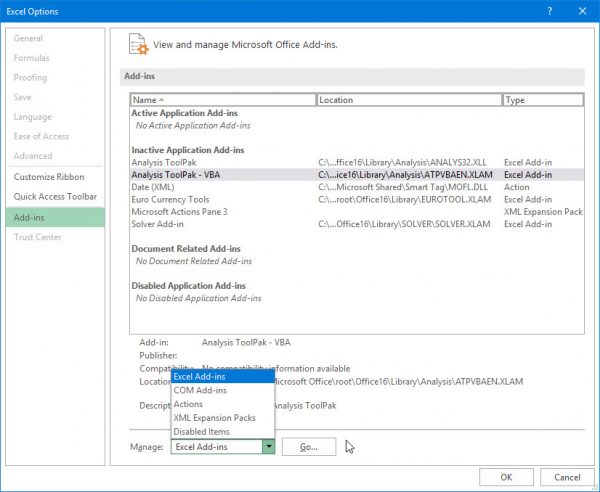
OK, so make sure you’re still in before moving to deactivate add-ins. Yes, this can be done even if you’re not in Safe Mode, but seeing as we’re not sure what is causing Excel to close automatically, it’s best to take the safer route.
To disable all add-ins, click on File > Options > Add-ins. From there, select COM Add-ins, then click on the Go button. Now, make sure to uncheck all boxes in the list of enabled add-ins, then hit OK. Finally, close Excel, restart your Windows computer, and you’re good to go, hopefully.
Related: Excel is slow to respond or stops working
3] Install the latest updates
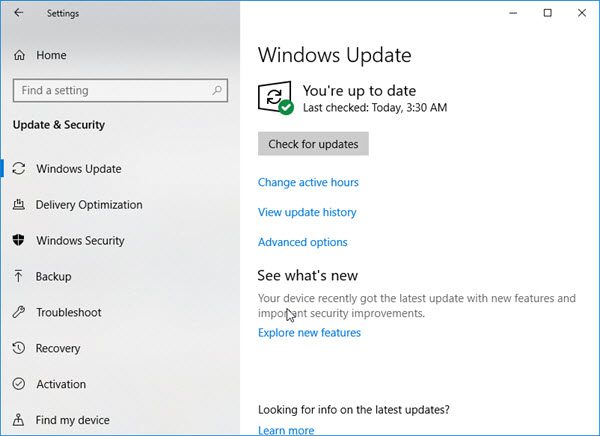
Maybe your Office install has yet to acquire new updates due to a particular setting in Windows 11/10. To make sure you will always get the newest updates, click on the Windows key + I to launch the Settings app.
After doing that, click on Update & Security an scroll to Advanced options. Within this section, users should see “Give me updates for other Microsoft products when I update Windows.” Make sure it’s turn on, then return one step backward and click on the “Check for Updates” button.
If updates are available, install them, restart the computer, and check again to see if the crashing issue has been resolved.
Alternatively, you can also use this method to update Office.
Read: Best Excel Repair Tools & Methods
4] Check if the file is being generated by third-party
There are certain situations in which a third-party application generates Excel files. However, in this case, the files may be generated incorrectly, which means certain things might not work as they should.
You need to disallow the third-party app from accessing your Excel file, then try opening it in Excel. If it still doesn’t work, the issue lies elsewhere.
Read: Microsoft Excel displays High CPU usage.
5] Perform Selective Startup
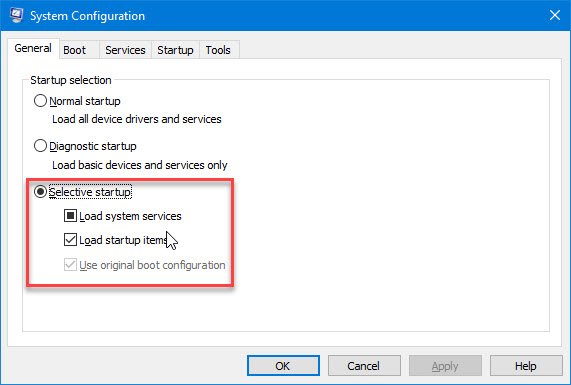
At this point, we have to wonder if your computer has selective startup enabled. Maybe certain things are not loading properly after a reboot, so in this case, we suggest enabling Selective Startup if it’s not on already.
Click the Windows key + R, then type msconfig, and finally, hit the Enter key. You should see the System Configuration window, just navigate to the General tab and choose Selective startup. After that, restart your Windows 11/10 computer and check if Excel is still acting up.
Related: Excel freezing when applying a Filter on large dataset
6] Sign out and see
If you are signed in to your Microsoft account, sign out and see if that makes the problem go away. If not, sign back in.
7] Run Microsoft Excel Check Troubleshooter

To run the Microsoft Excel Check Troubleshooter, open the Get Help app, type Microsoft Excel stops working and hit Enter. Then follow the wizard to troubleshoot and fix this issue.
8] Use Microsoft Guided Support
You can click on this Microsoft link to use their guided support to help resolve this issue.
Read: Excel crashes when saving a file.
Excel crashes when creating a pivot table
Excel may crash while creating a pivot table due to corrupted data or an excessively large file size. Large datasets with complex calculations often overload memory, causing instability. Check the Source Data and rename any column headers in the source data that are very long or contain unusual symbols. You should also ensure there are no blank headers in your data range.
Read: Excel freezes when deleting rows or columns
How to unfreeze Excel not responding?
To unfreeze an unresponsive Excel, open Task Manager, kill some other processes, wait a while, and see. Next, try restarting the application. If restarting doesn’t work, go to the View tab, click on the Freeze Panes menu, and choose Unfreeze Panes. Ensure your system and Excel are up to date to prevent future issues.
Read: Use Excel Troubleshooter to fix Excel problems
What do I do if Excel isn’t responding and I haven’t saved?
If Excel isn’t responding and you haven’t saved, use the ‘Recover Unsaved Workbooks’ feature. Go to File > Info > Manage Workbook > Recover Unsaved Workbooks. This opens a window with potentially recoverable files. Double-click the desired file to restore any lost changes. Save your work immediately to avoid losing data again.
