
If Excel is causing High CPU usage when copying, idle or when running on Windows PC, this post will help you. It may even display a Not responding message.
Microsoft Excel is a powerful tool that, from time to time, can put some stress on your computer due to the amount of data you’re working with. At other times, high CPU usage has everything to do with plugins and addons rather than a high workload, so how can we fix that?
Excel causing High CPU usage when copying, idle or running in Windows 11/10
It’s not easy to tell what is the main cause behind high CPU load, which usually brings forth a slowdown and potential freeze in the entire system. Not only that, but it could also be a sign of an impending corrupted spreadsheet, but this doesn’t happen quite often.
To help you with the high CPU problem, we’ve come up with a few suggestions. They are very easy to get done; therefore, you should not expect to go deep into Windows 11/10 where things can get overly complicated.
- Download and install updates for Office
- Delete local files for Excel
- Reduce Calculation load
- Use Microsoft Excel in Safe Mode and disable all add-ins
- Repair Office.
Let us talk about this in more detail.
1] Download and install updates for Office
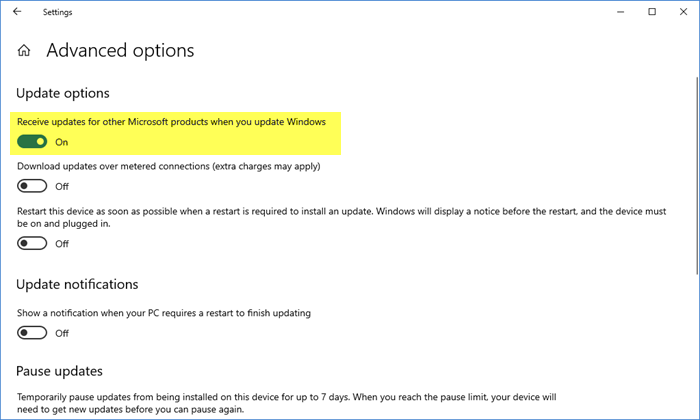
If you weren’t aware before, then please note that all Microsoft Office updates are done via Windows Update.
- Open Settings
- Open Update & Security
- Select WindowsUpdate
- Click Advanced Options
- Turn on Receive updates for other Microsoft products when you update Windows.
Having done this, updates for the program should be automatic, but you can manually check for updates whenever you want.
Get this done by pressing the Windows key + I to fire up the Settings app, and from there, select Updates & Security. Finally, hit the Check for Update button under Windows Update. If an update is available, the system should download and install it automatically without problems, hopefully.
2] Delete local files for Excel
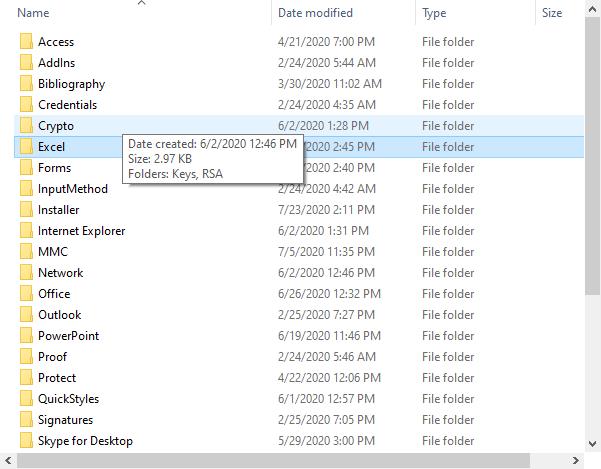
Before going forward, please bear in mind that deleting local content means you will lose your work. Therefore, it would make sense to copy all data located on the spreadsheet and save them elsewhere. Once that is done, it is now time to move on to the good stuff.
To remove all local data files for Microsoft Excel, please close the program, then navigate to the following:
C:\Users\Your Username\AppData\Roaming\Microsoft\Excel
From within that folder, delete everything, then restart Windows.
Read: Excel is crashing or not responding.
3] Reduce Calculation load
To do this, go to Formulas > Calculation Options and set it to Manual. This will stop Excel from constantly recalculating formulas.
4] Use Excel in Safe Mode and disable all add-ins
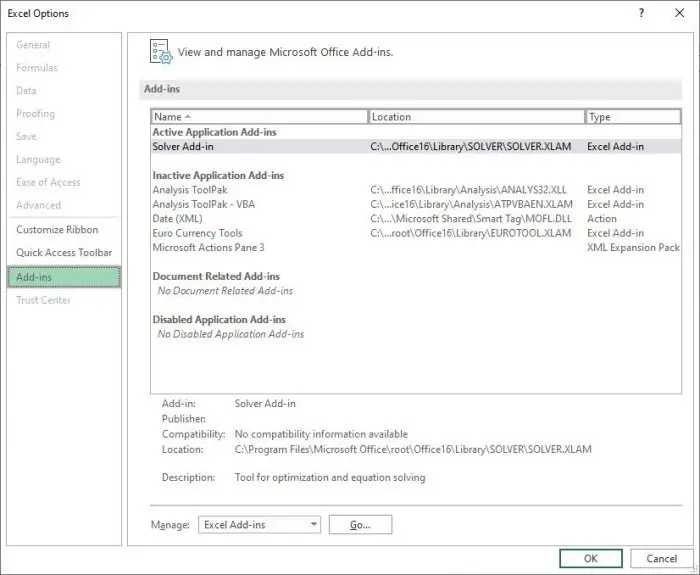
Yes, many of us enjoy using Add-ins since they bring new features to the program. However, we do not recommend using too many add-ins because they can cause problems in the future.
To solve some of these problems, we recommend bringing Excel into Safe Mode, then disable all add-ins. We can do this by pressing and holding the CTRL key, and from there, open Excel from the shortcut and it should open in Safe Mode.
If you see improvements in performance, then we suggest removing all add-ins by clicking on File > Options > Add-ins. From there, you will want to scroll down to where you see Manage and be sure to select Excel Add-ins from the dropdown menu.
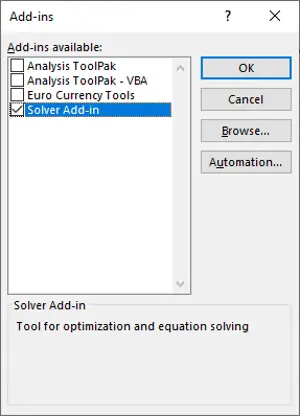
The next step, then, is to click on Go and a new window should appear with a list of all the add-ins. Each should have a tick-box beside them, so untick the boxes in order to disable them.
Finally, restart Excel and attempt to get some work done once more.
5] Repair Office Installation

You can repair Microsoft Office or Office 365 using Settings as follows:
- Press Win+I to open Windows Settings
- From the left side, select Apps
- Search for Office
- Click on the 3-dots to open more options
- Select Modify
- From the pop-up select:
- Quick Repair or
- Online Repair
- Once the process starts and completes, restart your computer.
Something here is sure to help you.
Why is Excel slowing down my computer?
Excel can slow down your computer due to excessive cell styling, fonts, borders, and colors. Overuse of conditional formatting often results in rendering issues. To optimize performance, clear unnecessary formatting by using “Clear Formats” found under Home > Editing.
