
If Formula Auditing features are not working in Excel, here is what you can do to fix the issue. There may be several reasons and scenarios causing this error, and we have consolidated almost all possible reasons along with solutions to troubleshoot it in Windows 11.
Why is Formula Auditing not working in Excel?
If Formula Auditing is not seen or is not working in Excel, one of these could be the reason:
- The Worksheet is password-protected, and the owner is blocking you from editing or doing anything.
- Your formulas contain multiple links to third-party pages and worksheets.
- You are using an old version of Worksheet.
- You haven’t unlocked the downloaded file.
- You are running Excel in Safe or Compatibility mode.
- You are using the Web version of Excel.
Formula Auditing in Excel not seen or working
If Formula Auditing in Excel is not seen or working, follow these instructions:
- Remove password and allow editing
- Unblock downloaded file
- Convert old Excel file to new format
- Don’t use Excel Online
- Get out of Safe Mode
- Add Formula Auditing to Ribbon
- Enable Analysis ToolPack
To learn more about these solutions, continue reading.
1] Remove password and allow editing
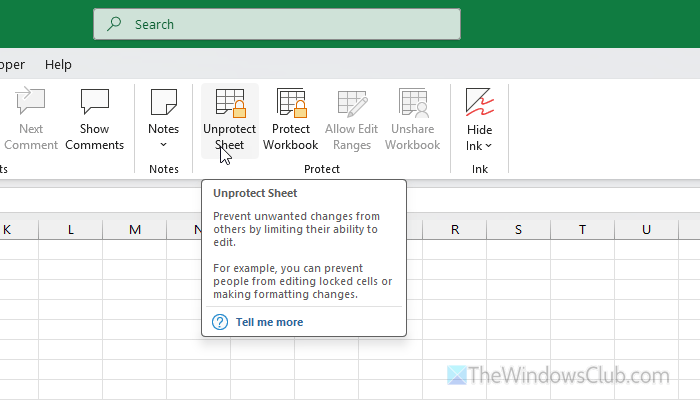
If your workbook is password protected, four out of six Formula Auditing options won’t work. Having said that, the following options won’t work when it is password protected:
- Trace Precedents
- Trace Dependents
- Remove Arrows
- Error Checking
That being said, you must remove your password and make the worksheet editing-free. In order to do that, head to the Review tab and click on the Unprotect Sheet option. Then, enter the password and press Enter.
Alternatively, you can click on File > Info and click the Unprotect option. Then, enter the password to decrypt it.
For your information, you can ignore the Protect Workbook option since it doesn’t make any difference in this case.
Read: How to generate a Random Strong Password in Excel
2] Unblock downloaded file
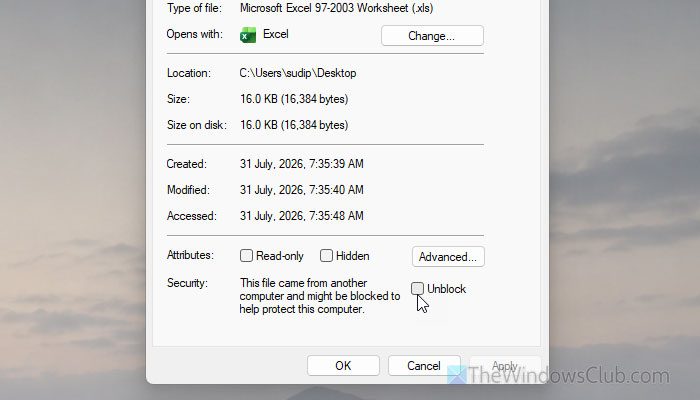
Although it is not a usual case, it may happen at times. If you have downloaded a file from the internet and tried to edit it or use the Formula Auditing options, you might encounter the same issue as mentioned earlier.
Therefore, the simplest way to get around this problem is by unblocking it. Windows 11 does that to protect your computer from malicious files and automated code injections.
To unblock any downloaded Excel file, right-click on it and select the Properties option. Next, tick the Unblock checkbox and click OK.
Then, you can keep editing or using the Formula Auditing options as usual.
Read: Windows has blocked access to this file; Unblock a File in Windows
3] Convert old Excel file to new format
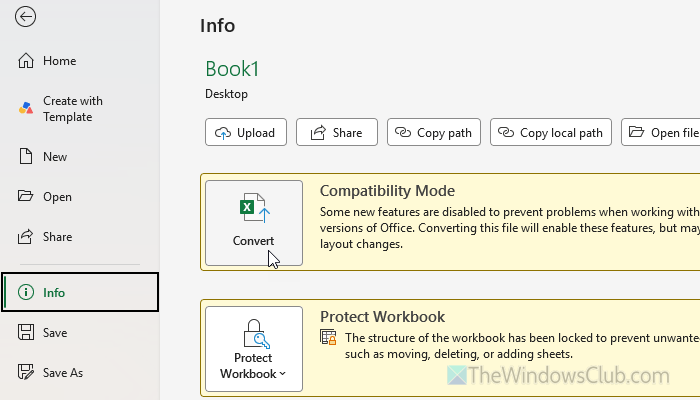
If you have an old Excel file with the XLS file extension, you must convert it to .XLSX. For your information, XLS used to be common with Excel versions older than 2007. However, if someone has sent you an Excel/Office 2003 or any other older version file in XLS format, you cannot use Formula Auditing.
In that case, you must convert it to XLSX, which is used in Office 2007 and newer versions, including Microsoft 365.
To convert an Excel file from XLS to XLSX, open the worksheet and go to File > Info. Click on the Convert button.
Once done, you will be able to use Formula Auditing without any problem.
Read: Convert CSV to Excel (XLS or XLSX) using Command line in Windows 11
4] Don’t use Excel Online
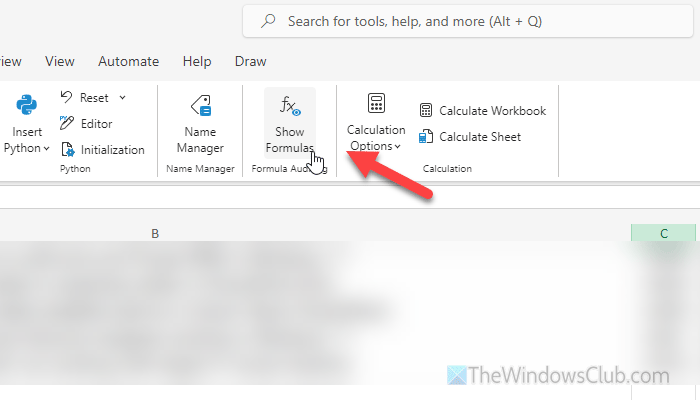
In case you don’t know, Formula Auditing is not available on the Web version of Excel. Although you may find only one option, a fully featured Formula Auditing wizard is available only on the Desktop version.
5] Get out of Safe Mode
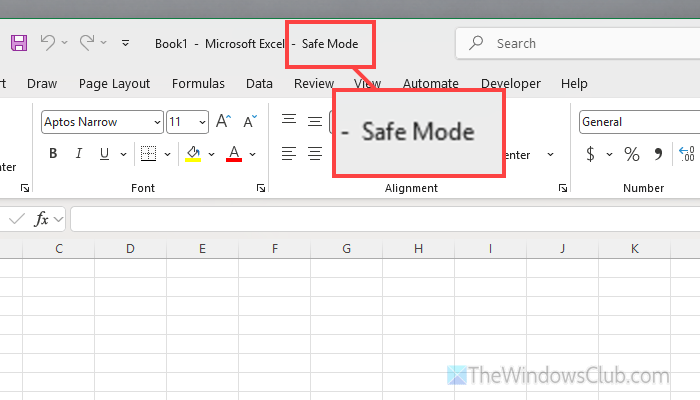
Although Formula Auditing is fully compatible with Safe Mode, it is suggested to get out of it if you are unable to find this option. For your information, Excel opens with only the very core features for diagnosis purposes when you turn on Safe Mode. In some cases, you may not find Formula Auditing because the Ribbon settings are incorrect.
That is why it is highly recommended to exit Safe Mode. To do that, simply restart Excel.
Read: How to open Word, Excel, PowerPoint, Outlook in Safe Mode
6] Add Formula Auditing to Ribbon
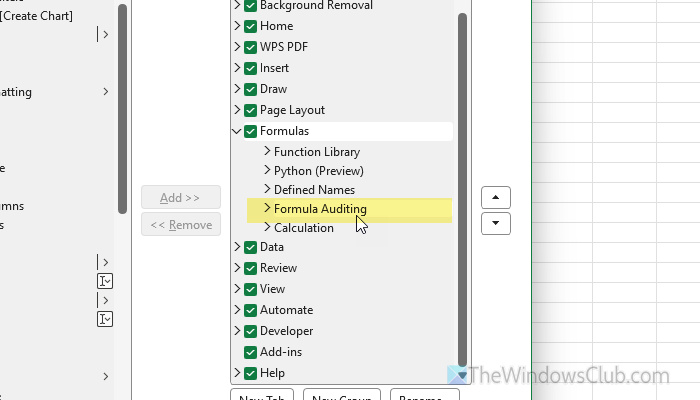
If you cannot find the Formula Auditing menu in the Formulas tab, it implies that the option is hidden. In that case, you can verify and enable/show it. For that, right-click on the Ribbon and select the Customize the Ribbon option. Alternatively, you can open the Excel Options wizard and go to the Customize Ribbon tab.
Head to the right-hand side and expand the Formulas section. If you cannot find Formula Auditing in the list, find it on the left side and use the Add option to add it.
Finally, click the OK button to save the change.
Read: How to customize Microsoft Office Ribbon
7] Enable Analysis ToolPack
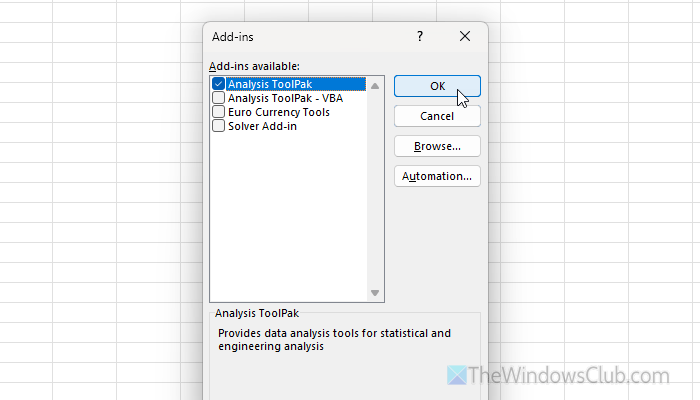
Although Analysis ToolPack is not directly connected to Formula Auditing, it is suggested to enable this add-in once and check if the problem remains or not.
First, check the status of this add-in. For that, go to File > Options > Add-ins. If you find Analysis ToolPack in the Inactive Application Add-ins list, it is disabled.
In that case, select Excel Add-ins from the drop-down menu and click the Go button. Tick the Analysis ToolPack checkbox and click the OK button.
Then check whether you can use Formula Auditing.
Read: Excel showing formulas, not results
How to enable formula auditing in Excel?
To enable or use formula auditing in Excel, go to the Formulas tab and head to the Formula Auditing section. Next, use the given options to find the precedents, dependents, formulas, etc.
Why is the formula not visible in Excel?
Excel does not show the used formulas all the time. You must use the Show Formulas option to show or hide them. You can find this option in the Formulas tab.
