
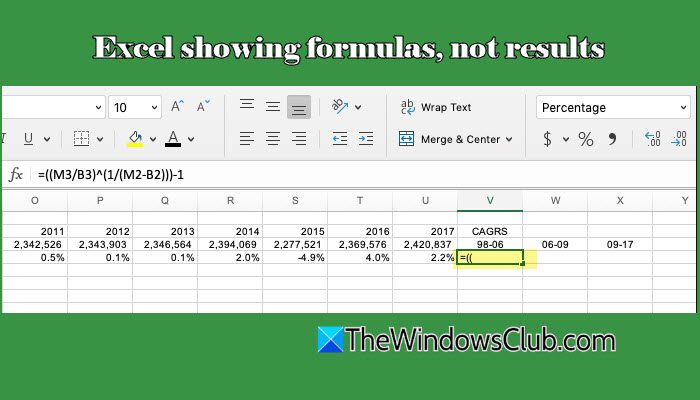
Imagine opening an Excel file expecting to see numbers, only to find that every cell displays formulas like =SUM(A1:A10), instead of the actual results. It can be confusing and frustrating, especially when you don’t remember changing any settings. If this is happening to you, don’t worry. In this post, we’ll explain why Excel is showing formulas instead of results on your Windows 11/10 PC and guide you on how to fix the issue in a few simple steps.
Why does Excel show formula and not result?
Excel may show formulas instead of results for several reasons. One of the most common reasons is incorrect cell formatting. To display results correctly, the cell must be formatted as ‘General’ rather than ‘Text’. Another reason is the presence of an extra space or an apostrophe before the equal sign, which causes Excel to treat the formula as plain text instead of a calculation. In some cases, the ‘Show Formulas’ setting is enabled, causing Excel to display formulas rather than results.
Excel showing formulas, not results
To fix Excel if it is showing formulas instead of results on your Windows 11/10 PC, use these solutions:
- Reboot PC
- Ensure the formula is entered correctly
- Check the cell format
- Turn off the ‘Show Formulas’ option
- Check if the cells are locked
- Repair Excel
Let us see this in detail.
1] Reboot PC

Before jumping into detailed troubleshooting, try restarting your PC once. In many cases, Excel issues are caused by temporary glitches related to background processes or a stuck application state. A simple reboot refreshes the system and instantly restores the normal results view.
2] Ensure the formula is entered correctly
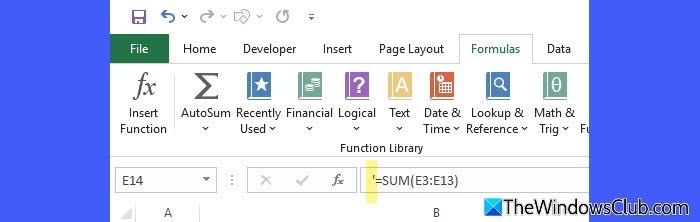
Sometimes, Excel interprets a formula as plain text instead of a mathematical operation and displays it exactly as typed. To fix this, make sure the formula is entered correctly.
First, check that the formula begins with an equal sign (=). If a formula does not start with an equal sign, Excel treats it as plain text.
Next, check whether there is a space or an apostrophe (‘) before the equal sign. These characters can be entered accidentally and break the rule that all formulas must start with ‘=’. Remove any such leading characters, if present.
Also, ensure that the formula is not enclosed within quotation marks. This often happens when copying and pasting formulas from online sources, where formulas are shown inside quotes for reference.
Finally, verify that the formula is syntactically correct and does not contain any typing errors.
3] Check the cell format
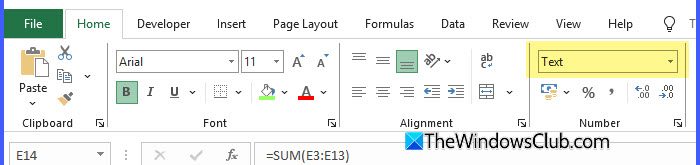
Another common reason Excel shows formulas instead of results is the cell format. If a cell is formatted as Text, Excel won’t calculate the formula, but will display it as it is. This often happens when data is copied from another file, imported from the web, or pasted into a pre-formatted worksheet.
To fix this, select the affected cell or cells and go to the Home tab. In the Number group, change the format from Text to General using the dropdown on top.
Once you do that, double-click the cell and press Enter to force Excel to recalculate the formula and show the result.
4] Turn off the ‘Show Formulas’ option
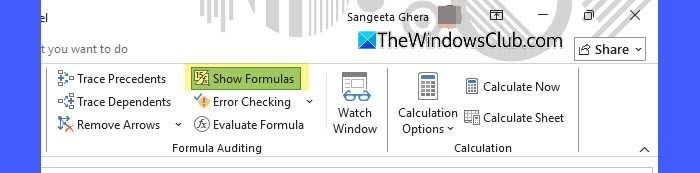
In many cases, the ‘Show Formulas’ option gets enabled accidentally, causing Excel to display formulas in every cell instead of the calculated results.
To turn it off, open Excel and go to the Formulas tab. Under the Formula Auditing group, click Show Formulas to disable the option. Excel should immediately switch back to showing results instead of formulas.
You can also toggle this setting using the keyboard shortcut Ctrl + ` (grave accent). Many users have confirmed that pressing this shortcut by mistake was the cause of the issue in the first place, so trying it again often resolves the problem instantly.
5] Check if the cells are locked
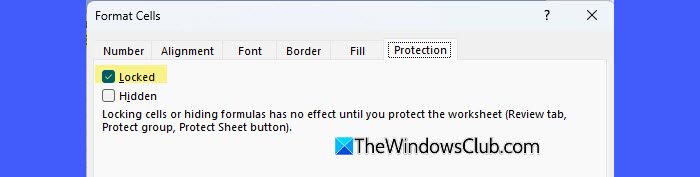
In some cases, Excel may show formulas instead of results because the cells in the workbook are locked. This usually happens when the worksheet was previously protected or copied from a template where cell protection was enabled by default.
To fix this, go to the Review tab. If you see Unprotect Sheet, the sheet is protected. Click it and enter the password (when prompted).
Next, select the affected cells, right-click, and choose Format Cells. Then switch to the Protection tab in the Format Cells dialogue. Uncheck the Locked option and click OK.
Once the locked status is removed, Excel should start displaying formula results normally.
5] Repair Excel
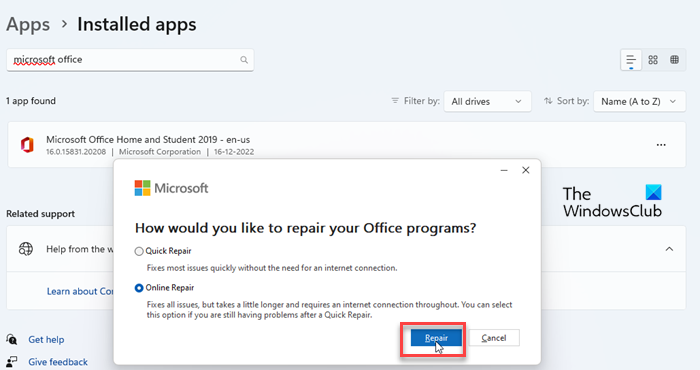
If none of the above solutions work, the issue may be related to a corrupted Excel or Office installation.
To fix this, open Settings on your PC and go to Apps > Installed apps. Locate Microsoft 365 (or Microsoft Office, depending on your version), click the three-dot menu next to it, and select Modify. Choose Quick/Online Repair and follow the on-screen instructions.
Once the repair process is complete, restart your PC and open Excel again to check if the issue is resolved.
I hope this helps.
Read: How to insert Formulas and Functions in Excel.
How to get Excel to show formula results?
To get Excel to show formula results, simply put an equal sign before the formula. Without this, Excel treats the formula as plain text and shows it as typed. If you’ve already placed an equal sign, go to the Formulas tab and see if ‘Show Formulas’ is enabled. This tells Excel to display the typed formula instead of the results.
Read Next: How to fix the #VALUE error in Excel.
