
This post will help you if you see an ERR_CONNECTION_ABORTED error message in Chrome browser when you try to connect to YouTube or any other website.
This site can’t be reached, The webpage at might be temporarily down or it may have moved permanently to a new web address, ERR_CONNECTION_ABORTED
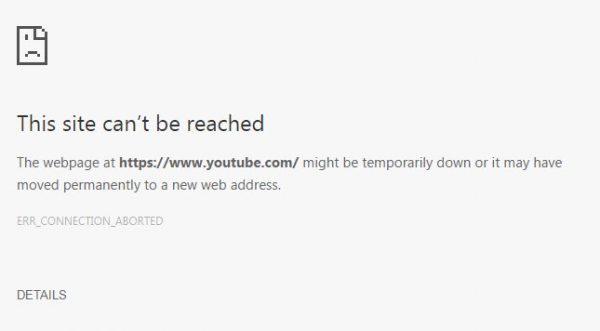
Often, when we try to browse the Internet, we encounter various types of errors. Sometimes, it is because the Internet connection is not working properly. Or sometimes your IP Address may be blocked by some websites, making them inaccessible. This can also occur because the website or service you are trying to access does not support the SSLv3 protocol (Secure Socket Layer Version 3 Protocol). Other potential causes of this error include third-party programs, such as your antivirus software or an extension installed in your browser, that may be interrupting your connection to the website. It can be due to many reasons.
Before trying any fixes, try to access the same website from a different browser and preferably a different connection. Try accessing the website from the browser in Incognito mode, which may help too. But if you still encounter this error, here is what you can do to fix it.
Fix ERR_CONNECTION_ABORTED error in Chrome
First of all, make sure that you create a System Restore point, just in case something goes wrong while fixing it.
1] Disable SSLv3 in Google Chrome
For this to work, you would need a shortcut of Google Chrome browser on your Windows Desktop.
If you already have a shortcut for Google Chrome browser on your Desktop, skip the next 3 points.
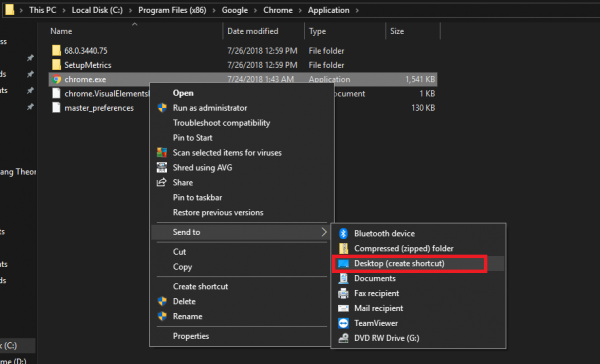
To do this, navigate to the following path,
C:\Program Files (x86)\Google\Chrome\Application\
Then, right-click on Chrome.exe and click on Send to > Desktop (Create Shortcut).
This will create a shortcut for Google Chrome browser on your desktop, if it was not present earlier.
Right-click on the Google Chrome shortcut on your desktop and click on Properties.
Now, navigate to the tab labeled as Shortcut.
In the field labeled as Target replace everything with the following text,
C:\Program Files (x86)\Google\Chrome\Application\chrome.exe” –ssl-version-min=tls1
This will now disable SSLv3 on your Google Chrome browser. Now you can try to check if you can still access that website.
2] Disable Antivirus and Firewall
In the System tray on the right corner of your taskbar, right-click on the icon of your Antivirus and then click on the option that refers to disabling your antivirus protection temporarily.
If prompted, set the duration of antivirus to be disabled as per your choice.
You may temporarily disable Windows Defender if you use it on Windows 11/10.
Now, you can check if your issue is resolved or not.
Additionally, you can disable your Windows Firewall protection too. This is due to the fact that the Windows Firewall monitors and authorizes or denies an inward or outward connection from your computer.
Now, you can check again if your issue is resolved or not.
3] Reset Google Chrome
To reset Chrome browser, make sure that Google Chrome is not running anywhere in the background using the Task Manager.
Now, hit the WINKEY + R combinations to open Run and then navigate to the following path,
%USERPROFILE%\AppData\Local\Google\Chrome\User Data
Now, select the folder named as Default and hit the Shift + Delete button combinations and then click on Yes for the confirmation prompt you get.
After deleting the Default folder, open Google Chrome and click on the Menu button denoted by three verticle dots in the top right corner.
Then, click on Settings. In the Settings section, scroll down and click on Advanced to reveal the Advanced Settings.
Now, scroll down to the Restore Settings to their original defaults button and click on it.
This will now give you a prompt like this-
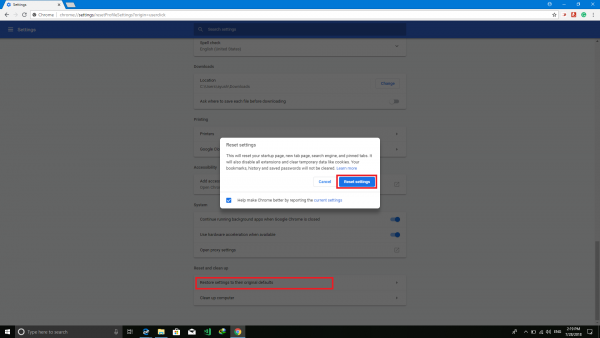
Click on Reset, and this will reset your Google Chrome browser.
Now check if your issue is fixed or not.
4] Reinstall Google Chrome
If all the methods mentioned above do not work properly, the last and ultimate fix would be reinstalling Google Chrome.
First, you will have to uninstall Google Chrome fully from your computer. This should also include all the leftover folders with browsing data, user data, etc.
Now, make sure you download the latest version of Google Chrome from its website here.
