
EA Desktop is one of the best launchers in the market. However, many users have complained about an issue with the app. According to them, EA Desktop keeps crashing or won’t launch on their Windows computer. It even signs out users at times. In this article, we will address this issue and outline what you need to do to troubleshoot it.
Why does EA keep crashing?
More often than not, the app file for your EA got corrupted, causing it to crash. There are various reasons for this such as improper shutdowns, corrupted installation media, etc. However, it’s not the only reason; conflicting apps, lack of privileges, and a glitch are some other reasons. Hereinafter, we present solutions to troubleshoot all causes.
Why does EA Desktop keep signing me out?
There are many reports of an issue in which EA Desktop keeps signing users out after they put their computers to sleep. The issue can either be a bug or there is something wrong with your network. As for the first reason, you should install the latest version of EA Desktop. However, if there is an issue with your network, you should try the solutions outlined later to resolve it.
EA Desktop keeps crashing and signing me out
If EA Desktop keeps crashing and even signing you out of your Windows computer, the following solutions are sure to resolve the issue.
- Close other EA apps
- Check your Internet Connection
- Restart Router
- Reset Network Protocols
- Clear EA Desktop Cache
- Create a new EA account
- Run EA Desktop as an administrator
- Troubleshoot in Clean Boot
- Reinstall the app
Let us talk about them in detail.
1] Close other EA apps
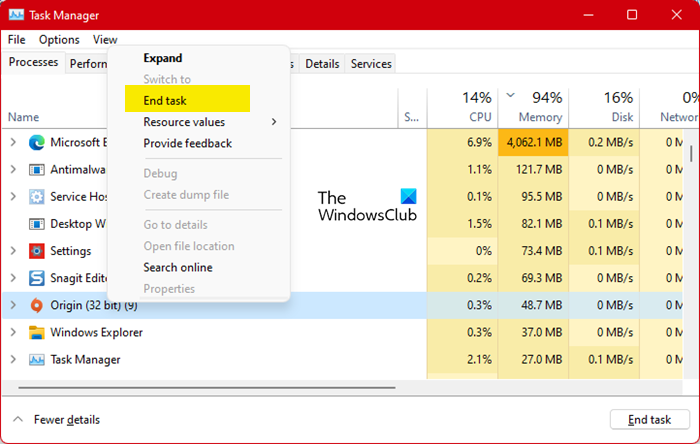
Apparently, EA Desktop won’t work if you have another EA app, such as Origin, running in the background. So, before opening EA Desktop, try closing Origin and ending every instance of the program. After clicking the Close button in the other EA app, go to Task Manager, right-click them, and select End Task. Now, open EA Desktop, hopefully, it will do the trick.
2] Check your Internet Connection
Now, try checking your Internet Connection if the app is signing you out. You can use a free Internet Speed tester to know your bandwidth. If it’s low, use the same tool on some other device connected to the same network. If all the devices are experiencing poor Internet, contact your ISP. Otherwise, fix the slow Internet issue on your device.
Also Check: Fix Network & Internet connection problems in Windows
3] Restart Router
To fix the network issue, try recycling your router. It will flush the network cache and hopefully, fix the problem that you are facing. To restart the router, follow the prescribed steps.
- Turn off the Router and unplug it.
- Wait for 30 seconds to one minute.
- Plug the router and turn it back on.
This should work for you
4] Reset Network Protocols
There can be a glitch in the network protocols, causing the issue in question. We are going to reset the Network Protocols and see if that resolves the issue.
So, open Command Prompt as an administrator and run the following commands.
ipconfig /release
ipconfig /flushdns
ipconfig /renew
netsh winsock reset
Hopefully, it will do the trick for you.
5] Clear EA Desktop Cache
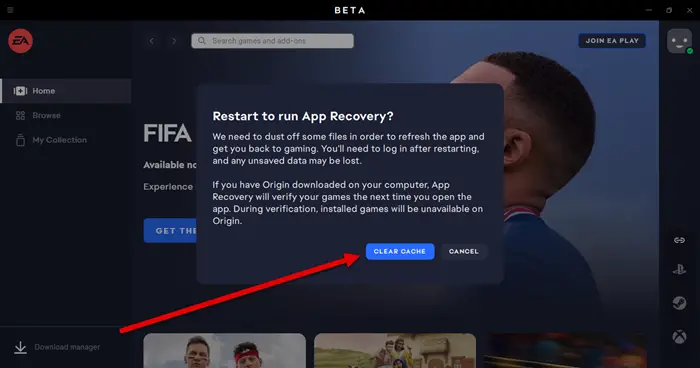
Corrupted app caches are another reason that could possibly crash the app. We need to clear them and see if that works.
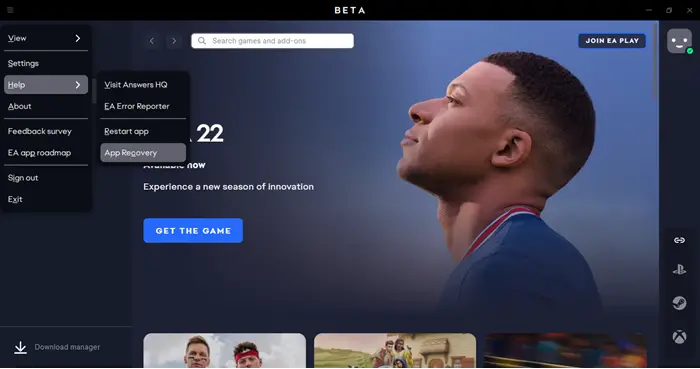
There are two scenarios here:
- You are able to open the app but it’s crashing afterward. If that is the case, then open EA Desktop, click on the three horizontal lines and click Help > App Recovery.
- If the app is not launching on your system, search “EA App Recovery” from the Start Menu and open it.
Then, in both cases, you need to click on the Clear Cache button to run the tool. Let it run and do its job. Then, restart your computer and open the app. Hopefully, it will do the job for you.
6] Create a new EA Account
For some users, EA Desktop was not working due to corruption in their EA accounts. So, they tried logging in with a different account, and it worked like a charm. You should try using a different account, too and see if it works.
7] Run EA Desktop as an administrator
Sometimes, EA Desktop lacks administrative privileges. We should try to give it the required permissions and see if that works. So, right-click on the EA Desktop app and select Run as administrator. The only caveat to this method is that you need to follow this two-step procedure every time you open the app. That is why you should change the shortcut’s properties to run in elevated mode all the time. Follow the given steps to do the same.
- Right-click on the app and select Properties.
- Go to the Compatibility tab.
- Tick Run this program as an administrator.
- Click Apply > OK.
Now, whenever you open the app, it will be launched with administrative privileges.
8] Troubleshoot in Clean Boot
The app may also crash if a third-party program interferes with its processes. So, you should open the computer in Clean Boot State and see if the app is crashing. If it’s not crashing, try narrowing down potential suspects; eventually, you will stumble upon the culprit. Just remove that app, and your issue will be resolved.
9] Reinstall the app
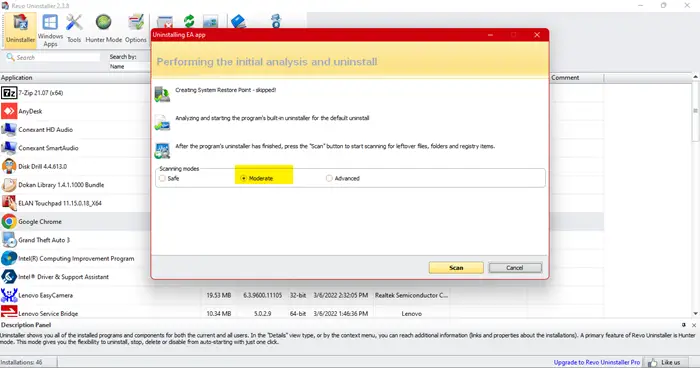
If all else fails, then reinstalling the app should be your last resort. But we are not going to use the conventional method to remove the app, as it will not remove registry entries and other files that can cause trouble in the future. We will be using a free app, Revo Uninstaller. It’s a small app, so, download and install it on your system. After installing the app, follow the prescribed steps to uninstall EA Desktop using Revo Uninstaller.
- Open Revo Uninstaller.
- Right-click on EA Apps and select Uninstall.
- EA Desktop uninstallation window will launch, follow the on-screen instructions to carry out the process.
- Set Scanning modes to Moderate. “Scan” will be greyed out at first, so, wait till EA Desktop is uninstalled, then click on the Scan button.
- You will see Leftover Registries, click Select All > Delete > Next.
- Then you will see some other files, click Select All > Delete > Next.
After uninstalling the app, restart your computer, go to ea.com and download the app. Then install EA Desktop and hopefully, it won’t crash this time.
If EA Desktop is giving you trouble, try Origin. But first, check our detailed comparison of EA Desktop and EA Origin.
Is EA Desktop better than Origin?
With so many complaints from users and bugs in EA Origin, EA decided to rebuild its EA Origin platform and then re-branded it with the EA desktop app known as the EA app for Windows. It is surely better than Origin and more user-friendly. So, Origin doesn’t exist anymore for the Windows platform as the new EA app is available to use. If you are a Mac user, then you can continue using the Origin for macOS app.
Following are some of the most common EA Desktop errors.
