
This post features a list of effective solutions you can try if you face the There was a slight hiccup, and we couldn’t finish installing error in the EA Desktop app. EA Play is a subscription-based video game service from Electronic Arts. It is the place from where you can seamlessly enjoy a long list of EA games like Battlefield, Need for Speed, The Sims and many more. However, when downloading EA games, users have reported encountering the message, “There was a slight hiccup, and we couldn’t finish installing.”
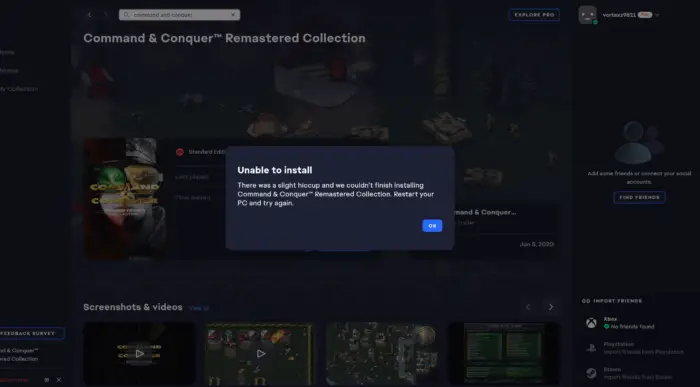
The worst thing about this added message is that it isn’t game-specific. For some users, it occurs while downloading games like FIFA. Whereas, for some, the added message appears while downloading Battlefield 2042. Nevertheless, if you encounter the same error message, follow the troubleshooting guide to resolve the issue.
There was a slight hiccup and we couldn’t finish installing EA Desktop app
Below are all the effective solutions you can try if you come across the error message, “There was a slight hiccup, and we couldn’t finish installing” error in the EA Desktop app.
- Restart the PC
- Make sure the Xbox Game Pass subscription is Active
- Try downloading a different game
- Login again in EA Play
- Reinstall the EA Play app
- Contact EA Play
Now, let’s take a detailed look at all the solutions mentioned.
1] Restart the PC
Before discussing anything technical, we recommend restarting your system whenever you encounter the “There was a slight hiccup, and we couldn’t finish installing” error in the EA app. As it turns out, the problem may be due to a temporary bug, and restarting is the best way to eliminate it. So, open Start Menu > Click the Power button > Restart. Once you have restarted the system, launch the EA Play app and check if the problem continues.
3] Make sure the Xbox Game Pass subscription is Active
Another thing that can trigger the mentioned problem is an inactive Xbox Game Pass. If this is the case, it’s no surprise you are facing. There was a slight hiccup, and we couldn’t finish installing the EA Play app due to an error. As it turns out, you need to have an active Xbox Game Pass subscription to enjoy EA Play services and download games from the platform. If the subscription has expired, renew it to continue downloading your favorite games and resolve the issue mentioned.
3] Try downloading a different game
The next thing you can try is to download a different game. But make sure you are downloading free games like Apex Legends. So, below are the steps you need to follow.
- Launch the EA Play app.
- Go to the Store and search for a free game, such as Apex Legends.
- Once found, click the Download icon to begin the download.
- While the game is in the middle of downloading, click the cancel button to stop the download.
- Go to the game that is throwing the mentioned error message, and try to download it again.
Check if you are still facing the same error message. If yes, try the next solution on the list.
See: Unable to connect to EA servers; You lost connection to EA servers
4] Login again in EA Play
Another solution that can be effective in the situation is going through the logout-login process. As it turns out, the problem can be caused due to an account-related glitch. So, log out from your EA Play account, followed by login in again, and check if the problem is solved. Here’s how it’s done.
- To begin with, log out of your EA Play account.
- Now, make sure that none of the EA Play services are running in the background. To do so, open the Task Manager by pressing the Ctrl + Shift + Esc key, right-click on all the EA Play-related services, and from the context menu, choose End task.
- Now, restart your system, and open the EA Play app.
- Login with your account by entering the required credentials.
- Navigate to the problematic game.
- Click on the Download button to initiate the download.
Try the next solution if you are still facing the other message while downloading the game.
See: FIFA 21 won’t launch EA Desktop on PC
5] Reinstall the EA Play app
This EA app errorcan occur due to an installation issue. In this case, you can’t do anything other than reinstall the app. But make sure you are following this solution only if none of the above were helpful in your case.
6] Use Origin to download the Game
The next thing you can do is try to download Origin and download your favorite Electronic Arts games. You will find all the EA games, including the one throwing the mentioned problem, on Origin. So, download the Origin app on your system and log in with your credentials. Search for your favorite game and begin downloading without any problems.
7] Contact EA Play
If none of the above-mentioned workarounds helped solve the problem, the last thing you can try is to contact EA Help. Reach them, and let them know you are facing the, There was a slight hiccup and we couldn’t finish installing error in the EA app.
Read Next: Fix EA Error Code 524, Sorry this account is not able to play online
Why is the EA app not working?
There can be multiple reasons the EA Play app isn’t working on your Windows PC. But among all, a major cause can be a server problem. If the app is under maintenance, it won’t work on your system. But if the problem persists, you can reinstall the application to resolve it.
How do I fix my Xbox error code?
Depending on the type, it is very easy to fix different Xbox error codes. Most Xbox error codes can be fixed by following these steps: turning off the console, unplugging the power cord and making sure there is no power supply. Wait for about 1 minute, then plug the power cords in again. Long-press the Pair and eject button on the console, and then press the Xbox button on the console.
Read Next: Fix EA Play Error Code 0xa3ea00ca, Something Unexpected.
