
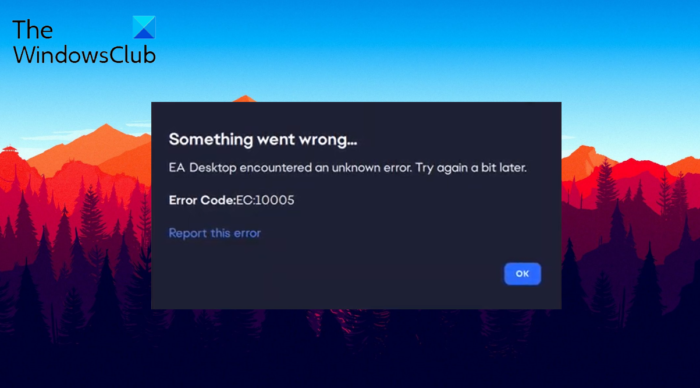
In this post, we will talk about how to fix Error code 10005 on EA Desktop. Introduced by Electronic Arts, EA Desktop is a captivating gaming service with fluent social media integration and an easy-to-use interface. However, like any other gaming service, EA Desktop can run into trouble as well. Among all, the one that has been troubling users the most is Error Code 10005. The error message says,
Something went wrong…
EA Desktop encountered an unknown error. Try again a bit later.
Error Code: EC:10005
When does Error 10005 occur in EA Desktop?
Error 10005 occurs in EA Desktop during game installation. To be very precise, the issue occurs when you try to install the game through the Xbox app rather than the official EA App. You can solve the problem by following the solutions below.
Fix EA Desktop Error Code 10005 on PC
Below is a list of all the effective solutions you can try to fix Error Code 10005 on the EA Desktop on your Windows 11/10 PC:
- Restart the application
- Reboot the router
- Check EA Server status
- Temporarily disable antivirus software
- Create new account
- Clear EA App application cache
- Use EA Play recovery application
- Troubleshoot in Clean Boot State
- Contact customer support
Now, let’s check out all these solutions in detail.
1] Restart the application
The first thing you should do whenever you come across Error Code 10005 on EA Desktop is to restart the application. As it turns out, the issue can be caused due to a temporary glitch, and if this is the case, restarting can be the best bet for you. So, restart the application and check if it solves the problem. If yes, you are good to go. But if the problem persists, try the next solution.
Restarting the EA desktop application via Task Manager can prove to be a better solution. To do so, follow the steps.
- Open the Task Manager on your Windows PC by pressing Ctrl + Shift + Esc shortcut key.
- Right-click on the EA Desktop application in the Task Manager window and choose End task from the context menu.
- Repeat the process with all the EA Desktop app-related services.
Now restart your Windows PC, and launch the EA Desktop application. Log in with your credentials and check if you are still facing the problem. If yes, try the next solution.
2] Reboot the router
If you have a weak internet connection, you will most likely encounter Error Code 10005 on EA Desktop. As it turns out, you need a strong, stable internet connection to access EA Desktop without any problems. You can visit any internet speed checking website to check your current internet speed. If it is comparatively lower than the plan you have opted for, contact your ISP to solve the issue.
Alternatively, if everything’s normal on your ISP’s side, it’s likely there’s an issue with your router. In this case, switch off the router, unplug the power cable and wait for 2-3 minutes. After that, plug in the cable and turn on the router. Open the EA Desktop application and check if the issue continues.
3] Check EA Server status
If the EA servers are down, you will face different issues, including the one in question. In this case, you can’t do anything other than wait until the developers fix the problem. You can check the server status by visiting any server status-checking website. Additionally, you can also head towards the EA official Twitter handle and look for any tweets related to server maintenance.
4] Temporarily disable antivirus software
A third-party antivirus program installed on your system may also be causing the issue. If this is the case, you can temporarily disable the antivirus program while accessing the application, and check if it solves the problem. If not, continue with the guide.
5] Create a new account
As reported by users, the problem was fixed by accessing the applications from a new account. You can follow the same process and check if it’s all the problem. To do so, create a new account on your system, and open EA Desktop.
6] Clear EA App application cache
Clearing the EA App cache data is another solution you can try. Here’s how its done.
- Click on the three dashes present at the far-left corner of EA Desktop.
- Navigate to Help.
- Choose App recovery.
- Select Clear cache.
7] Use EA Play recovery application
If you are trying to install the game through the Xbox app, instead of the EA App, you’re most likely to face the problem. To solve the issue, use the EA Play recovery application. You can find it inside the location folder of the EA App.
8] Troubleshoot in Clean Boot State
Performing a clean boot can prove to be another effective solution to manually troubleshoot Error Code 10005 on EA Desktop. You will need to manually identify and disable any offending processes that may be interfering with the smooth working of EA Desktop.
9] Contact customer support
If none of the steps were helpful, the EA customer support. They can help you with the problem you are currently facing.
What is the EA desktop app?
EA Desktop is one of the most captivating gaming services, with seamless social media integration and an easy-to-use UI. The application offers fast and smoother transitions. Also, you can chat and communicate with your gaming buds easily.
What causes Error Code 10005 on EA Desktop?
Error Code 10005 on EA Desktop can be caused by a weak internet connection, server issues, and other factors. The issue can also be caused by the installed antivirus program. Whenever you come across this error, you won’t have access to log in to your account and enjoy your favorite games.
