
If Dynamic Lighting is not working on your Windows 11 PC, you’re not alone. Microsoft introduced Dynamic Lighting to let users control RGB lighting effects on supported devices directly through the Settings app. But for some users, the feature is not working as expected.
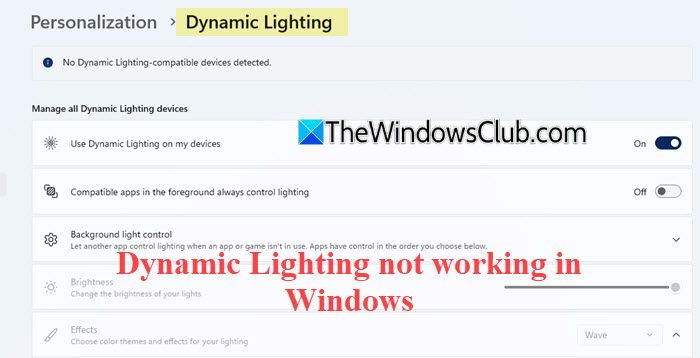
According to users, Dynamic Lighting either fails to work with supported devices or interferes with third-party software like Logitech G Hub or Razer Synapse. If you’re experiencing a similar issue, read this post. We’ll walk you through the steps to troubleshoot and fix Dynamic Lighting effectively.
Dynamic Lighting not working in Windows 11 [Fix]
To fix Dynamic Lighting if it is not working on your Windows 11 PC, use these fixes:
- Verify device compatibility
- Update Firmware/BIOS
- Prioritize Dynamic Lighting under Background light control
- Disable conflicting services
- Turn off Dynamic Lighting
Let us see this in detail.
1] Verify device compatibility
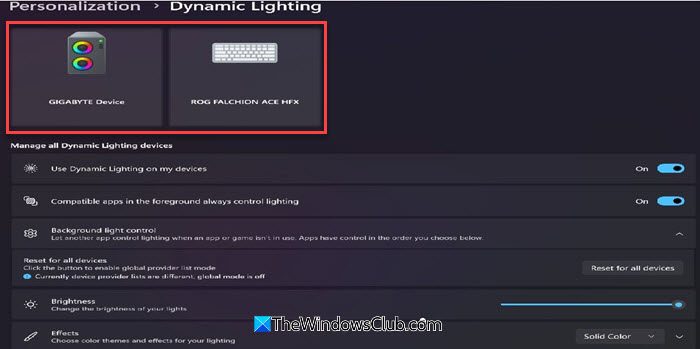
One of the most common reasons Dynamic Lighting doesn’t work in Windows 11 is that your device isn’t compatible. Dynamic Lighting relies on open HID LampArray standards, and only devices that support this protocol will be recognized by Windows. If your device isn’t compatible, Dynamic Lighting won’t work for you, no matter what you try.
To check device compatibility, go to Settings > Personalization > Dynamic Lighting.
If your RGB device is compatible, it will be listed on top. If you see No Dynamic Lighting-compatible devices detected, your device may not be supported.
You may also verify whether your peripherals are compatible by checking Microsoft’s official list of Dynamic Lighting-compatible devices here.
2] Update Firmware/BIOS
Some Dynamic Lighting issues stem from firmware-level incompatibility or lack of support from the BIOS/hardware controller itself. Updating firmware/BIOS can unlock or stabilize hardware features necessary for Dynamic Lighting to function correctly.
3] Prioritize Dynamic Lighting under Background light control
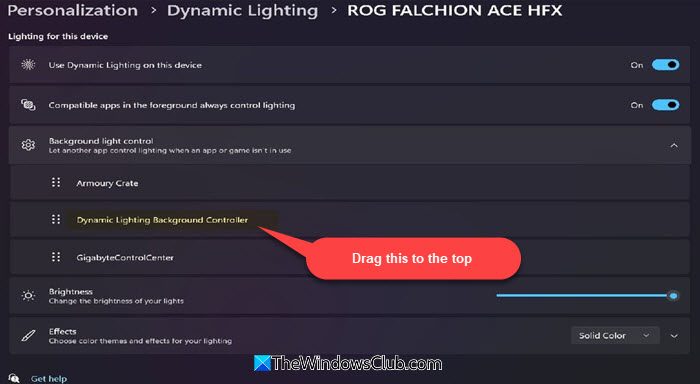
If your Dynamic Lighting settings (Brightness or Effects) are not working, the issue may be caused by a third-party RGB controller (vendor’s own lighting software) overriding Windows control. In such cases, you can fix the problem by prioritizing Dynamic Lighting under Background light control.
Background light control is a setting that helps manage conflicts between multiple RGB lighting controllers and Windows Dynamic Lighting. It tells Windows which app should take charge of RGB lighting when multiple apps are installed on a system.
Go to Settings > Personalization > Dynamic Lighting. Expand the Background light control section. You’ll see a list of background lighting controllers installed on your system.
Drag the Dynamic Lighting Background Controller to the top of the list. Once reordered, your brightness and lighting effect controls should start working properly.
4] Disable conflicting services
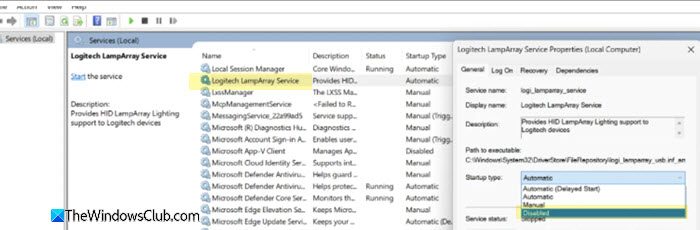
Many users, particularly those using Logitech G-series keyboards and mice, have reported that their devices behave abnormally even when Windows Dynamic Lighting is disabled. They were able to fix the issue by disabling a service called Logitech_Lamparray_Service.
Logitech_Lamparray_Service is a background service installed by Logitech on Windows PCs. Its purpose is to link Logitech RGB-enabled devices to Windows Dynamic Lighting. This allows Windows to control the RGB lighting instead of just relying on Logitech’s G Hub software.
However, even if you turn off Dynamic Lighting in Settings, this service may continue to run in the background, which may cause conflicts or disable your custom RGB settings. To disable it, follow these steps:
Press Win + R, type services.msc, and hit Enter. Locate Logitech_Lamparray_Service.
Right-click and select Stop. Then select Properties, and under the General tab, set Startup type to Disabled. Restart your PC to apply changes.
5] Turn off Dynamic Lighting

If Dynamic Lighting isn’t working, turn it off so that your device’s original vendor software (if you’re using one) can take full control of the lighting. This can help restore your preferred effects and prevent Windows from overriding them.
To turn off Dynamic Lighting, follow these steps:
- Press Win + I to open the Windows Settings app.
- Click on the Personalization option in the left panel.
- Click on Dynamic Lighting in the right panel.
- Turn off the toggle next to the Use Dynamic Lighting on my devices option.
Reboot your PC to apply changes.
Read: How to turn off RGB on a Windows PC.
How do I turn on dynamic lighting in Windows 11?
To turn on Dynamic Lighting, go to Settings > Personalization > Dynamic Lighting. Turn on the Use Dynamic Lighting on my devices toggle. You can then adjust brightness, effects, and colors directly from this page. Make sure your device is compatible and connected (either physically connected via USB or internally present) for the settings to take effect.
What is the dynamic lighting service in Windows 11?
The Dynamic Lighting service is a built-in Windows component that lets the OS control RGB lighting effects on supported devices without needing vendor software. It works in the background to apply your chosen effects, sync lighting across devices, and manage conflicts with other RGB controllers.
Read Next: Change Keyboard Backlit Timeout settings in Windows 11.
