
Here is a full guide on how you can fix FPS drops and stuttering issues in Dying Light on Windows 11/10 PC. Dying Light is an action role-playing game developed by Techland. It is already garnering popularity amongst gaming enthusiasts. While most gamers enjoy a smooth experience, many users have encountered issues. Some users have reported FPS drops and stuttering in the game. If you are experiencing the same issues, you can follow the fixes listed in this post.
What causes FPS drops and stutters on Dying Light?
Here are the potential causes of FPS drops and stuttering issues in Dying Light:
- In case your PC doesn’t meet the minimum requirements to play the game, you are likely to deal with FPS drops or stuttering issues. Make sure your system meets the minimum system requirements.
- You may be experiencing stuttering or FPS drops due to outdated games. Please ensure you have installed the latest game patches to resolve the issue.
- An outdated graphics driver or a Windows system issue can also cause the same issue. If the scenario applies, make sure you have updated your Windows and graphics drivers.
- Another possible cause of the issue is corrupted or damaged game files. You can try verifying your game files to fix the issue.
Based on the above scenario, you can try applying a suitable fix to resolve the stuttering or FPS drops issue in Dying Light.
Dying Light FPS Drops and Stuttering on Windows PC
Here are the methods you can try to fix FPS drops and stuttering issues in Dying Light game on Windows 11/10 PC:
- Make sure your PC meets the minimum requirements.
- Install latest game updates.
- Shut down unnecessary background processes.
- Install all Windows updates.
- Update your graphics driver.
- Verify integrity of game files.
- Modify in-game settings.
- Enable hardware-accelerated GPU scheduling.
1] Make sure your PC meets the minimum requirements
Before trying any other fix, ensure your PC meets the minimum requirements to run Dying Light. If not, you will experience FPS drops and stutter. Please review the specifications and ensure your system meets them. Here are the specifications:
Intel Core i5-13400F/AMD Ryzen 7 5800X, 16GB RAM, NVIDIA GTX 1060/AMD RX 5500 XT, and 70GB SSD storage for 1080p/30fps. Recommended specs for 1440p/60fps include an RTX 3070 Ti/RX 6750 XT and 16GB RAM.
If your PC meets the requirements and you still encounter the same issues, try the next potential fix to resolve the problem.
2] Install latest game updates
You may experience stutters and FPS drops if your game is not up to date. The developers continue to deploy new game patches to fix bugs and improve gaming performance. Therefore, it is recommended to install all available game updates to ensure a smooth gaming experience.
If you use Steam, here are the steps to update your game:
- Firstly, launch the Steam client and go to LIBRARY.
- Now, right-click on Dying Light and select the Properties option.
- In the Properties screen, go to the UPDATES tab and select the Always keep this game updated option from the AUTOMATIC UPDATES drop-down option. Steam will now keep your game updates always.
For Epic Games Launcher users, below are the steps to update Dying Light:
- Firstly, start Epic Games Launcher and go to the Dying Light game in your LIBRARY.
- Now, press the gear icon (three dots) present next to the game to open up the Settings menu.
- Next, ensure that the Auto Update option is enabled.
In case you are getting the same issue even after installing the latest game updates, try the next potential fix to get rid of the problem.
3] Shut down unnecessary background processes
If you are running too many programs and apps on your system, you are likely to experience FPS drops and stuttering in your game. Since video games like Dying Light demand high system resources, running too many background processes can degrade gaming performance. Therefore, it is highly recommended to close all unnecessary CPU-intensive processes to resolve the issue. You can open Task Manager using the Ctrl + Shift + Esc hotkey, select the process, and then use the End Task button to close it.
If this doesn’t work, you can move on to the next potential solution to resolve the problem.
4] Install all Windows updates
You might be getting stuttering and FPS drops in Dying Light because of using an outdated version of Windows. With the latest updates, the system’s stability and performance have improved. So, make sure you have installed all the pending Windows updates to enjoy a hassle-free gaming experience. Press Win+I to open Settings, then go to the Windows Update tab. From here, click the Check for updates button, then download and install all pending Windows updates.
5] Update your graphics driver
We continue to emphasize the importance of keeping your PC’s graphics driver up to date for optimal gaming performance. So, if you continue to deal with stutters or FPS drops with Dying Light, you might have an outdated or faulty graphics driver. If applicable, ensure your graphics driver is up to date. If not, go ahead and update your graphics driver to ensure a great gaming experience.
Here is how you can update your graphics driver on Windows 11/10:
- The easiest way to update GPU card drivers is going to Settings > Windows Update and using the Optional Updates feature to install pending updates for your graphics driver.
- You can also go to the official website of the device manufacturer and download the driver installer to install graphics drivers on your PC.
- Another conventional method to update the graphics driver is using Device Manager. You can follow below steps:
- Open the Win+X menu and select Device Manager.
- Navigate to Display adapters and expand the respective menu.
- Right-click on your graphics card.
- Click on the Update Driver option.
- Follow the on-screen instructions to complete the update process.
- You can also try using a free driver update that lets you automatically update your graphics and other drivers.
If you still encounter the same problem after updating your graphics driver, there may be another underlying cause. You can proceed to the next potential fix to resolve it.
6] Verify integrity of game files
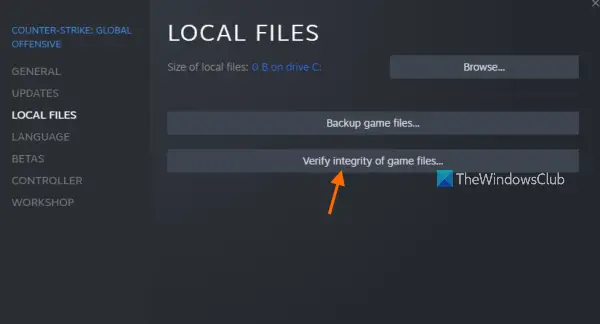
This issue may be caused by corrupted or missing Dying Light 2 game files. In that case, please verify the integrity of your game files and see whether the problem is resolved.
Steam users can follow the below steps to verify game files for Dying Light 2:
- Firstly, open Steam, navigate to LIBRARY, and select the Dying Light 2 game title.
- Now, right-click on the game and select the Properties option.
- Next, go to the LOCAL FILES tab and press the Verify integrity of game files button.
- Once verification is complete, relaunch the game and check whether the issue has been resolved.
Epic Games Launcher users can try the steps below:
- First, start Epic Games Launcher and go to the Dying Light 2 game in your Library.
- Now, press the gear icon to open up the Settings menu.
- Next, select the Verify option from the drop-down options and let it verify and repair the game files.
- When the process is complete, try relaunching the game to see whether or not the issue is fixed.
7] Modify in-game settings
Your in-game settings may also be causing stutters and FPS drops. You can try lowering your in-game graphics settings to resolve the issue. Here are the settings that you can adjust to tackle the issue:
- Window Mode: Fullscreen
- Resolution: Set it as per your display resolution.
- Vertical Synchronization: Off
- Particles Quality: Low
- Contact Shadows Quality: None
- Ambient Occlusion Quality: None
- Global Illumination Quality: Low
- Global Illumination Quality: Low
- Reflection Quality: Low
- Fog Quality: Low
8] Set Graphics Preference to High Performance
You can try setting Graphics Preference for Dying Light 2 to High Performance to fix FPS drops. It might boost in-game FPS and enhance the gaming performance. Here is how you can do that:
- Firstly, open Settings using Win+I and then go to the System > Display > Graphics section.
- Now, click on the Browse button and add the game’s executable file. The Epic Games Launcher users are likely to find the game at C:\Program Files\Epic Games\Dying Light 2 location.
- Next, select the game and then click on Options.
- After that, choose High performance and click on the Save button.
- Finally, try relaunching the game and check whether or not the problem is fixed.
That’s it! Hope this helps!
Does lower RAM cause FPS stuttering?
Yes, low RAM can cause FPS stuttering. In gaming, RAM helps computers improve frame rates. If your system lacks sufficient RAM, it cannot process data quickly, resulting in a drop in FPS. Hence, you will experience poor performance. In addition, CPU or GPU overheating can cause FPS stutter.
Now read:
