
DTS: X is one of the most popular surround sound systems, and it’s well known that it creates drivers for Windows desktops and laptops. We suspect these drivers are preventing DTS :X Ultra from working on your computer. In this post, we are going to see what you need to do if DTS:X Ultra is not working on your Windows 11/10 computer.
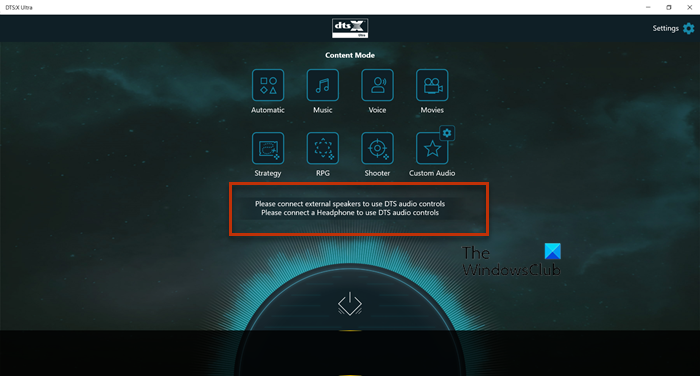
Please connect external speakers to use DTS audio controls. Please connect a Headphone to use DTS audio controls.
Why is my DTS not working?
Your DTS may not work if there is an issue with the driver. Usually, the driver gets corrupted for various reasons, or it may go missing. Whatever the case, it will stop DTS:X Ultra from functioning. We have curated a list of solutions for both drivers and other issues that may help.
DTS:X Ultra not working on Windows 11
If DTS:X Ultra is not working on your computer, try the following solutions.
- Download the latest Drivers
- Try using a different driver
- Run Playing Audio Troubleshooter
- Update Windows and its drivers
- Reset or Repair DTS:X Ultra App
- Update using Media Creation Tool and then stop updates
Let us talk about them in detail.
1] Download the latest Drivers
As mentioned earlier, the issue is related to drivers. So, this solution requires you to download the appropriate driver for your DTS device. Visit microsoft.com and search for and download DTS APO4x and DTS APO4x Service. Then, install the downloaded files and the driver will be added.
2] Try using a different driver
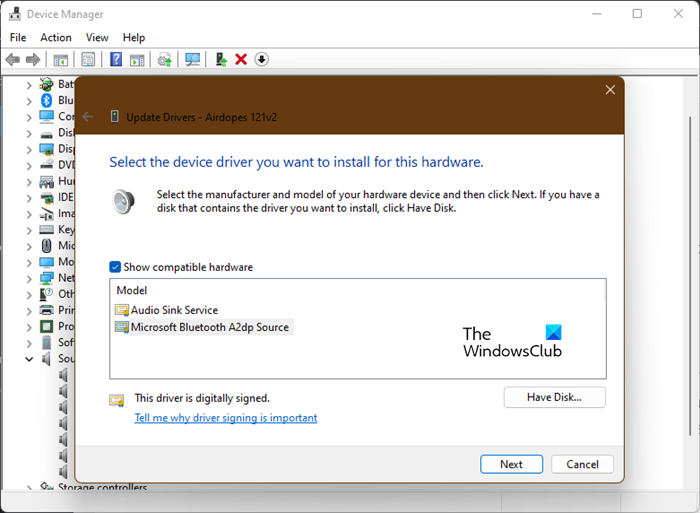
This may not be a solution, but it is a workaround until an update is available. We’ll switch to a different, more generic driver and see if that helps. The audio quality may not be as good as it was with the DTS driver, but it will let your speakers work if they weren’t working before. Follow the same steps.
- Open Device Manager.
- Look for DTS Audio Driver (it may have a different name), it might be under Sound, video, and game controller or Software components.
- Right-click on it and select Update driver.
- Click on Browse my computer for drivers > Let me pick from a list of available drivers on my computer.
- Select the generic Microsoft driver or the Realtek driver (each OEM uses different drivers), then click Next.
After installing the correct driver, check if the issue persists.
3] Run Playing Audio Troubleshooter
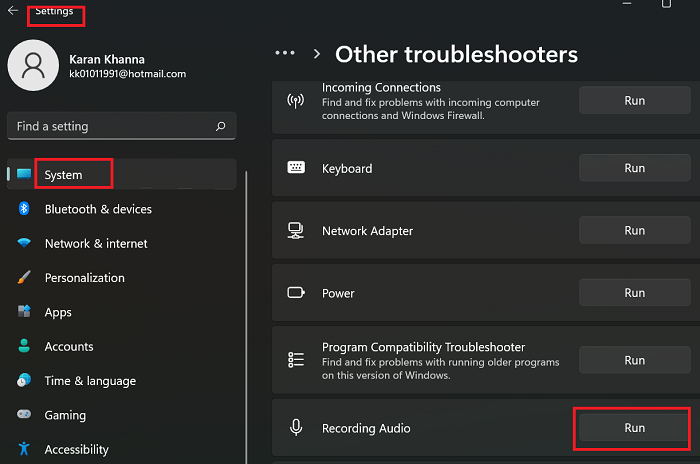
Next, let us put some pressure on your OS to fix the issue. Run the Playing Audio Troubleshooter and let it scan and repair the issue. Follow the given steps to do the same.
Windows 11
- Open Settings from the Start Menu.
- Click System > Troubleshoot > Other troubleshooters.
- Look for the Playing Audio troubleshooter, and click on the Run button.
Windows 10
- Open Settings.
- Go to Update & Security > Additional troubleshooter.
- Click Playing Audio > Run the troubleshooter.
Follow the on-screen instructions to troubleshoot the issue. Hopefully, this will do the job for you.
4] Update Windows and its drivers
DTS:X Ultra may not work on your computer because of a bug in the OS or the drivers. Use any of the following methods to update your audio driver:
- Download Driver and Optional Updates from Settings.
- Go to the manufacturer’s website and download the correct DTS: X audio driver.
- Use free driver update software.
- Update your Audio driver from the Device Manager.
After updating the drivers, check if the issue persists.
5] Reset or Repair DTS:X Ultra App
The service may also stop working if its app is corrupted or misconfigured. In this solution, we are going to first repair DTS:X App and if that doesn’t work, we will go and reset it. Here is how to do the same.
- Launch Settings.
- Go to Apps > Apps & Features.
- Look for DTS: X Ultra.
- For Windows 11: Click on the three vertical dots and select Advanced Options.
- For Windows 10: Click on the app and select Advanced Options.
- Click on Repair.
If repairing doesn’t work, look for the Reset button in Advanced Options and click on it.
Also read: Fix Sound and Audio problems and issues in Windows.
6] Update using Media Creation Tool and then stop updates
If nothing works, you may need to wait for an update. However, in the meantime, you can upgrade using Media Creation Tool and then stop updates for a while. Once a fix is available in a form of an update, just install it and your issue will be resolved.
Hopefully, these solutions will work for you.
How do I turn on DTS X Ultra?
You can turn on DTS: X Ultra using its app. So, search out “DTS:X Ultra” from the Start Menu, and on its homepage, click on the Power button. This will turn on the feature. You can also control DTS’s settings from the app itself.
