
One issue that has plagued Windows users for years is DirectX Graphics Kernel Latency. This glitch usually appears after a Windows Update and causes sound issues during certain processes on your computer. For many users, especially gamers, this problem is a nightmare, as the computer audio and sometimes the graphics will start flickering and stuttering. Plus, programs like games can become laggy or even crash because of this high latency. If you are facing high DPC Latency from Directx Graphics Kernel, this post will help you.
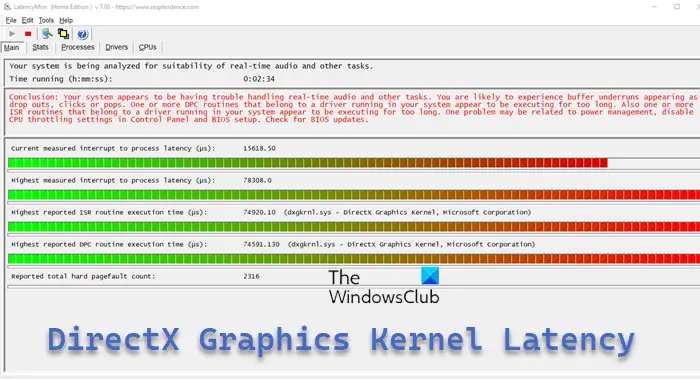
This Windows bug sets your computer latency to maximum, and as a result, the computer starts malfunctioning by responding slowly. However, this issue can most of the time be traced back to Windows updates (Driver issues), as mentioned earlier, as well as to some third-party bugs that make the driver communicate with other drivers on your computer, causing excessive processing time for the driver to function. Regardless, there are still some simple workarounds to resolve the DirectX Graphics Kernel Latency on Windows 11/10 PC, which will be covered in this article.
Fix DirectX Graphics Kernel Latency on Windows computer
Take these steps to resolve this issue:
- Run DirectX Diagnostic Tool
- Reset BIOS
- Troubleshoot in Clean Boot State
- Change your PC Power Plan
- Uninstall Graphics and Audio drivers
- Use TCP Optimizer
- System file checker
- Uninstall and Reinstall DirectX
- Temporarily disable Antivirus and Firewall.
1] Run DirectX Diagnostic Tool
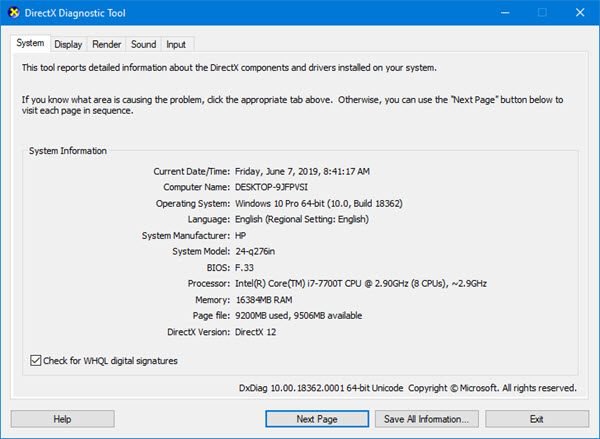
When faced with this issue on your Windows computer, the first thing you should do is to run the DirectX Diagnostic Tool. DxDiag is a built-in Microsoft tool designed to help resolve issues with Windows DirectX. Try this solution and see if it fixes the DirectX Graphics Kernel Latency issue.
2] Reset BIOS
This issue may be due to corrupt BIOS settings, which can be resolved by restoring the settings to defaults. Try to reset the BIOS configurations on your computer and see if that helps.
Related: Fix High DPC Latency on Windows
3] Troubleshoot in Clean Boot State
Often, some processes or services running on your computer are always behind the issues you face. By performing a clean boot, you’ll be able to troubleshoot and isolate the offending process that could be the root of the problem and know what to do to resolve it. However, make sure to restart your computer after each action you take while in the clean boot state. This can also help you in fixing the DirectX Graphics Kernel Latency.
Read: LatencyMon checks if your Windows computer is suitable for real-time audio processing
4] Change your PC Power Plan
Another helpful solution to fix this issue on Windows computers is to tweak your power plan configuration. When computers use the balanced power plan, the system can get confused about which plans to prioritize and which to ignore, resulting in latency problems. It’s better to modify the Power plan to address this issue, and here’s how:
- Press Windows + R to open the run command box.
- Type powercfg.cpl in the box and hit Enter to open the Windows Power Plan.
- Then change the Power Plan to High Performance.
Read: How to change Power Plan and Create Custom Power Plans in Windows
5] Reinstall Graphics and Audio Drivers
You can also uninstall your graphics and audio drivers, then reinstall their updated versions and see if the issue gets fixed. To uninstall these drivers:
- Simply go open Device Manager on your computer.
- Right-click on the respective drivers and select Uninstall and confirm the action.
After that, install the new driver versions on your computer. You can make use of any of these methods to do that:
- Use Windows Update > Optional and Driver Updates
- Download it from their website and install it into your computer
Then restart your computer after installation and check whether the problem persists or has been fixed.
6] Use TCP Optimizer
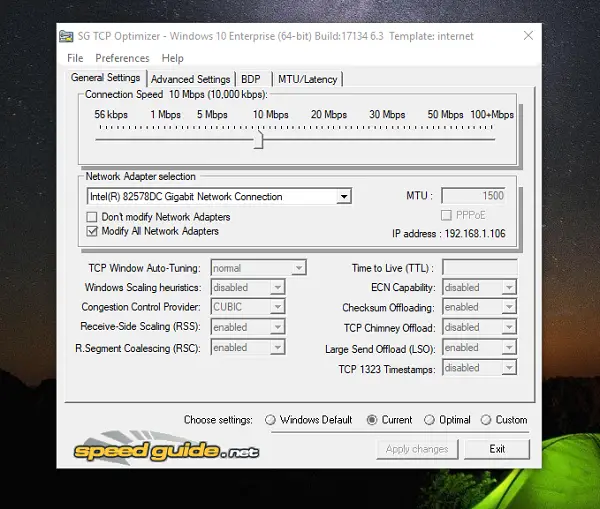
Many users have reduced their PC latency significantly with this tool, and you can try it too.
- Download the TCP Optimizer
- After installing the software, right-click it and select Run as administrator to open the tool.
- Select Optimal under the Choose Settings option and click on Apply changes afterward.
7] System File Checker
The System File Checker helps check for file problems on Windows computers. The utility scans for corrupt or missing files and replaces them. Since issues like DirectX Graphics Kernel Latency can be due to file problems, you can run the System File Checker to help restore your files to normal.
8] Reinstall DirectX
Since this software is causing the issue, it’s best to install a new version on your computer. Simply check out this link for more details on how to reinstall DirectX.
9] Temporarily disable Antivirus and Firewall
Firewalls and Antivirus Software Can sometimes destabilize a computer’s performance and may be the cause of DirectX Graphics Kernel Latency. It’s best to temporarily disable your antivirus and firewall and see if the issue is resolved.
Here are a few ways to address DirectX Graphics Kernel Latency, and you may need to try more than one to get your computer working properly. Just ensure the fixes are done well, and hopefully, they will be helpful. If not, you may need a technician to replace parts of your computer hardware.
Related:
What is DirectX Graphics Kernel?
The Driver Graphics Kernel is a Microsoft program explicitly built as a pointer to help display the Miniport driver function. It helps you access your graphics card’s frame buffer and more advanced features.
What is causing the DirectX Graphics Kernel Latency?
Driver problems, such as outdated or malfunctioning drivers, are the main cause of DirectX Graphics Kernel Latency on Windows systems. Additionally, conflicting software on your PC may be to blame.
