
The data security concern is more apparent than ever; as a result, developers are trying to incorporate as many security features as possible. The built-in Device Encryption is one of them. However, for a lot of users, Device Encryption is not showing or working. We will discuss this in detail in this article.
What is Device Encryption?
Encryption is basically jumbling of your data in a format that is unreadable. So that even if a hacker can retrieve your data, they won’t be able to make sense of it. Device Encryption takes plaintext data and converts it into an unreadable format using an encryption algorithm (ciphertext). This data can only be decrypted using a password or recovery key.
Why is Device Encryption not showing or working in Windows?
Device Encryption not showing in Windows 11 usually means your PC doesn’t meet prerequisites such as TPM 2.0, Secure Boot, or a WinRE configuration.
Requirements:
- Windows Edition:
- Device Encryption is available on Windows Home and higher, but BitLocker requires Pro/Enterprise/Education editions.
- Account Type:
- User must be signed in with an administrator account. Standard accounts won’t show the option.
- Using a Microsoft account helps enable encryption automatically.
- Hardware Requirements:
- TPM 2.0 must be present and enabled in BIOS/UEFI.
- Secure Boot must be enabled.
- UEFI + GPT partition layout required (not legacy BIOS/MBR).
- Windows Recovery Environment (WinRE) must be configured.
- System Configuration Issues:
- PCR7 binding not supported (common if Secure Boot is off or external devices are connected during boot).
- Group Policy or organizational restrictions may block encryption
The problem could also be related to Sleep and Modern Standby. When your computer is inactive for a certain amount, it goes into Sleep mode. All the programs that were running in RAM go into low power. Now, if Device Encryption is enabled, BitLocker encrypts the data. Now, the problem with BitLocker in Windows Home is that, unlike the Pro version, it lacks the advanced features needed for shorter wake times.
So, Microsoft introduced Modern Standby to tackle this issue. This feature allows your computer to quicken the transition between on and off states. Now, the problem with Modern Standby is that it doesn’t work alongside Device Encryption, as it keeps a few apps running in the background to fetch data more quickly. But to do that, the features need to decrypt the data that was encrypted when your computer entered Sleep Mode. On many systems, Modern Standby is missing, so Encryption won’t be enabled. There is also a bug preventing users from enabling it.
Device Encryption not showing or working in Windows 11
If you are unable to encrypt data on Windows 11/10, follow the suggestions below.
- Make sure that your computer is compatible
- Update your computer
- Make sure you are an administrator
Let us talk about them in detail.
1] Make sure that your computer is compatible
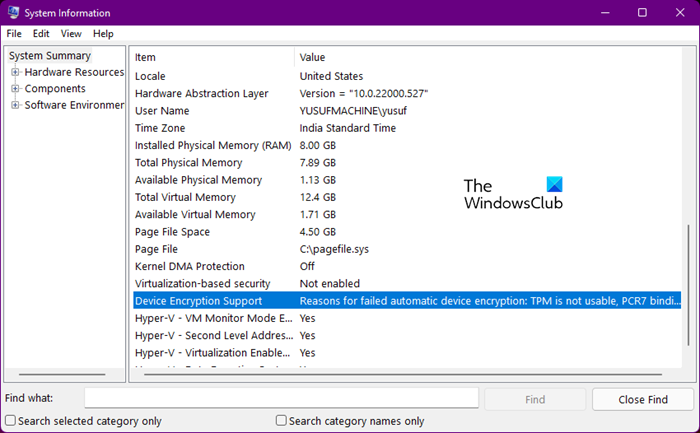
First and foremost, you need to make sure your computer is compatible with data encryption. The following conditions must be met to use Device Encryption.
- TPM Module 2.0 (Trusted Platform Module) with support for Modern Standby
- TPM must be enabled
- UEFI (Unified Extensible Firmware Interface) firmware
You can also check whether your system is compatible using the System Information app. So, search out “System Information” from the Start Menu. Once the app launches, look for Device Encryption Support to find out why your encryption is not working.
2] Update your computer
If your computer is meeting the criteria, but still Device Encryption fails to work, check if there is an update available. Since one reason you may face this problem is a bug, if a bug fix is available, installing it will do the trick for you.
3] Make sure you are an administrator
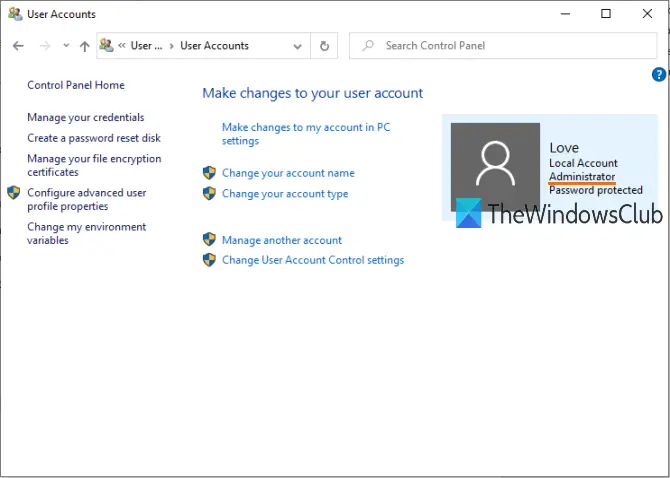
You need to make sure that you are an administrator; otherwise, you won’t be able to enable Device Encryption. To check whether you are an administrator, follow the prescribed steps.
- Open Control Panel.
- Click on User Accounts > User Accounts (yes there are two options, one after the other).
- If you see Administrator written under your username, you are the administrator.
If you are not using an administrator account, switch to it and then try enabling it.
Hopefully, this should do the trick for you.
How do I enable Encryption in Windows 11?
Device Encryption can be enabled using the Windows Settings on a Windows 11 computer. Follow the prescribed steps to enable encryption in Windows 11.
- Open Settings by Win + I.
- Click on Privacy & security.
- Go to Device encryption.
- Enable the toggle Device encryption.
This way, your drive will be encrypted.
Read: What is the difference between Encryption and Hashing?
Does Windows 11 have Device Encryption?
Yes, Windows 11 has Device Encryption. Not just Windows 11, even Windows 10 has this feature. The importance of encryption can not be overlooked. The rise in cybersecurity threats is not hidden from anyone, not from Microsoft at the very least, which is a good thing. That is why they are trying to add features like the one in question to secure their customers’ data. Your system just needs to meet some security criteria mentioned above and you will be able to enjoy a secure life.
What to do if Encryption is missing from your system?
If your computer does not meet the criteria, you cannot encrypt files. You should try the best file and folder encryption software to do the same. These are free apps and a great alternative to the Device Encryption of Windows.
Read next:
