
Here is a full guide on how to fix d3dx9_40.dll is missing, not found, or not designed to run error on Windows 11/10. Some Windows users have reported encountering this error when attempting to open an application or game that requires the specific DLL (Dynamic Link Library) file. In this guide, we are going to address the error and how you can fix it up by using various working solutions.
What is d3dx9_40.dll?
The d3dx9_40.dll file is part of Microsoft DirectX software distribution packages. Like any other DLL (Dynamic Link Library) file, it contains specific functionality that other third-party applications can call upon. This basically enables several software and games to share functionalities that are rooted in a single file.
Now, there are generally three types of error messages associated with d3dx9_40.dll errors as reported by affected users. The first error message is as follows:
The program can’t start because d3dx9_40.dll is missing from your computer. Try reinstalling the program to fix this problem.
And the second one is as follows:
C:\Windows\system32\d3dx9_40.dll is either not designed to run on Windows or it contains an error. Try installing the program again using the original installation media or contact your system administrator or the software vendor for support.
One more:
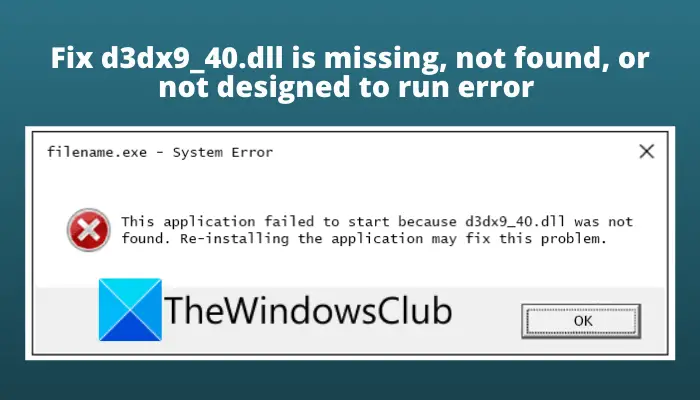
This application failed to start because d3dx9_40.dll was not found. Re-installing the application may fix this problem.
There might be some other instances of the d3dx9_40.dll error with a different error message. While the error messages differ from one another, the main cause is often the same. In most scenarios, the error occurs when the program fails to load the d3dx9_40.dll file. The reason behind this might be that d3dx9_40.dll is either corrupted or missing from your system.
Please note that if you are considering downloading and replacing the d3dx9_40.dll file from third-party sources, avoid doing so. It is not recommended to download DLL files from unknown sources, as they may contain viruses or malware that can infect your system.
RELATED: Fix d3dx dll file is missing errors in Windows.
Fix d3dx9_40.dll is missing, not found, or not designed to run error
Here are the methods you can try to fix the d3dx9_40.dll is missing, not found, or not designed to run error on Windows 11:
- Install the latest version of Microsoft DirectX.
- Uninstall and then reinstall the problematic software.
- Update your video card drivers.
- Replace the corrupted d3dx9_40.dll from the latest DirectX package.
Let us discuss the above fixes in detail now!
1] Install the latest version of Microsoft DirectX
First and foremost, you should try downloading and installing the latest version of Microsoft DirectX. This method has proven to fix the error for many affected users and might work for you as well. So, search for DirectX on Microsoft Download Center and download the latest version of DirectX End-User Runtime Web Installer. After that, run the installer and follow the onscreen instructions to complete the DirectX installation. Then, reboot your PC and check if the error is now resolved.
If this doesn’t resolve the problem, there may be an underlying corruption issue that needs to be addressed. So, proceed to the next potential fix to resolve the error.
2] Uninstall and then reinstall the problematic software
In some instances, the problem lies with the software or game itself which is giving you the error. You might be receiving this error because of faulty installation of the program or corrupted installation files associated with the software. If the scenario is applicable, try uninstalling and then reinstalling the problematic software to see if the error is resolved.
Firstly, uninstall the software by opening the Settings app using Win+I hotkey and then going to the Apps tab. Then, go to the Apps & features section and locate the problematic software in the list of installed apps. Select the three-dot menu button next to the software, and then click the Uninstall option. Follow the on-screen instructions to complete the software uninstallation.
Now, download the latest version of your software or game from its official website. And then, run the installer to install the software and complete the installation. Finally, reboot your PC and then check whether the error is now fixed.
3] Update your video card drivers
You can also try updating your video card drivers and check whether the issue is fixed or not. This method is suitable in a few cases, but it is known to resolve the DirectX issues and might work in this case as well.
Read: Fix gdi32full.dll not found or missing error on Windows.
4] Replace the corrupted d3dx9_40.dll from the latest DirectX package
If none of the above solutions work for you, there is another fix you can try. This is a kind of workaround in which you can replace the corrupted d3dx9_40.dll file with a fresh copy. The error is most likely occurring due to some underlying corruption. In that case, you should be able to fix it by restoring the correct d3dx9_40.dll file on your system.
To replace the concerned DLL file, first, we will be deleting the file and then restoring it back from the latest DirectX package. If deleting is not allowed, you can try renaming the file. Let us check out the process to restore the d3dx9_40.dll file.
- Firstly, open the File Explorer using Windows + E hotkey and then navigate to this location: C:\Windows\System32
- Now, locate the d3dx9_40.dll file manually or from the search bar in the above location.
- Next, select the d3dx9_40.dll file and then Delete the file. If deleting the file results in a different error or you are unable to delete it, rename the file with a .old extension.
- After that, go to the C:\Windows\SysWOW64 location in the File Explorer and repeat the above procedure for the d3dx9_40.dll file.
- Then, download the DirectX End-User Runtimes (latest version) installer from the official source, launch the installer, and follow the on-screen guide to complete the installation. This will restore the missing d3dx9_40.dll file.
- Finally, restart your Pc and then check if the error is now fixed.
See: Fix Crypt32.dll not found or missing error in Windows.
How do I fix the missing packet.dll?
The corruption of the packet DLL file can lead to the missing packet.dll file errors. Alternatively, you may have accidentally deleted the file. In the latter case, you can restore the deleted file from Recycle Bin or use free data recovery software to restore it. If there are some other reasons for this error, you can try reinstalling the program that uses the packet.dll file, run a virus scan and remove found virus, update drivers for hardware devices, and install available Windows updates. If that doesn’t work, perform a system restore to get rid of the error.
How do I fix missing DLL files in Windows?
To fix the missing DLL file errors on Windows 11/10, you can run the built-in System File Checker (SFC) and DISM tool, repair or reinstall the software giving you the error, replace the DLL file with a fresh copy, etc. However, it is not recommended to download any DLL file from third-party resources since you might end up corrupting your system by doing so.
Now read: Fix microsoft.directx.directdraw.dll was not found or is missing error.
