
Some Windows users are reporting the issue whereby they encounter the error message The current input timing is not supported by the monitor display when opening certain applications or at the very start of their Windows 11 or Windows 10 system booting procedure. The issue is mostly reported to occur with Dell monitors. In this post, we will provide the most adequate solutions you can try to resolve this issue.
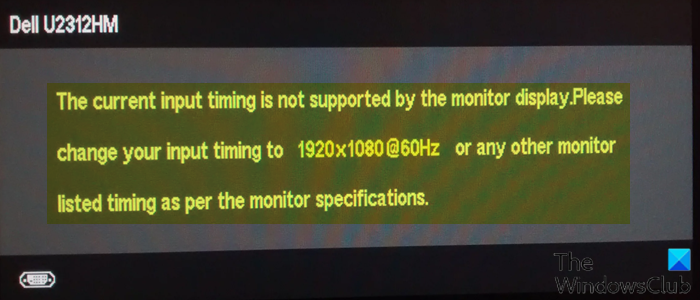
When you encounter this issue, you’ll receive the following full error message;
Dell U2312HM
The current input timing is not supported by the monitor display. Please change your input timing to 1920×1080@60Hz or any other monitor listed timing as per the monitor specifications.
You may experience this error on your computer because your monitor fails to synchronize the input signals from your computer, or there is something wrong with your monitor connections.
The current input timing is not supported by the monitor display
If you’re faced with this issue, you can try our recommended solutions below in no particular order and see if that helps to resolve The current input timing is not supported by the monitor display issue on your Windows 11/10 computer.
- Use a different cable
- Change your monitor settings
- Update graphics card driver
- Boot your computer in low-resolution mode
Let’s take a look at the description of the process involved concerning each of the listed solutions.
1] Use a different cable
As already identified, this The current input timing is not supported by the monitor display issue on your Windows 11/10 computer might be a case of loose connection cable between the PC and the monitor. In this case, if you have a spare cable, you can replace it and see if that helps. A good indication that the cable has gone bad is if you have previously noticed any sudden screen flickering or interruptions.
Keep in mind that when deciding to buy a new cable, look for a shorter but higher-quality cable instead of focusing on the length.
2] Change your monitor settings
As suggested in the error prompt, you can adjust your input timing to match the specific resolution and refresh rate indicated on the error prompt or any other monitor’s listed timing, as specified by the monitor’s specifications. This solution requires you to simply change your screen resolution accordingly.
3] Update graphics card driver
You can either update your video card drivers manually via the Device Manager, or you can get the driver updates on the Optional Updates section under Windows Update. You may also download the latest version of the driver from the graphics card hardware manufacturer’s website.
4] Boot your computer in low-resolution mode
This solution requires you to boot your Windows computer in low-resolution mode. The option Enable low-resolution video – starts Windows with current video driver & using low resolution (640×480) & refresh rate settings
How do I restore Dell monitor to factory settings?
If you want to restore the Dell monitor to its factory settings, you can follow these instructions on how to reset Dell Monitor Settings: Ensure your monitor is plugged into a power source. It doesn’t need to be connected to your PC. Navigate through the OSD menu settings using the plus and minus buttons. Press the menu button again to select Factory Settings. A screen appears, asking you to confirm your choice.
How do I fix monitor input?
To fix the monitor input on your Windows 11/10 computer, follow these steps: Under the monitor name that is displaying the ‘Input Not Supported’ error, click ‘Display adapter properties’ for the display. In the pop-up pane, click the Monitor tab. In the Screen refresh rate, choose the recommended or default rate in the drop-down menu. Save the changes and restart your computer.
Related post: How to get 1920×1080 resolution on 1366×768 screen in Windows.
