
If you want to get 1920×1080 resolution on a 1366×768 screen in Windows 11/10, then this post might be helpful. We will also share what you need to do if the display resolution 1920×1080 is missing, not showing or has disappeared in Windows 11. There will be less scrolling with higher resolution while working with documents and web browsers, sharper images, a better gaming experience, and lots more. Windows OS will automatically set the best screen resolution for your PC as the default. But you can switch to any other – as long as things don’t look odd.

Get 1920×1080 resolution on 1366×768 screen in Windows 11/10
To set a 1920×1080 display resolution in a Windows computer screen, there are two options that might help. These are:
- Change Display resolution using Settings
- Update Display adapter driver.
Let’s check these two options.
1] Change Display resolution using Settings
In Windows 11, do this:
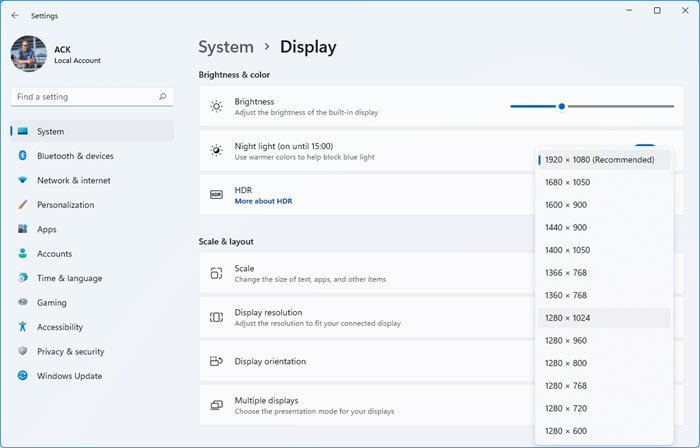
- Open Settings > System
- On the right side, select Display > Display resolution
- Use the drop-down menu available for Display resolution to select 1920×1080 resolution
- Press the Keep changes button.
In Windows 10 these are the steps:
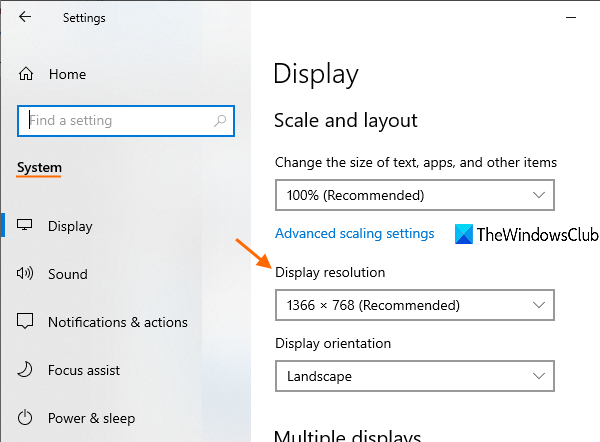
- Open Settings app using Win+I hotkey
- Access System category
- Scroll down to access the Display resolution section available on the right part of the Display page
- Use the drop-down menu available for Display resolution to select 1920×1080 resolution
- Press the Keep changes button.
If you want, you can also use other ways to change display resolution in Windows.
2] Update Display adapter driver
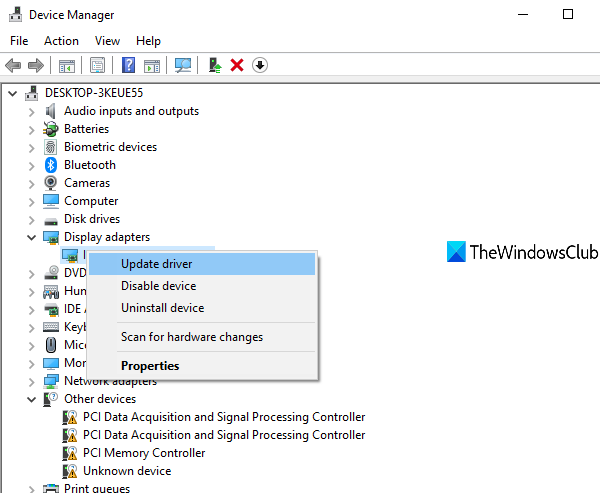
If you can’t set a 1920×1080 display resolution on your Windows 10 computer, it’s probably because you have an outdated display adapter or Graphics driver. Updating to the latest graphics driver might work, and it’s pretty simple.
Simply use the Search box to open Device Manager or use any of your preferred ways to open it. After that, access the Display adapters section, and update Graphics drivers on your Windows 11/10 computer.
You’ll have the option to automatically update the driver to the latest version or manually update it using the file stored in your computer (if available). After updating the Graphics driver, restart the computer if necessary, then try changing the display resolution.
It could be a hardware limitation if you still cannot change it.
This post offers suggestions if can’t change the screen resolution in Windows.
Display resolution 1920×1080 missing, not showing or disappeared in Windows 11
If your 1920×1080 resolution option disappears in Windows 11, it usually means the graphics driver or monitor information isn’t being detected correctly. First, update or reinstall your GPU drivers (Intel, NVIDIA, or AMD) via the manufacturer’s site. If the issue started after an update, roll back the driver. You can also manually set 1920×1080 under Display adapter properties > List All Modes, or add it through your GPU’s control panel (NVIDIA/AMD/Intel). You should also check your HDMI/DisplayPort cable and try another port if needed. As a last resort, use a tool like Custom Resolution Utility (CRU) to force the resolution back.
