
If you’re having web-browser issues (like freezing, not responding, high CPU/Disk/Memory usage) on your Windows 11 or Windows 10 computer, you can simply restart the browser without losing tabs. In this post, we will show you how to create a Bookmark to restart Chrome, Edge, or Opera.
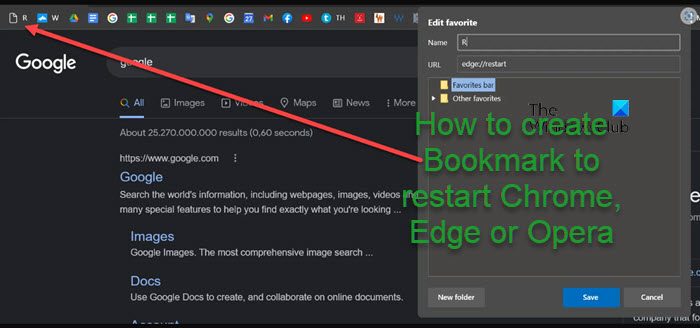
How to create a Bookmark to restart a browser
Besides common browser issues, you may need to restart your browser after installing 3rd-party extensions or add-ons, or after making functionality changes, to apply the changes. In the case that you have multiple tabs and windows open in your web browser, and you close and reopen the browser, you’ll lose all running tabs and windows, requiring you to manually restore the last session using browser options.
Users that want to continue where they left off after restarting a web browser, can do so using built-in official methods as we have shown in the post on how to restart Chrome, Edge, or Firefox without losing tabs in Windows 11/10. As we all know, there is a built-in URL that can be executed in the address bar to immediately restart Google Chrome, Microsoft Edge, and Opera browsers without losing any tab. If you want, you can bookmark this URL to quickly and easily restart these Chromium-based browsers any time – but you’ll notice that these URLs don’t show any page, so you can’t bookmark them. However, you can create and manually add these URLs as bookmarks using your browser’s bookmarks manager as described below.
Read: StorURL: Cross-browser Bookmark Manager for Windows
Create a Bookmark to restart Chrome
To create a Bookmark to restart Chrome, do the following:
- Open Chrome.
- In Google Chrome, type chrome://bookmarks/ in the address bar and hit Enter to launch Bookmarks Manager. Alternatively, press Ctrl+Shift+O on the keyboard to access it.
- Now, right-click and select Add new bookmark option.
- Give any name and type chrome://restart in the URL field.
- Click on the Save button to create the bookmark.
Read: How to assign a Shortcut Key to open Google Chrome bookmarks
Create a Bookmark to restart Edge

To create a Bookmark to restart Edge, do the following:
- Open Edge.
- In Microsoft Edge, type any of the following into the address bar and hit Enter to open Bookmarks Manager. Alternatively, press Ctrl+Shift+O on the keyboard for the same result.
chrome://bookmarks/
edge://bookmarks
edge://favorites
- Now, right-click and select Add favorite option.
- Give any name and type edge://restart in the URL section.
- Click on the Save button to create the bookmark.
Read: How to save all Tabs as Favorites or Bookmarks in Edge
Create a Bookmark to restart Opera

To create a Bookmark to restart Opera, do the following:
- Launch Opera browser.
- In Opera, type either of the following into the address bar and hit Enter to open Bookmarks Manager. Alternatively, press Ctrl+Shift+B on the keyboard for the same result.
chrome://bookmarks/
opera://bookmarks/
- Now copy either of the following URL:
chrome://restart
opera://restart
- Right-click in Bookmarks Manager and select the Paste option. Alternatively, you can press the Ctrl+V hotkey to paste the URL.
A bookmark for the Restart function will now be created.
Read: How to backup Opera Bookmarks, Data, Passwords, History, Extensions
As previously stated, these restart URLs don’t show any page; so another way to create the restart bookmark is, you can bookmark any web page, edit the bookmark and then change the URL to chrome://restart. Now you can restart your web browser quickly and easily using a simple one-click by clicking the bookmark button present in the bookmarks bar.
This capability is not present in Firefox.
Related post: Make Bookmarks Icon only in Chrome, Edge, or Firefox browser
How do I restart my Edge browser?
To restore the browsing tabs of your last session in Google Chrome, Microsoft Edge & Opera, you may simply restart your browser using the Ctrl+Shift+T shortcut keys. The session will be restored.
How do I restart a website on Chrome?
Type chrome://restart in the address bar, and the browser will shut down and restart. All previously opened tabs – and any other windows with Chrome open – will now be restored. To restart a particular website, do the following:
- Click the Domains menu under the General section.
- In the table, view the listing select the required website, and click the Properties button.
- The website properties page will be displayed.
- Under the Domain Properties section, find the Start Website link.
- Click this link to start/stop the website.
How do you restart web browsers?
To restart your browser, click the X button in the top-right corner of the browser window to close it. Wait a few seconds, then click its program icon to reopen it.
How do I restart my computer and save tabs in Chrome?
Open the Chrome menu (click the 3-dot menu in the upper-right corner of Chrome). Click Settings. Scroll to the On Startup section at the bottom of the page. Click to enable the setting Continue where you left off.
Read: Close all opened browser tabs at once in Chrome, Edge, or Firefox.
