
Chrome browser is now the most used among its competitors as it offers many features and supports several browser extensions. If you need to switch to Chrome or upgrade it, you must download the software file before installing it. For some users, the download gets stuck while downloading the Chrome file. This issue could be caused by a lot of reasons which include the presence of antivirus, incorrect settings, network issues, and many others. However, there are several ways to fix the Chrome installer stuck on download issue, which we will cover in detail in this article.
Chrome Installer stuck on Waiting to download on Windows PC
If you are looking for ways to fix a stuck Chrome download on your Windows computer, here are some effective workarounds.
- Restart your PC
- Make sure your internet connection is stable
- Temporarily disable Antivirus or Firewall
- Try Offline Chrome Installer
- Change download patch
- Check your Storage
- Download in incognito mode
To help troubleshoot this issue very well, let’s discuss the details of the solutions above
1] Restart your PC
Before trying anything else, restart your computer, then try downloading the application again. This solution will work if a misbehaving program on your computer is causing the issue. Restarting your computer clears everything and gives your PC a fresh start. So, it’s recommended to give this a try, and if it fails to work, move to the next solution.
2] Make sure your internet connection is stable
An unstable internet connection can cause your file download to stall, so it could be the cause of this problem. Check whether your connection is working well by downloading other files on your computer or checking your data subscription. Alternatively, disconnect from your internet source and reconnect, then try downloading the Chrome file again.
3] Temporarily disable Antivirus or Firewall
Antivirus or firewall software on your computer can also cause downloads to get stuck. This may be the reason for your issue, as some users have fixed the problem by disabling or removing the McAfee firewall. Hence, if you are downloading Chrome on your computer but it gets stuck, tries to disable firewalls and antivirus on the PC and re-download the application file.
4] Try Offline Chrome Installer
You can also use the Offline Chrome Installer to download Chrome apps on your computer in case you are downloading the online installer. This package doesn’t require the internet to install Google Chrome and can help you download the application.
5] Change download path
Sometimes your browser’s download path points to the wrong location, so check it and change it to a valid location. Here is how to do that:
- Launch the browser you’re using; Let’s use Edge in this case.
- Click on the three-dot icon at the top of the page and select Settings.
- In the General section, navigate to Download.
- Then select Change and choose the correct location for your downloads.
6] Check your Storage
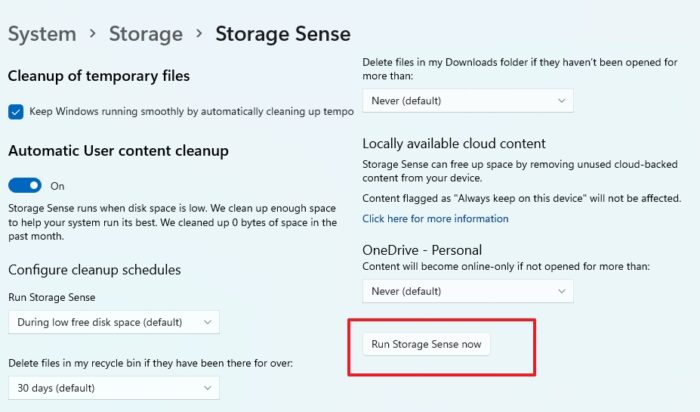
Limited storage space won’t allow files to download successfully on your PC. If your computer has very little storage and you are trying to download Chrome, the download will likely get stuck. Use Storage Sense to check and clear disk space to fix this issue.
7] Download in Incognito mode
Some users have reported that the download succeeded when they used the browser’s Private or Incognito Mode. Try this and see if it works for you.
Related: How to Install Google Chrome using Windows PowerShell
Why is Chrome taking forever to download?
For users trying to download a Chrome app on their computer, but the download is stuck, it is most likely because of your network connection. However, if your network connection is stable, an antivirus or firewall may be blocking the download. Also, make sure you have enough space on your computer, as that may be why the download is stuck.
How do I fix a stuck Chrome download?
There are several ways to fix a stuck Chrome download, but start by disabling your firewall and antivirus. Sometimes a firewall or antivirus can interrupt your download, so it helps to disable these programs to fix the issue. Also, make sure your internet connection is stable for the download to succeed.
Read: Can’t download or save images from Chrome on Windows PC.
