
If ChatGPT isn’t working on mobile data, here is how to fix it. If you are using mobile data on your computer and can’t access ChatGPT or have a conversation while connected to it, this article will help.
Why is ChatGPT not working on mobile data?
If ChatGPT is not working on mobile data, these could be the reasons:
- You have some network issues. (Most common cause)
- Your VPN server has some problems.
- The Private DNS is down or not working.
- Your browser is not supported by ChatGPT.
- Some other browser extension is blocking websites.
- Many apps are using your internet, and ChatGPT isn’t getting enough bandwidth to show results.
ChatGPT not working on mobile data
If ChatGPT is not working on mobile data, follow these solutions:
- Check mobile data network
- Check data speed
- Disable VPN and Private DNS
- Flush DNS cache
- Switch from USB tethering to mobile hotspot and vice versa
- Check ChatGPT service status
- Check Windows Firewall settings
- Other solutions
Before you begin, disable Data Saver and see if that helps.
1] Check mobile data network
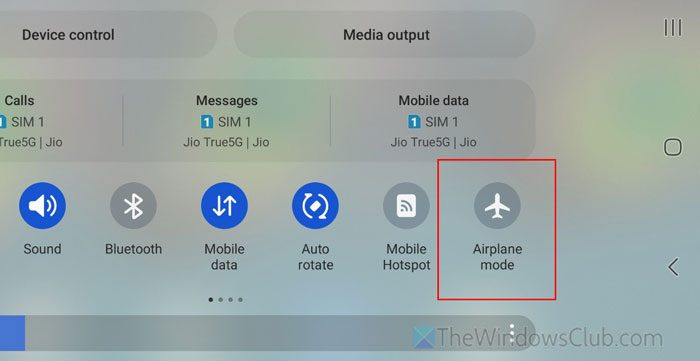
Since you are using your mobile as the internet source and it is not working, check your mobile’s data connection first. You can do these:
- Turn Airplane mode on and off.
- Switch to a different network generation (5G, 4G). Your internet speed and cellular network depend on the current location.
- Disconnect all the other devices connected to your mobile hotspot.
- Don’t use USB tethering and a mobile hotspot at the same time.
Your mobile network should not be blocking ChatGPT’s connection. Open Settings > Network & Internet > Mobile network and see.
2] Check data speed
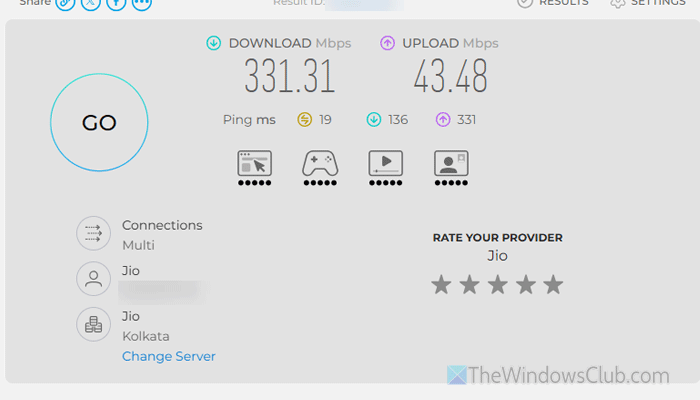
Sometimes, you may have a valid internet connection but with very low speed, which won’t be enough for ChatGPT to fetch everything and show you the result.
To check the internet data speed, go to speedtest.net and click the GO button. If it shows sufficient data speed, you are good to go. Otherwise, switch to a different network.
Read: Best free Internet Speed Test online services and websites
3] Disable VPN and Private DNS
You must disable VPN and Private DNS on Windows 11 PC as well as mobile. To disable Private DNS, open the Windows Settings panel and go to Network & internet. Then, click the internet source and select Hardware properties.
Head to the DNS server management and click the Edit button. Choose the Automatic (DHCP) option from the drop-down menu and click the Save button.
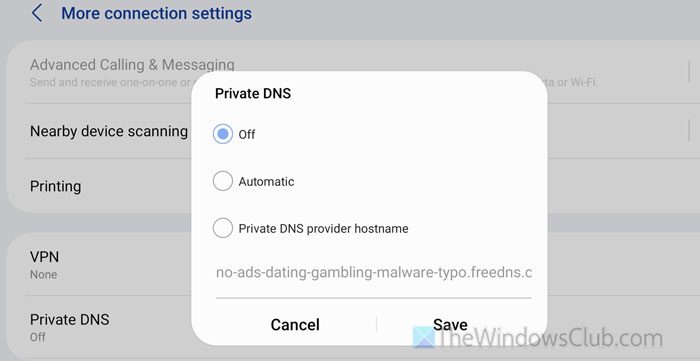
To disable Private DNS on mobile, open the Connections settings and go to More connection settings. (It might be slightly different as it depends on the mobile manufacturer)
Select the Private DNS option and choose the Off option. Tap on the Save button.
4] Flush DNS cache
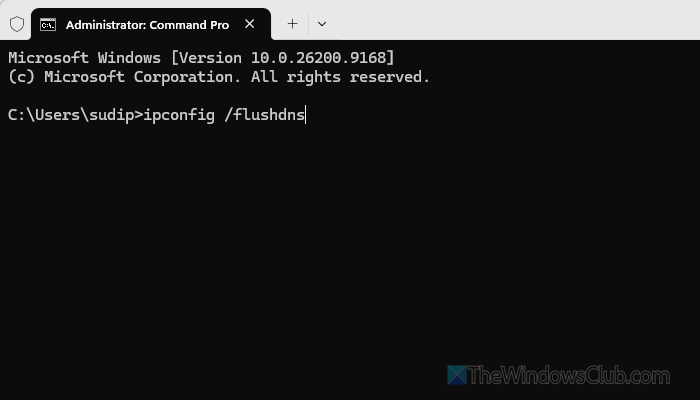
To flush DNS cache on Windows 11, open the Terminal with administrative privileges and make sure that you have opened a Command Prompt instance. If so, enter this command:
ipconfig /flushdns
You will see a message saying Successfully flushed the DNS Resolver Cache. If so, restart your browser and try again.
5] Switch from USB tethering to mobile hotspot and vice versa
At times, the network adapter might be jammed, and as a result, you won’t be able to use the same type of network for a very long time. Switch to a different internet source and see. That said, if you have been using USB tethering, try a mobile hotspot and vice versa.
6] Check ChatGPT service status
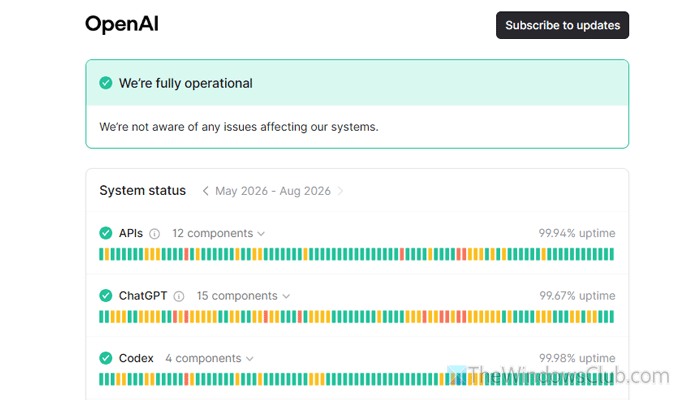
Check whether ChatGPT is working. If there are issues with the ChatGPT server, you cannot do anything to resolve them. Therefore, visit status.openai.com and check if you can see We’re fully operational message or not.
If not, wait for a few minutes and try again. Do not try to access ChatGPT unless you see the aforementioned message.
7] Check Windows Firewall settings
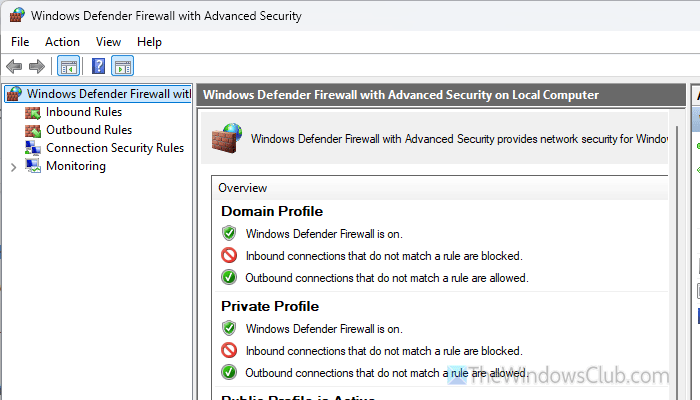
Windows Firewall might be blocking your mobile internet connection. If so, Windows won’t recognize your internet connection as valid. As a result, no website will open irrespective of the browser. That is why we suggest checking Windows Firewall and unblocking your data connection.
If you are using a third-party Firewall program like ZoneAlarm Free Firewall, Sophos, TinyWall, or anything else, check whether it’s blocking your connection.
8] Other solutions
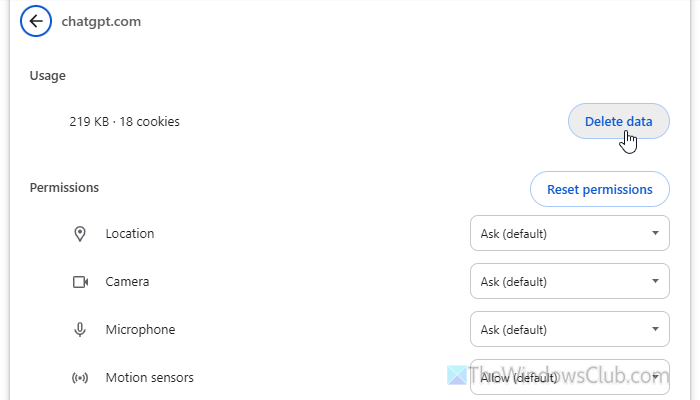
- Clear browser cache: To clear the browser cache for the specific website, open the ChatGPT website, click on the icon visible before the URL, and select Site settings. Then, click on Delete data
- Try another browser: ChatGPT is compatible with Chrome, Edge, Apple Safari, Brave, Firefox, etc. If you use a different browser, try one of these.
- Disable extension: In case you are using a parental control-type extension in your browser, disable it. Some extensions often block random websites for child safety. To disable an extension, open the Extensions panel in your browser, find it, and toggle the button to turn it OFF.
- Close unnecessary apps that might eat your bandwidth: If your mobile data speed is low and you are using a lot of internet-heavy apps, you may run into this problem. That is why open the Task Manager, find apps that may eat your bandwidth, and close them. Also, check your mobile, find such apps, and close them accordingly.
- Remove bandwidth limit: If you have a bandwidth limit, you must remove it. Whether it is set on mobile or computer, you must disable it before moving forward.
Read: Fix ChatGPT Internal server error
Why is ChatGPT not working on my phone?
If ChatGPT isn’t working on your phone, you may have internet connection issues, a VPN that isn’t working, or something similar. Also, if you haven’t updated the app in a long time, it might stop working properly.
Is OpenAI ChatGPT down?
To check whether ChatGPT is down, visit status.openai.com. If you find We’re fully operational message, it implies that all the services are running fine. Otherwise, you will find an error message.
