
Compact Flash (CF) Card is an important element of photography. They allow us to capture photos and videos in the desired formats and quality and transfer the footage to a computer. Under normal circumstances, the computer must recognize, display, and read the CF card connected to it. If not, we cannot access the data captured and saved on it. When you find your CF card not recognized, showing up, or reading on a Windows computer, we have some quick fixes that can help it work again on your PC.
CF card not recognized, showing up, or reading on Windows computer
If your Compact Flash (CF) card fails to work on a Windows PC for any reason, does not show up, or your PC fails to read its data, the following methods can help you get it working normally.
- Ensure the card is working fine on the Camera
- Make sure the card reader is working
- Check the Device Manager and enable it manually
- Assign a drive letter
- Recover data and format the card
Let’s deep dive into each method and see how they help.
1] Ensure the card is working fine on the Camera
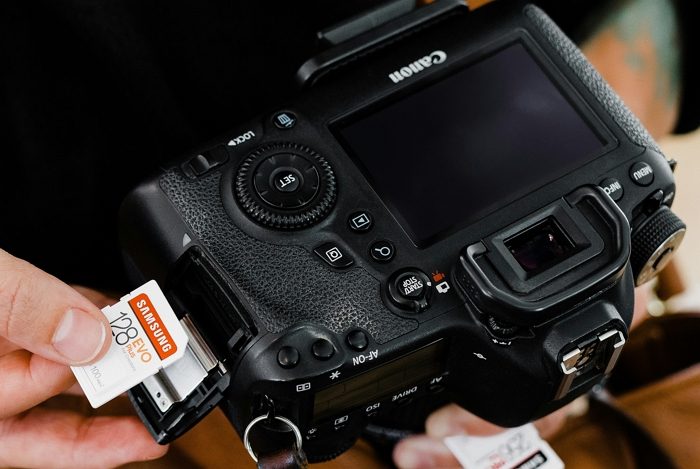
CF cards or any memory cards should be handled carefully. Even the smallest mistake can damage the cards and make them unusable. Plug the card back into the Camera and see if it works properly. If you are having issues with a card you have not used for a long time, it may be damaged or have issues with the tiny physical ports on the card. You need to take it to the service center to get it fixed.
2] Make sure the card reader is working
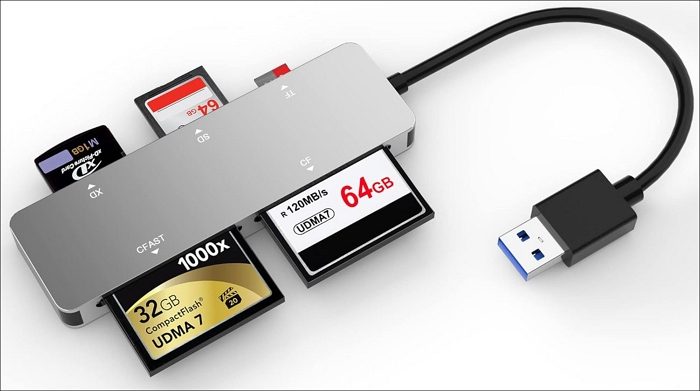
If your Windows computer fails to recognize or read your CF card, the problem is likely with the card reader you are using. Try other cards in the same card reader to see if it is working properly. If you have another card reader, try the non-working card in that one and check if it works. Similarly, try different ports on your Windows PC and see if it works. If it is actually an issue with the card reader, discard it and get a new one so you don’t have the issue again.
3] Check the Device Manager and enable it manually
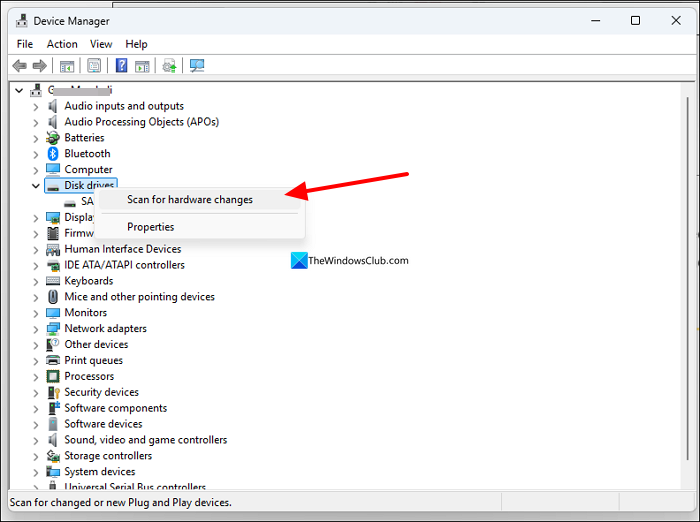
When you do not see the CF card listed on your Windows PC, even when the card and card reader are working fine, it must be an issue in the Device Manager. Open Device Manager by searching for Device Manager in the Start menu. Then, expand the Disk drives and see if your CF card, along with its brand, is listed there. If you do not find it there, right-click on the Disk drives and select Scan for hardware changes. You will see the listing there. Right-click it and enable it if it appears greyed out or not visible in My PC listings. If you are still not finding it, follow the next method as a continuation of this.
4] Assign a drive letter
If you have found the CF card listed in Device Manager and enabled it, but still have not seen it in the My PC listings, it must be due to the non-assignment of any drive letter. Generally, drive letters are assigned automatically whenever we connect a new storage space. If, for any reason, it is not assigned, it will be listed as “Unallocated”.
To assign a drive letter, open Disk Management from the Start menu by searching for Disk Management. Then, click on Create and format hard disk partitions. It opens Disk Management. Find unallocated listings that match your CF card memory size and right-click on them. Then, select New Simple Volume.
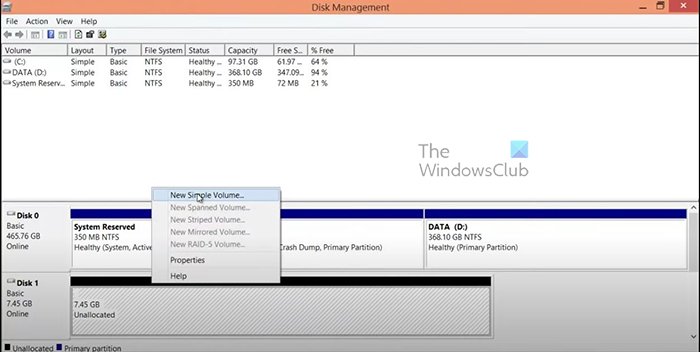
It opens the New Simple Volume Wizard to allocate unallocated space and assign a drive letter. Follow the on-screen instructions, enter the volume size, choose not to format to keep the data on it, and complete the assignment of a drive letter.
Read: How to change Drive letter in Windows 11
5] Recover data and format the card
If the card is still not working on your PC but is working on the Camera, it is better to recover the data via WiFi on your DSLR or Mirrorless camera. Use the WiFi options available on your camera, connect it to the same network as your PC, and send the data to your PC using your Camera manufacturer’s software. After successfully recovering the data, format the CF card using the options you see on the camera.
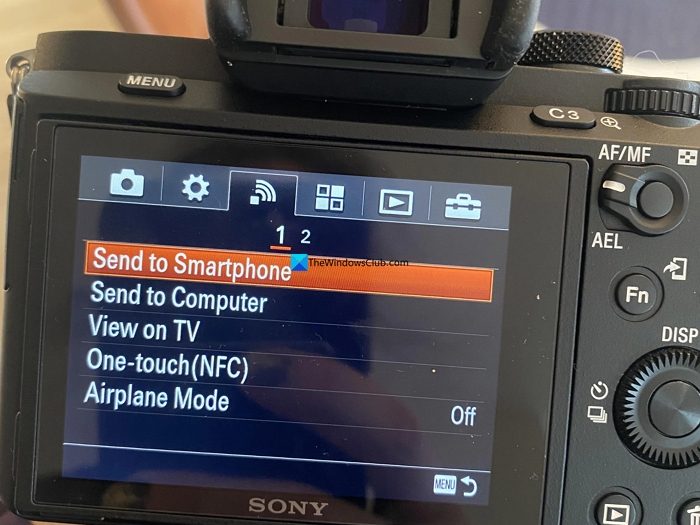
If you are using an old camera and do not have options for WiFi or data transfer, try connecting the camera to your PC with a cable, then use the camera manufacturer’s program to manually save the data from the card on your Windows PC.
Also read: Hard Drive disappeared in Windows 11
How to reformat a CF card?
To reformat a CF card, when you see it not working, first recover the data using the options available on the camera by network or by cable, and then format it using the options available on the camera. If your card is detected on a Windows PC, right-click the listing in My PC, select Format, and choose the options to format it.
Can I recover a formatted CF card?
Yes, you can recover data from a formatted CF card using data recovery software. You may not recover 100% of the data, but data recovery professionals can help you get most of the data back using their powerful data recovery programs.
Related read: Windows detected a hard disk problem.
