
To fix missing Apps and disappearing Downloads in the Microsoft Store app on Windows 11/10, you can follow the suggestions made in this post. Microsoft Store is an online marketplace for Windows users to purchase or download various applications and games. Microsoft Store has a variety of apps and games, free and paid.
Missing Apps and disappearing Downloads in the Microsoft Store app
To fix missing Apps and disappearing Downloads in the Microsoft Store app on Windows 11/10
- Reboot your PC
- Check your internet connection
- Run Windows Update
- Clear the Microsoft Store cache
- Windows Store apps Troubleshooter
- Repair or Reset Microsoft Store via Settings
1] Reboot your PC
Rebooting the PC solves temporary issues and bugs. If this is due to a temporary glitch or bug on your PC, rebooting will help. Reboot your PC and open the Store. Check if you can see the featured apps now. If not, check for the other fixes below.
2] Check your internet connection or change it and see
Your internet connection may be too weak to load apps in the Microsoft Store. Restart your modem and check if your internet is running smoothly. Now open the Microsoft Store and check if you can see the featured apps.
If you can, then or change the connection and see.
3] Run Windows Update
It is very important to keep your operating system updated always for the smooth running of your PC and the apps installed. To check whether your PC is up to date, press Win+I to open Settings, then click Windows Update. Optional updates can sometimes cause these errors, so try uninstalling recent optional updates and see if that helps.
Read: Microsoft Store apps not working or opening
4] Clear the Microsoft Store cache
You may want to reset the Microsoft Store to its default state for several reasons. Sometimes the Store just fails to work as it should, or one or more apps act up. There are other ways to fix Microsoft Store issues, but resetting and clearing the cache is the easiest.
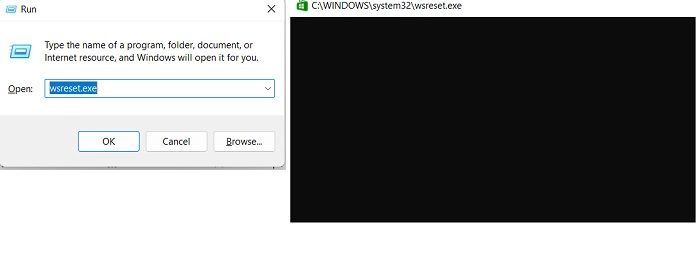
To clear the Microsoft Store Cache :
- Press Win+R to open the Run dialog box and type the command, wsreset.exe, and then click OK.
- You will see a black prompt window opened but the command is actually running.
- Wait for the command to finish and it will open the Microsoft Store automatically. It normally takes 10 seconds to complete.
- Check if now you can see the Featured Apps in the Store.
5] Run Windows Store apps Troubleshooter
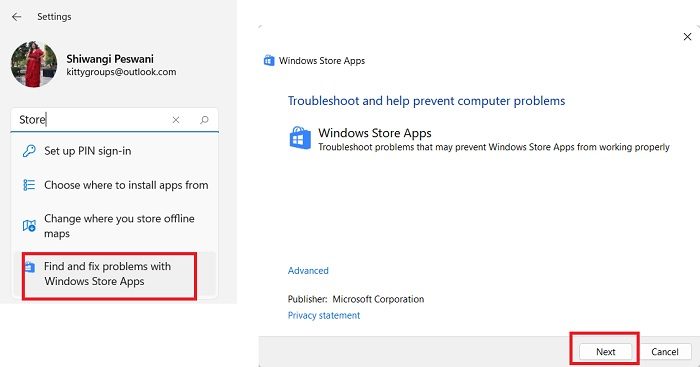
If resetting the Store doesn’t help, run the Windows Store apps Troubleshooter. This may detect the real cause and fix it. To run the troubleshooter-
- Press Win+I and open the PC Settings.
- In the Search bar, type Store, and click on the options saying, “Find and fix problems with Windows Store Apps”.
- This will open the troubleshooter. Click on Next and then the troubleshooter will check and fix if there is any problem with your Microsoft Store.
- This should most probably fix your issue but if you still can’t see the features apps in the Store because troubleshooters check for all the potential issues like- if some security settings are missing or changed, if there are any missing or corrupt files if service registration is corrupt, location of temporary internet files have changed, User Account Control settings, and if there are any hanging or crashing apps.
6] Repair or Reset Microsoft Store via Settings
You can Repair or Reset the Store via Settings.
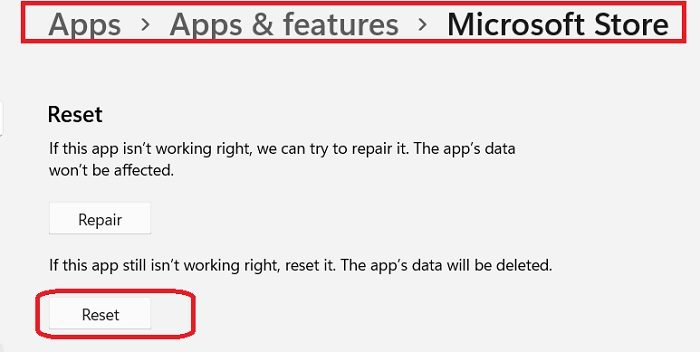
- Press Win+I to open your PC Settings and go to Apps.
- Scroll down to locate Microsoft Store, or use the search option there.
- Once you locate the Microsoft Store app, click on the three dots and select Advanced Options.
- Scroll down to the Reset option, you can either Repair or Reset the Store from here.
- If you decide to Repair, the apps in your store won’t be affected but if you Reset your Store, the app data will be deleted.
How do I run the Windows Store troubleshooter?
You can run the Windows Store troubleshooter in two ways:
- Press Win+I to open Settings > System > Troubleshoot > Other Troubleshooters. Scroll down to Windows Store and click on Run.
- Press Win+I to open Settings and type Store in the Search option. Click on “Find and fix problems with Windows Store Apps” and it will open the Windows Store troubleshooter.
How do I reset the Microsoft Store?
To reset the Microsoft Store on your PC, press Win+I to open the Settings or type Settings in the Search option. Go to Apps and find Microsoft Store. Click on the three dots and select Advanced options. Go to the Reset section and click on Reset.
Random read: We couldn’t find a camera compatible with Windows Hello Face.
