
When trying to extract a zipped file, you may encounter the Cannot Complete the Archive Extraction error on Windows 11. This could be because the archive itself is encrypted, damaged due to an incomplete download or a faulty transfer. In this post, we will see what you can do to fix this issue.
Cannot Complete the Archive Extraction Wizard
This archive contains encrypted data. Encryption is not currently supported.
To close this wizard, click Finish.
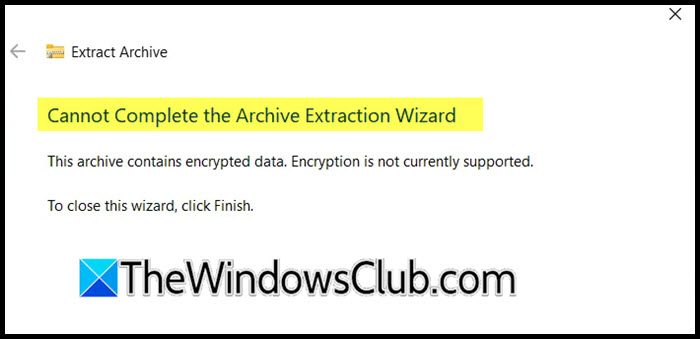
Cannot Complete the Archive Extraction on Windows 11
Thist message usually appears when you try to open or extract an archive that has been password-protected, but the tool you’re using doesn’t support decryption. It can also occur because the archive file is corrupted by an incomplete download or a faulty transfer, or because the extraction contains folder paths longer than Windows’ 260-character limit. It can also happen if you lack administrator permissions when extracting to protected system folders like Program Files, or if your antivirus or Windows Defender’s real-time scanning interferes with the extraction process. Additionally, disk errors (bad sectors) or insufficient free space on the destination drive can cause the extraction to fail midway.
If you cannot complete the archive extraction on Windows 11, follow the solutions mentioned below.
- Use 7-Zip with “Extract to ‘*\’ ” (Bypass Path Limit)
- Repair the Archive with WinRAR
- Disable Real-Time Antivirus Temporarily
- Extract using Command Line with Shortened Target Path
Before you proceed, make sure that you are using the correct password for the encrypted archive, as without the password, the contents cannot be accessed. It is quite likely that the archive isn’t broken. It’s just locked! You’ll need both a compatible tool and the correct password to open it.
1] Use 7-Zip with “Extract to ‘*\’ ” (Bypass Path Limit)
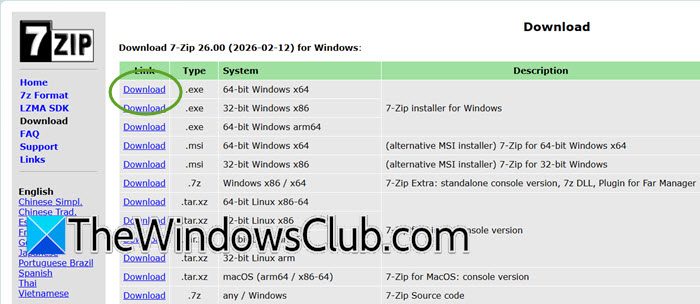
Windows has a 260-character limit for file paths, and many archives contain deeply nested folders that exceed it. By using 7-Zip’s “Extract to ‘*\’” option, the tool automatically replaces long folder names with valid short (8.3) names, keeping the total path under the limit. If that fails, checking Do not extract paths flattens all files into a single folder, completely removing the folder structure that causes the path overflow.
First, download and install 7-Zip. Now, right-click the archive, 7-Zip, Extract to “*\” (this automatically renames long paths to valid short names). If that fails, open 7-Zip File Manager, navigate to the archive, select it, and click Extract. Check Do not extract paths (flattens all files to one folder).
2] Repair the Archive with WinRAR
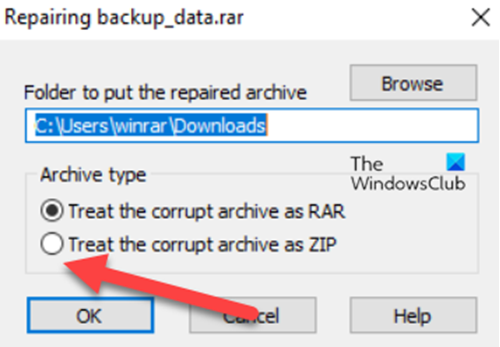
Archive corruption often affects only the file headers, the metadata that tells extraction software where each file starts and ends. WinRAR’s repair tool scans the archive, ignores damaged header sections, and rebuilds a new archive with valid headers by locating file signatures directly from the remaining data, allowing extraction of undamaged files even when the original headers are partially corrupted. You need to follow the solutions mentioned below.
- Open WinRAR.
- Navigate to the archive, select it, and click on Tools.
- Now, go to the Repair archive.
- Treat the corrupt archive as RAR/ZIP (depending on format).
- Click OK.
After repair, extract the new rebuilt.rar file. This fixes minor header corruption.
Read: How to Repair corrupted and damaged ZIP or Compressed files on Windows PC
3] Disable Real-Time Antivirus Temporarily
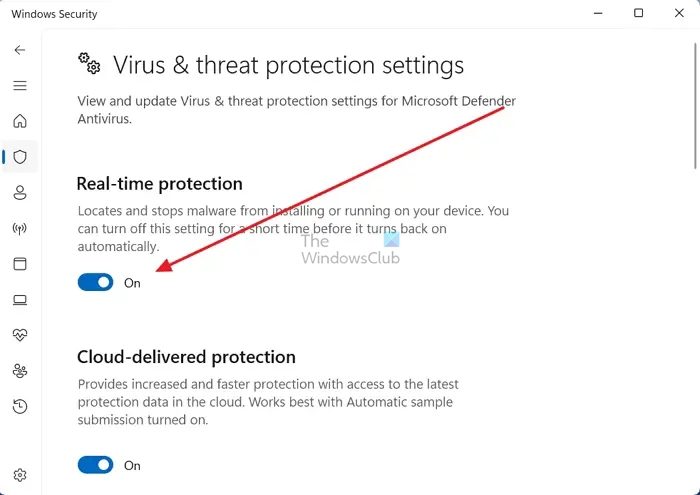
Real-time antivirus protection can lock or scan files as they are being written during extraction, sometimes causing timeouts or false-positive blocks that interrupt the process. Disabling real-time protection prevents the antivirus from interfering with file creation, allowing the extraction to complete uninterrupted. If extraction succeeds, adding the archive and destination folders to the exclusions ensures that future extractions work without permanently disabling protection. Follow the steps below to temporarily disable Real-Time Antivirus.
- Open Windows Security.
- Go to Virus & threat protection > Manage settings.
- Turn off Real-time protection (only for the extraction process).
- Extract the archive again.
If it works, add the archive folder or extraction destination to the antivirus exclusions list before re-enabling protection.
4] Extract using Command Line with Shortened Target Path
Using a short destination path like C:\extract stays well under Windows’ 260-character path limit, eliminating errors caused by overly long folder names nested inside the archive. Additionally, running Command Prompt as Administrator grants full write permissions, bypassing access restrictions that can occur when extracting to user-controlled or system-protected folders via the GUI.
Open Command Prompt as Administrator. Navigate to the archive location: cd /d “D:\Downloads”.
For ZIP (native):
powershell Expand-Archive -Path "archive.zip" -DestinationPath "C:\extract" -Force
For RAR (requires 7-Zip CLI):
"C:\Program Files\7-Zip\7z.exe" x archive.rar -oC:\extract -aos
The short destination path C:\extract avoids length and permission issues.
That’s it!
Read: Windows cannot complete the extraction in Windows 11.
How to fix error 0x80010135 Path is too long?
If you get 0x80010135 error, move the archive to a very short folder like C:\Temp and extract from there. If that fails, use 7-Zip or WinRAR instead of Windows’ built-in extractor; they ignore the 260-character limit. For a permanent fix, you need to enable Win32 Long Paths via Group Policy (gpedit.msc) and restart.
How to fix File cannot be extracted?
Use 7-Zip or WinRAR instead of Windows’ native tool; they handle more formats and recover from minor corruption. If that fails, run your extraction software as Administrator, or temporarily disable real-time antivirus protection. For a damaged archive, try WinRAR’s Repair tool (Tools > Repair archive).
Also Read: Error 0x8000FFFF Catastrophic Failure extracting ZIP file.
