
Bootrec.exe is a built-in tool in Windows operating system used to fix Windows startup issues. You will face startup problems on your Windows computer if the Master Boot Record (MBR), the Boot Sector, or the Boot Configuration Data (BCD) is/are corrupted. In such cases, you can use the Bootrec.exe utility to repair the Boot Sector, BCD, and MBR on Windows OS. Bootrec.exe can be used with different parameters depending on the task that a user wants to perform. If while running the Bootrec command with any parameter, you get the error message that says, Bootrec is not recognized as an internal or external command, operable program or batch file, you can try the solutions provided in this article.
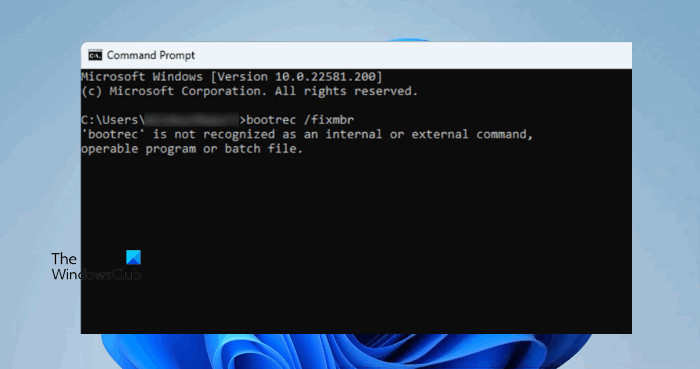
The complete error message is as follows:
bootrec.exe not recognized as an internal or external command, operable program or batch file
Bootrec is not recognized as an internal or external command
If you receive Bootrec is not recognized as an internal or external command, operable program or batch file error message while executing the Bootrec command in the Command Prompt, try the solutions provided below to resolve the issue:
- Run Bootrec command in Windows RE
- Run startup repair
Below, we have explained all these fixes in detail.
1] Run Bootrec command in Windows RE
Usually the error “A command is not recognized as an internal or external command” occurs when the particular program or executable file does not exist in the System32 folder. But with Bootrec.exe, you may get the error “bootrec is not recognized as an internal or external command, operable program or batch file” if you try to run the Bootrec command after you sign in to Windows. To fix this problem, you have to run the Bootrec command in Windows Recovery Environment.
To enter Windows Recovery Environment, press and hold the Shift key and restart your computer. If that doesn’t work, turn off your computer and turn it back on. Now, press and hold the power button when you see the Windows logo on the startup screen to force-shut down your computer. Repeat this procedure up to 3 to 4 times. After that, Windows will automatically start in the Recovery Environment.
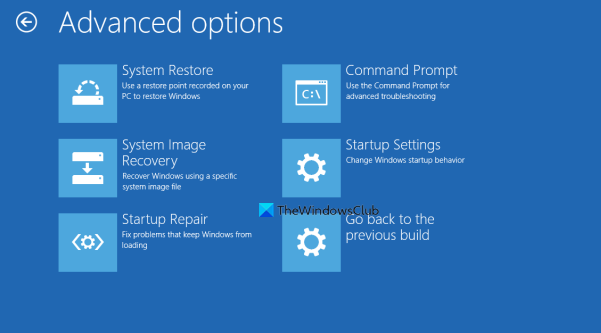
After booting into Recovery Environment, go to “Advanced Options > Troubleshoot > Advanced Options.” You will see a number of options there. Select the Command Prompt. When the Command Prompt appears on your screen, you can run the Bootrec commands.
This should fix the problem.
2] Run Startup Repair
If you still get the error, your system may have corrupted files that need repair. Hopefully, Windows operating system has an automated repair tool that searches for system file corruption and fixes the startup problems. Run the Windows Startup Repair tool and see if it helps. To run the tool, you have to enter Windows Recovery Environment. We have already talked about how to enter Windows Recovery Environment earlier in this article.
In the Windows Recovery Environment, go to “Advanced Options > Troubleshoot > Advanced Options” and select the Startup Repair option.
Read: Windows computer will not boot up, start or turn on.
How do I fix Bootrec?
You may get different errors while executing the Bootrec command with different parameters. Each of these errors requires a different troubleshooting method. For example, the “Element not found” error while executing the Bootrec /Fixboot command occurs due to a damaged BCD or MBR, an inactive drive partition, or no drive letter being assigned to the EFI partition. To fix this error, assign a new drive letter to the EFI partition and repair the BCD.
Is rebuilding BCD safe?
In the Windows ecosystem, BCD or Boot Configuration Data, tells the Windows Boot Loader where to find the boot information when a user starts the system. When the BCD gets corrupted, your computer may not be able to boot properly. In such a case, you can rebuild BCD to fix the problem. Rebuilding the BCD is safe and won’t impact your system negatively.
Hope this helps.
Read next: How to reset Windows using Advanced Startup Options when PC won’t boot.
