
Some users cannot install Windows 11 because of the Blue Screen of Death error. A BSOD occurs due to both hardware and software issues. Hardware issues such as incompatible hardware components, faulty RAM, or a processor can trigger this error. On the other hand, software issues, such as corrupt drivers, cause this error. If you encounter a BSOD while installing Windows 11, this article will help.
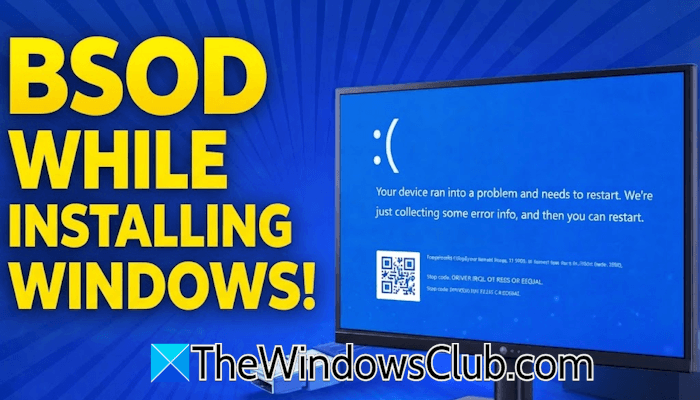
Blue Screen when installing Windows 11
Use the following fixes if you encounter a BSOD while installing Windows 11 maybe from USB:
- Disconnect non-essential hardware
- Create the installation media again
- Check your RAM
- Check for RAM overclocking
- Reset BIOS
- Remove PCIe network card (if applicable)
- Try using a dedicated GPU (if applicable)
- Hardware fault
All these fixes are explained in detail below.
1] Disconnect non-essential hardware
This is the first step of troubleshooting. Disconnecting non-essential hardware, such as printers, webcams and external hard drives, eliminates potential driver conflicts. This narrows the troubleshooting process to find the hardware triggering the BSOD error. Remove non-essential hardware and see if it works.
2] Create the installation media again
In some cases, it is the corrupt installation media. If the installation media is not created correctly, it results in file corruption, causing a BSOD error during Windows 11 installation. This might be the case with you. Create the installation media again. For this, you will need a working computer.
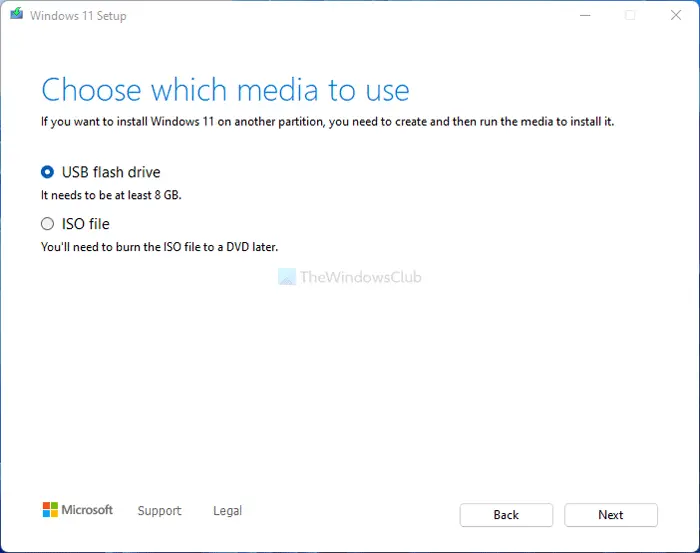
You can use Microsoft’s official Media Creation Tool or a third-party tool, such as Rufus, to create a bootable USB flash drive with Windows installation media.
3] Check your RAM
A faulty RAM or RAM slot might be responsible for this issue. To check this, insert the RAM stick into another available slot and proceed with Windows 11 installation. If the BSOD error does not occur this time, the previous RAM slot is faulty.
Windows 11 requires a minimum of 4 GB RAM. If your system has 8 GB or more than 8 GB of RAM, you can try this method to test your RAM. Remove all RAM sticks and install Windows with one RAM stick at a time. If no BSOD error occurs during installation, the RAM stick you have inserted is not faulty. The problem may be with other RAM stick(s). Now, shut down your computer and start installing other RAM sticks, one at a time. If the BSOD occurs, the RAM stick you have just installed is faulty.

If you have only one RAM stick, you can run the memory diagnostic test using a third-party tool, such as MemTest86. First, download the tool from its official website and then create a USB flash drive with MemTest86. You will need a working computer for this. Now, connect the bootable USB flash drive to your computer and change the boot order to USB flash drive. Restart your system. The system will automatically launch the MemTest86 tool. Start the memory test. After the completion of the test, the tool will display the result on your screen. If PASS is displayed, your RAM is healthy.
If the RAM is faulty, replace it.
4] Check for RAM overclocking
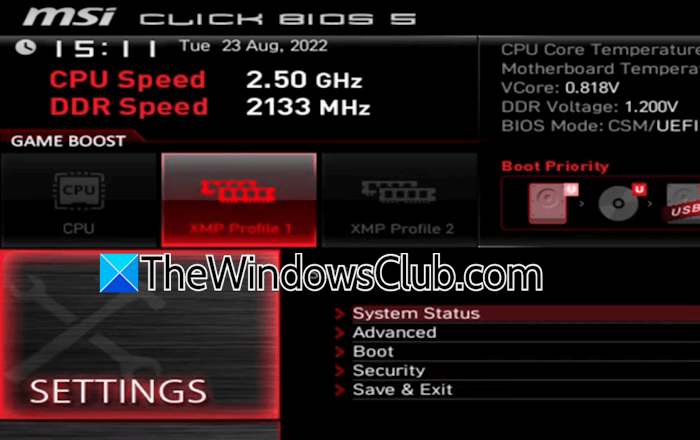
If your RAM is overclocked, you may encounter the BSOD error while installing Windows 11. To check this, boot into BIOS and navigate to the respective setting. If RAM is overclocked, disable overclocking and proceed with Windows installation.
5] Reset BIOS
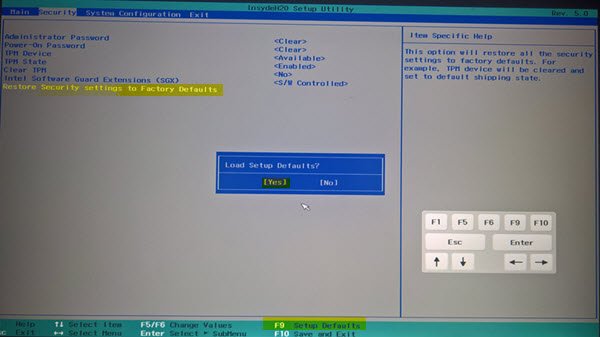
The BSOD error may also occur if your CPU is overclocked. Other misconfigured BIOS settings may also result in this problem. The easiest way to fix this is to reset the BIOS to the factory default settings. Perform this action and check if you can install Windows 11.
6] Remove PCIe network card (if applicable)
A BSOD error during a Windows installation can also occur due to incompatible hardware or drivers. One common cause is an additional PCIe network adapter installed on the motherboard. If you have installed an extra LAN card, its driver might be corrupted and conflict with the Windows installation.

Open your computer case and remove the network card from the PCIe slot. Now, start Windows installation again. If this works, you can install the LAN card after installing Windows. However, if the BSOD error occurs again after the network card installation, boot in Safe Mode and install the latest driver.
7] Try using a dedicated GPU (if applicable)
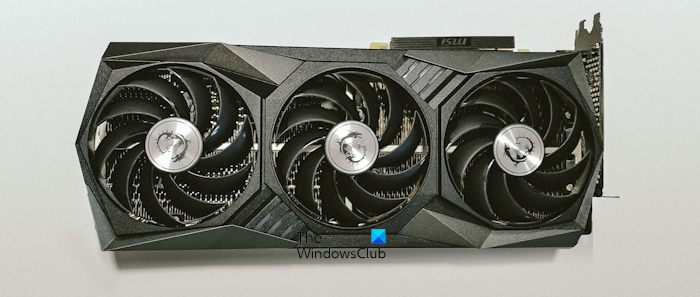
If your system has dual graphics, the problem might be with the integrated graphics card driver. To bypass the integrated graphics during Windows installation, connect your display directly to the dedicated graphics card. This will bypass the iGPU, and your system will start using the dedicated GPU. If the BSOD error does not occur, you can update the iGPU driver after installing Windows.
8] Hardware fault
If the issue persists, there may be a hardware fault. The issue may also be with the CPU. Take your system to a professional computer repair technician for further assistance.
That’s it. I hope this helps.
Related: Blue Screen after Windows Update in Windows 11
Why does Windows 11 keep getting a BSOD?
A BSOD error occurs due to hardware failures, driver conflicts, corrupted system files, or other software issues. When a BSOD occurs, Windows displays an error code and a message. Based on that error code and message, you can troubleshoot the BSOD error.
Read: Blue Screen after installing Drivers in Windows 11
How to fix the Windows 11 installation problem?
If you cannot install Windows 11, make sure your system meets the hardware requirements. Additionally, Secure Boot and TPM 2.0 should be enabled on your system for Windows 11 installation. If the problem persists, you can create a new installation media.
Read next: Black Screen when installing Windows 11.
