
Some users cannot install Windows 11 because of the black screen issue. This issue can occur for multiple reasons, such as corrupted Windows installation media, graphics driver conflicts, a faulty display cable, or a hardware fault. If your computer displays a black screen when installing Windows 11, the solutions in this article will help.
Black screen when installing Windows 11
The following solutions will help you fix the black screen issue when installing Windows 11:
- Check the cable connecting the display
- Perform a hard reset
- Update graphics drivers in Safe Mode
- Create the installation media again
- Disconnect other hard drives
- Reset BIOS
- Check the QLED indicators on your motherboard
All these fixes are explained in detail below.
1] Check the cable connecting the display
The first step is to check the cable connecting your display. It might be loosely connected, which could be causing the black screen issue. Disconnect and reconnect the cable. Also, check the cable physically for any damage. If the cable is damaged, replace it.
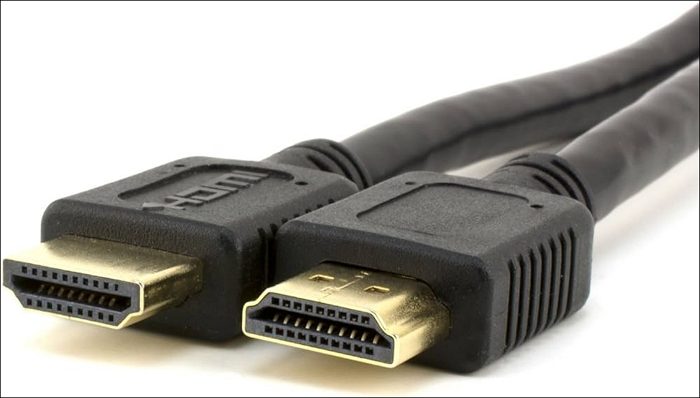
Alternatively, you can also use the DisplayPort cable and see if it helps. If the DisplayPort cable is unavailable, you can use the DP to HDMI connector.
2] Perform a hard reset
If changing the cable does not fix this issue, the next step is to perform a hard reset. Go through the following instructions:
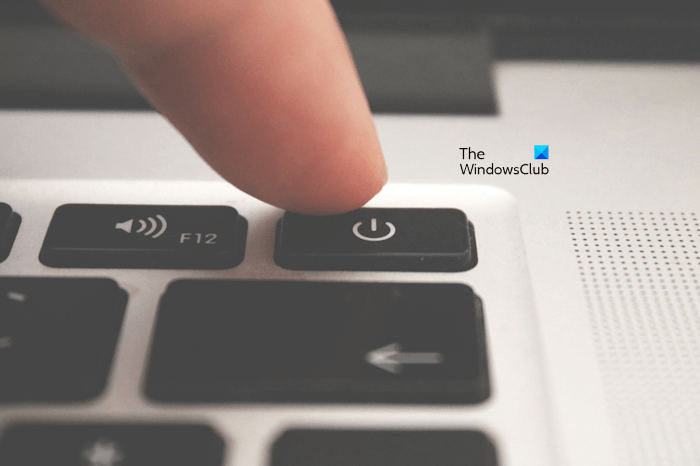
- Force shut down your computer.
- Disconnect all the peripherals.
- Press and hold the power button for 30 seconds.
- Turn on your computer.
Now, reinsert the bootable USB flash drive and start Windows installation.
3] Update graphics drivers in Safe Mode
Boot Windows in Safe Mode and then update the Graphics drivers.
4] Create the installation media again
The installation media you are using to install Windows might be corrupted, causing a black screen during installation. This may happen if the Windows installation media is not created properly. Create the bootable USB flash drive with the Windows installation media again, then reinstall Windows. You will need a working computer for this.
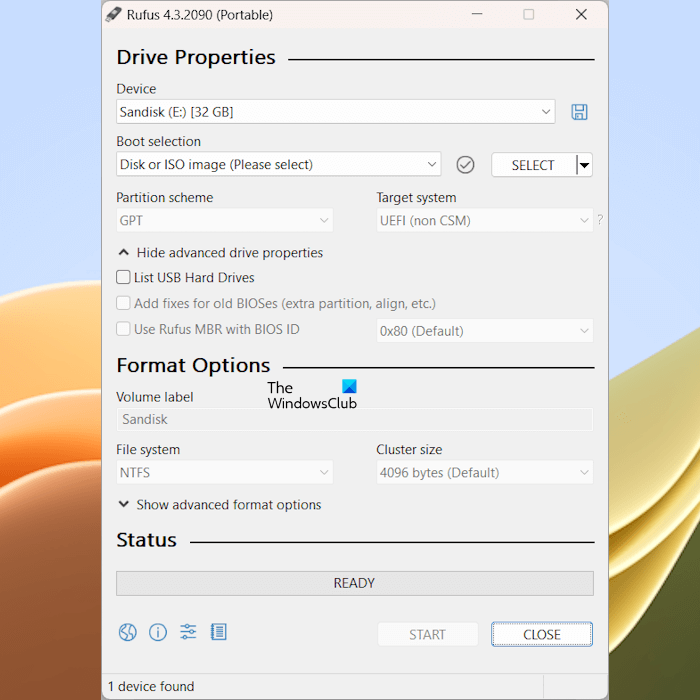
To create a bootable USB flash drive with Windows installation media, you can use Microsoft Media Creation Tool or a third-party tool, such as Rufus.
5] Disconnect other hard drives
If you are installing Windows on a separate SSD, you can disconnect other hard drives. Open your computer case and disconnect other hard drives. If this works, you can connect the hard drives after installing Windows.
6] Reset BIOS
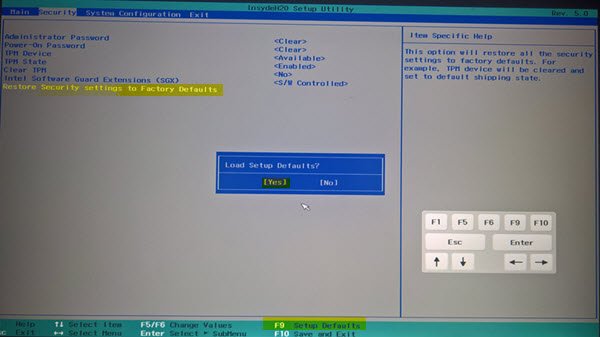
Misconfigured BIOS settings may also cause this problem. The best fix in this situation is to reset the BIOS to the factory default settings. Enter your system BIOS using the right BIOS key and then reset the BIOS to default.
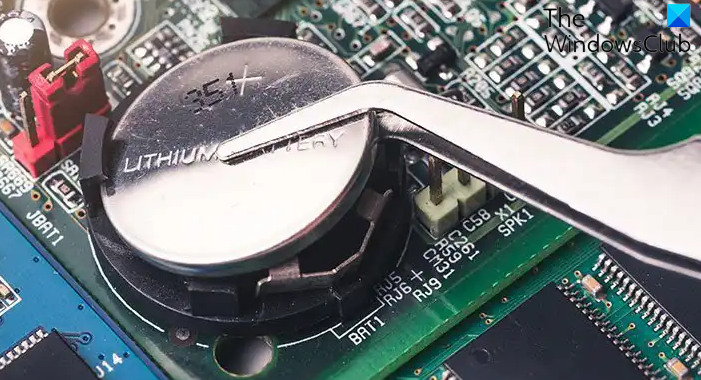
If this does not work, you can also try clearing the CMOS. Follow these steps:
- Open your computer case.
- Locate the CMOS battery and gently pull it out of the socket.
- Wait a few minutes, then reinstall the battery with the correct polarity.
Additionally, you may temporarily disable Fast Boot and Secure Boot.
Now, check if you can install Windows.
7] Check the QLED indicators on your motherboard
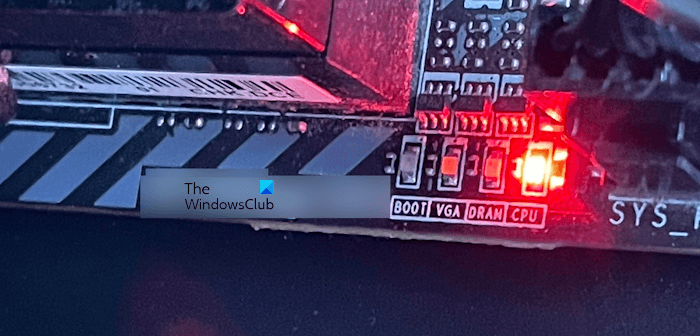
The issue might be due to a hardware fault on your motherboard. Motherboards have QLED indicators that light up when a particular hardware fault is detected. Open your computer case and then install Windows. See if any QLED indicator lights up during this process. If yes, that hardware component is failing.
There might be other underlying hardware faults with your system. Take professional help for further assistance.
That’s it. I hope this helps.
How to fix the Windows 11 startup Black screen?
If you encounter the Black screen issue on system startup, you can try running Startup Repair by entering the Windows Recovery Environment. If you see the black screen with a blinking cursor, the boot sequence might have been misconfigured. Enter your system BIOS and check the boot order.
How do I fix a Black screen problem?
The Black screen problem occurs in different scenarios on a Windows computer. Therefore, you need to apply the fixes accordingly. For example, if your screen stays black after waking the computer from sleep, you can try fixes like turning off Fast Startup, updating the BIOS, etc. If the screen goes black when scrolling the mouse, the problem may be with your display adapter or mouse driver.
