
Looking for a free CAB file extractor software for Windows 11/10? Here is a list of the best free CAB file extractor software that you can use on your Windows 11/10. A CAB (Windows Cabinet File) is an archive file format that stores Windows installation files in compressed form. This file format supports lossless data compression and is used to maintain archive integrity using embedded digital certificates.
Now, there are multiple free file decompressor/ unzipper software available for Windows PC. However, not all of them support the CAB file. There are some free software that can actually unzip or extract CAB files. To help you out, we have curated a list of free software that help you extract CAB files. These are all GUI-based desktop applications that allow you to easily unzip CAB files.
Most of them let you extract CAB files in a batch. So, you can select multiple CAB files and unzip all of them at once. In many of the listed applications, you can even preview the content of CAB files before actually extracting them. There are many more handy features available in these software. You can check out the list to know more about these free CAB file extractors.
How do I extract a CAB file?
To extract a CAB file on Windows, you need software that supports CAB archives. There are a few free applications that let you do so. To name a few, you can try 7-Zip or PeaZip, file archive software, to unzip or extract a CAB file on your PC. There are a few more GUI software programs that let you do so. Keep on reading to know the full list.
Best free CAB File Extractor software for Windows 11/10
Here is list the list of the best free CAB File Extractor software for Windows 11/10:
- 7-Zip
- PeaZip
- IZArc
- Bandizip
- Archive Extractor Online
- ezyzip.com
Let us now discuss the CAB file extractors listed above in detail!
1] 7-Zip
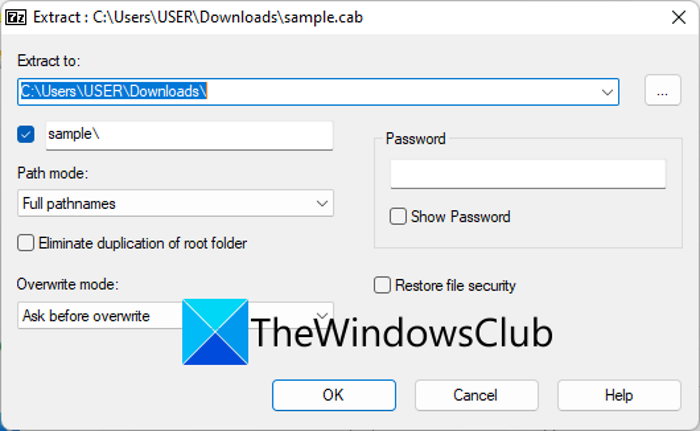
7-Zip is a popular file compression and decompression program for Windows 11/10. It also acts as a CAB file extractor, letting you extract or unpack CAB files. Besides CAB files, it lets you extract other archive files including ZIP, TAR, WIM, XZ, BZIP2, GZIP, and more. It is completely free and open source.
The good thing is that it adds itself to the Windows context menu. So, you can easily extract CAB files from its right-click context menu. The steps for extracting CAB files with 7-Zip are very simple. You can check out the dedicated process below.
How to extract CAB files using 7-Zip?
Here are the steps to extract a CAB file using 7-Zip:
- First, make sure you have downloaded and installed the 7-Zip application on your PC.
- Next, open File Explorer by pressing Windows + E, then go to the location where the source CAB files are located.
- Now, select one or more CAB files and right-click them.
- After that, from the appeared context menu, go to the 7-Zip menu and choose one of the Extract options.
- As you do that, it will start extracting the selected CAB files and you will get the extracted files in the same folder as the source one.
It also comes with a handy Open Archive feature. Using it, you can preview the content of an archive file without actually decompressing it.
Overall, it is a great free and open-source CAB file extractor that you can use to extract CAB files and many other archive formats.
Read: Fix 7-Zip Cannot open file as archive error
2] PeaZip
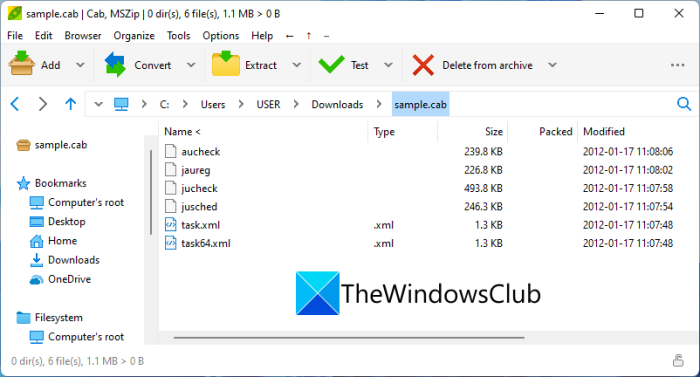
You can also use PeaZip as a CAB file extractor. It lets you easily decompress or extract an archive file in CAB format. It is primarily file compression and encryption software that allows you to compress/decompress, as well as encrypt, files and folders. It also comes with a useful feature called Password Manager.
In addition to CAB, it supports over 200 archive file formats that you can compress or decompress. Some of these formats are 7Z, ARC, ARJ, BR, BZ2, DMG, GZ, ISO, LHA, PAQ, PEA, RAR, TAR, UDF, WIM, XZ, ZIP, ZIPX, ZST, etc.
To extract CAB files with PeaZip, first download and install the application on your PC, then launch its GUI. Now, browse the input CAB files using the built-in file explorer and select one or more source CAB files to extract. After that, press the Extract button and choose the output folder where you want to save the resulting files. Finally, tap on the OK button and it will start extracting the chosen CAB files.
You also get some additional features. These features include strong encryption algorithms (AES, Twofish, Serpent), optional two-factor authentication (encryption/decryption with a password and a key file), secure delete, and file hashing.
It is a handy CAB file extractor that you can use for free.
RELATED: How to unzip, open or extract TAR.GZ, TGZ or GZ. Files in Windows?
3] IZArc
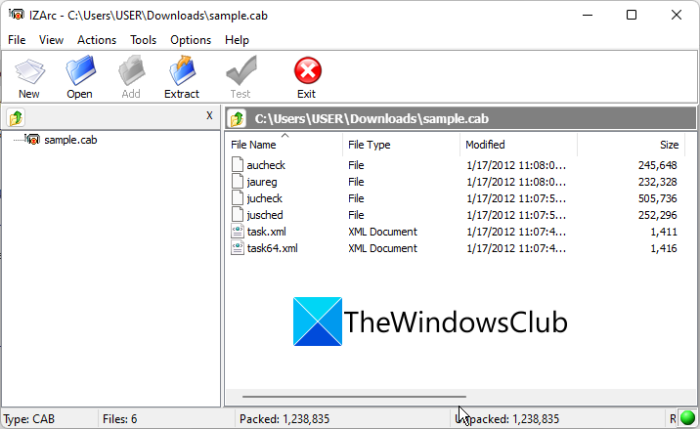
Another free CAB file extractor on this list is IZArc. With it, you can batch-extract multiple CAB files at once. You can also zip or unzip various other archive files using it, such as 7-ZIP, B64, BH, BIN, BZ2, BZA, DEB, ENC, GCA, GZ, ISO, IZE, JAR, PK3, RAR, RPM, TAR, TAZ, ZIP, and many more.
It also comes with a preview feature, with which you can view the files and data in a CAB file or any other supported archive file without unzipping it. A handy Repair Archive is also available in it, which lets you repair corrupted archive files. Other than that, you can even create self-extracting EXE archive files. Let us now look at how you can extract CAB files using this free software.
First, install the software, then launch it. After that, press the Open button to browse and select one or more source CAB files. Now, specify the output location and click on the Extract button to start the process.
It is another good free program for quickly extracting multiple CAB files on a Windows PC.
See: Extract multiple Zip, RAR, and archive files at once with ExtractNow.
4] Bandizip
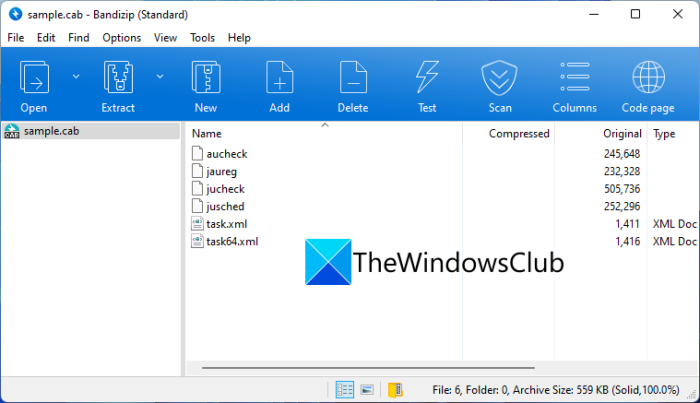
Bandizip is yet another free CAB file extractor software for Windows 11/10. It allows you to unzip a CAB file at a time. It also lets you extract 7-Zip, TGZ, TAR, RAR, and many other archive formats. Some other nice features include Set Password (encrypt archive files) and Repair Archive (repair damaged CAB or other CAB files).
To use it, simply install it and start the software. Then, use the Open Archive option to browse and import the source CAB file. After that, navigate to the Extract menu and use one of the Extract file options. Next, select the output location and press the OK button to start extracting the CAB file.
If you want an easy-to-use, fast CAB file extractor, try this one.
5] Archive Extractor Online
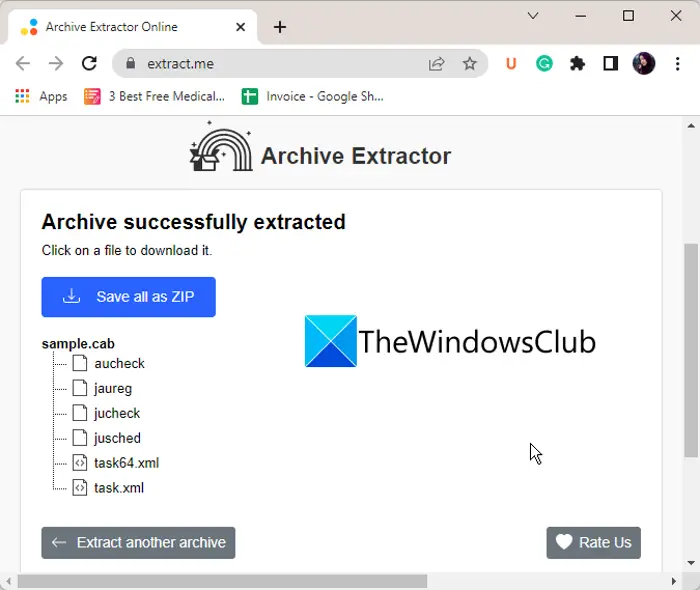
Archive Extractor Online is a free online CAB file extractor tool. Using it, you can extract various archive files including CAB, ZIP, 7Z, RAR, TAR, etc. It is very easy to use. You can simply open its website in a web browser. After that, select a CAB file from your PC, Dropbox, Google Drive, or URL. As you do that, it will extract its content and display them.
You can download the whole extracted content in a ZIP file. Or, you can also download the individual files to your PC.
To try it, head over to its website here.
Read: Compress Files, Folder, Drive in Windows to free up Disk Space.
6] ezyzip.com
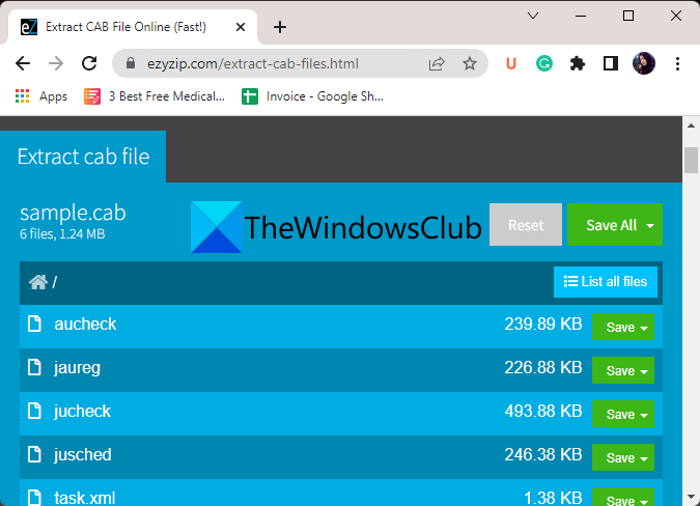
If you want a free online tool to extract CAB files, try ezyzip.com. It is a nice, easy-to-use web service that lets you uncompress CAB and many other archive file formats. Some of these archive formats include ZIP, 7Z, RAR, TAR, etc.
To use it, just navigate to its website here. After that, select the input CAB file from your PC. When you select a CAB file, it will start extracting its contents, which you can view once the process is complete. You can either preview the extracted file or save it directly to your PC.
In addition to decompression, it can be used to compress files into various archive formats. You can also find a dedicated archive converter tool on its website.
Hope this post helps you find a suitable free CAB file extractor.
What program opens CAB files?
7-ZIP can open or extract CAB files. You can also use IZArc or Bandizip to open CAB files on Windows PC. You can also try a command-based tool for extracting CAB files.
How do I view the contents of a CAB file?
To view the contents of a CAB file, you first need to extract the archive file. For that, you can use 7-Zip or any of the other desktop applications listed below. You will then be able to view the files contained in a CAB file.
Now read:
