
The automatic reply feature on the new Outlook app is one of the best features to let senders know the status. You can set an out-of-office message, or something you want the sender to know when you receive an email. You can customize it, change it, or use it according to your schedule. When you set an automatic reply in the Outlook app and it doesn’t work as intended, it can be disappointing. In this guide, we show you how to fix when the Automatic reply in the Outlook app is not working.
Automatic reply in Outlook is not working
If the automatic reply you set in the Outlook app isn’t working, you can easily fix it with the following methods.
- Check if it is configured properly
- Disable and re-enable automatic reply
- Disable conflicting inbox rules
- Check mailbox storage/quota
- Use the vacation responder features provided by providers for POP/IMAP accounts
Let’s get into the details of each method and fix automatic replies.
1] Check if it is configured properly
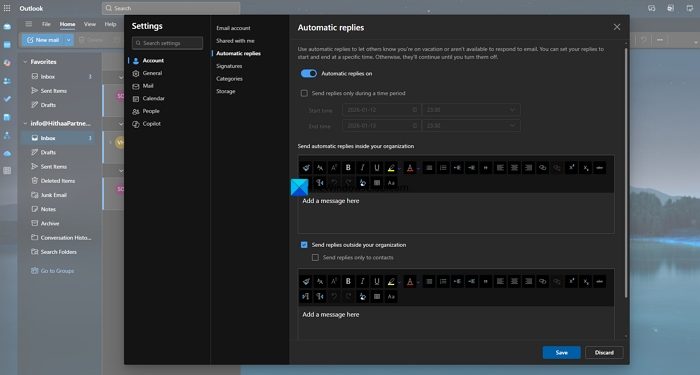
Automatic replies work as per the settings we choose. If you have chosen them to work only during a particular period or selected other options regarding contacts, you may encounter the issue where the automatic reply does not work. Open MS Outlook and go to Settings. Click Account and then Automatic replies. Turn on automatic replies by toggling the button beside it. Set the timeline of your absence if you are going out of the office for a few days. The range of dates is very important. Check the date, month, and year to configure it properly.
Add the message. Check the button beside Send replies outside your organization and uncheck Send replies only to contacts. Click Save to save the changes. Your automatic replies will now work perfectly.
2] Disable and re-enable automatic reply
Open the Outlook app on your PC, and disable the Automatic replies in the Account settings. Remove the account from the Outlook app. Open a web browser, head to outlook.com or outlook.office.com based on your account, and sign in with your credentials. Then, head to Settings. Select Account and Automatic replies. Re-enable the automatic replies by toggling the button beside Turn on automatic replies.
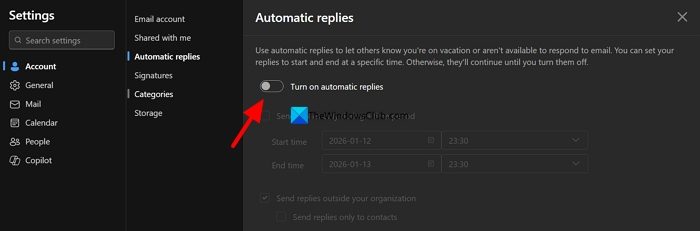
Make any necessary changes to the options and save them.
3] Disable conflicting inbox rules
If you have been using the Outlook app for a long time, you might have set Inbox rules. If any of those rules conflict with the automatic replies, it does not work as you configure. You need to disable those conflicting rules to make sure automatic replies work. Open Settings on the Outlook app, or on the web browser, and go to Mail settings.
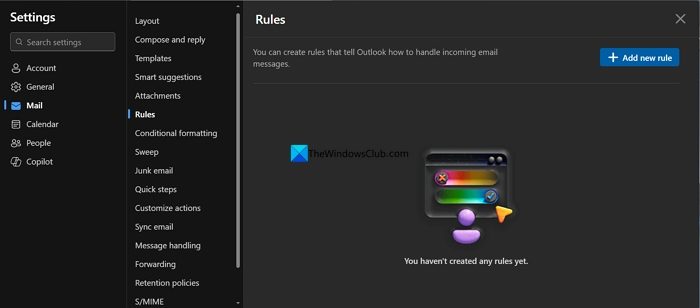
Go through all the Rules you have created and disable or delete them for automatic replies to work. Now, head to Junk email and change Income mail handling from Strict to Standard.
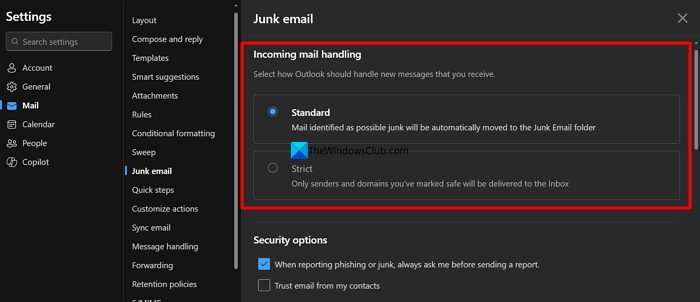
The automatic replies will now work as expected.
4] Check mailbox storage/quota
For any incoming mail to reach our inbox, we need storage space to accommodate it. If the storage space of your email account is exhausted or full, new emails from the sender bounce back to them without reaching your inbox. If you do not receive any new mail, automatic replies cannot trigger, even if you have configured them properly. Even when new emails arrive in your inbox, it would be impossible to send automatic replies due to a lack of storage space.
Go to your Outlook app settings. Click Account, and select Storage.
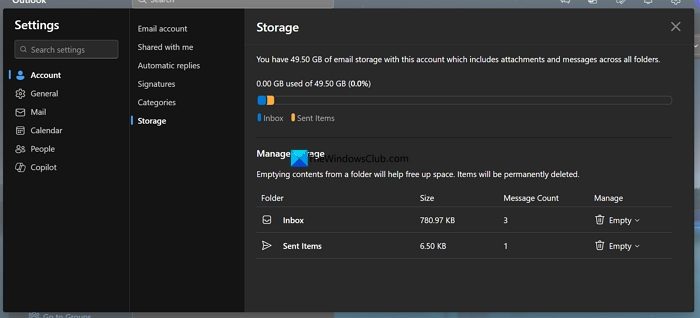
Check the allocated storage and used storage. If the storage is full, free up some space on your Outlook app by deleting unnecessary files and emails. After clearing the space for new emails, your automatic replies will work as intended.
5] Use the vacation responder features provided by providers for POP/IMAP accounts
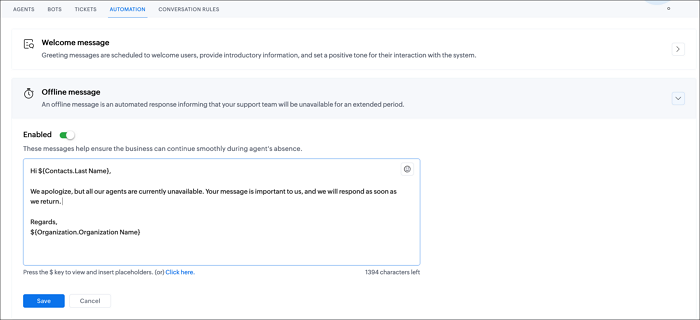
If you have your business email accounts with service providers other than Microsoft and use the Outlook app as an email client via POP/IMAP settings on your PC, you need to configure automatic replies in the settings provided by your service provider. Log in to your email account on the domain provided by the provider, then configure automatic replies in the settings. Every business email service provider has options to automate replies for vacations, out-of-office, etc.
Read: Unable to create new contact group in Outlook
Why are my automatic replies not working in Outlook?
If the automatic replies in your Outlook app are not working, it might be due to many factors, including storage space, misconfigured automatic replies, incoming email rules, junk email policies, etc. To fix the issues, you need to reconfigure the automatic replies and keep making changes until it works.
How do I know if my Outlook automatic replies are working?
Automatic replies do not end up in the Sent box like other replies. The only way to check whether your Outlook automatic replies are working is to send a test email from another account, wait a few minutes, and see if you get an automatic reply as configured in the Outlook app settings.
Related read: We couldn’t log on to the incoming (POP/IMAP) server
